


A 500 Internal Server Error is a frustrating and common server-side issue that can suddenly render your WordPress website inaccessible. For sites built with Elementor, this error often stems from specific conflicts or resource limits within your hosting environment. This guide will walk you through the most common causes and provide clear, step-by-step solutions to get your site back online.
What Causes the 500 Internal Server Error?
The error is a generic response from your web server, indicating that something went wrong, but not specifying what. For Elementor users, the root cause typically falls into one of these categories:
Insufficient PHP Memory
This is the most frequent culprit. Elementor requires a minimum of 128MB of PHP memory to run smoothly. With additional plugins and themes, 256MB or 512MB is often necessary.
Plugin or Theme Conflicts
Incompatibility between Elementor, Elementor Pro, another plugin, or your theme can cause fatal PHP errors.
Corrupted Core Files
A damaged .htaccess file or issues within WordPress, Elementor, or other plugin files can trigger the error.
Fatal PHP Errors
Bugs in plugin/theme code or reaching server resource limits can cause scripts to stop executing entirely.
Step 1: Diagnose the Problem (Find the Error Log)
Before trying fixes, identify the specific error. The key is your PHP error log.
How to Access It: The method varies by hosting provider.
cPanel: Look for “Error Log,” “Logs,” or “Metrics” sections.
Managed WordPress Hosting (e.g., WP Engine, Kinsta): Check your host’s dashboard or “Staging” area for logs.
If Unsure: Contact your hosting provider’s support and ask: “Can you please provide the recent PHP error log for my domain?” This log contains the exact error message that caused the 500 error.
Step 2: Apply Common Fixes
Fix 1: Increase Your PHP Memory Limit
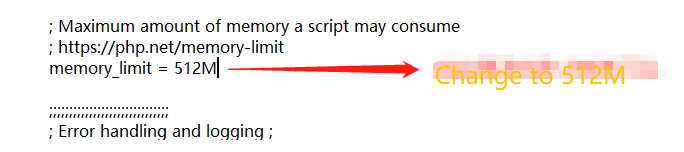
If the log mentions “Allowed memory size exhausted,” increase the limit via your wp-config.php file.
Connect to your site via FTP or your host’s File Manager.
Navigate to the root folder (where
wp-config.phpis located).Edit the file and add the following line before
/* That‘s all, stop editing! Happy publishing. */:
4.Save the file and refresh your site. If needed, you can increase this to ’512M’.
Fix 2: Check for a Corrupted .htaccess File
A faulty .htaccess file is a common cause.
Via FTP/File Manager, find the
.htaccessfile in your website’s root directory.Rename it to
.htaccess_backup.Try accessing your website. If the 500 error disappears, the file was the issue.
To regenerate a clean
.htaccessfile, go to your WordPress dashboard > Settings > Permalinks and simply click “Save Changes.”
Fix 3: Deactivate All Plugins (Conflict Test)
A plugin conflict is highly likely.
If you cannot access the WordPress admin dashboard, deactivate plugins manually:
Via FTP/File Manager, go to
/wp-content/plugins/.Rename the
pluginsfolder toplugins_deactivate. This will disable all plugins at once.Check if your site loads. If it does, a plugin is the cause.
Rename the folder back to
plugins.
To find the offending plugin, reactivate them one by one through your WordPress dashboard after you regain access, checking your site after each activation.
Step 3: Scenario-Specific Solutions
If the Error Affects Your ENTIRE Site:
Follow the general fixes above. The issue is likely server-wide (memory, .htaccess, or a globally active plugin).
If the Error Occurs Only When EDITING or SAVING with Elementor:
Ensure you are using the latest versions of WordPress, Elementor, and Elementor Pro.
In your WordPress dashboard, go to Elementor > Tools.
Under the General tab, click “Regenerate CSS & Data.”
Switch to the “Version Control” tab and click “Rollback to Previous Version” to test if the latest Elementor update is the cause.
If the Error Appears on a SINGLE PAGE:
Try editing the problematic page and “Save as Template.”
Create a new page and “Add Template” from the saved one. This can sometimes bypass corrupted page data.
When to Seek Further Help
If none of the above solutions work:
Contact Your Hosting Provider
Share the PHP error log with them. They can check for server-level issues (e.g., PHP version, mod_security rules, Nginx limits).
Contact Elementor Support
If you suspect the issue is specific to Elementor, open a ticket at Elementor Help Center and provide your System Info (from Elementor > System Info) and the PHP error log.
Proactive Prevention Tips
Keep Everything Updated: Regularly update WordPress core, Elementor, your theme, and all plugins.
Use Quality Hosting: Choose a hosting provider known for WordPress compatibility and good support.
Install Plugins Judiciously: Only use necessary plugins from reputable sources. Too many plugins increase conflict risk.
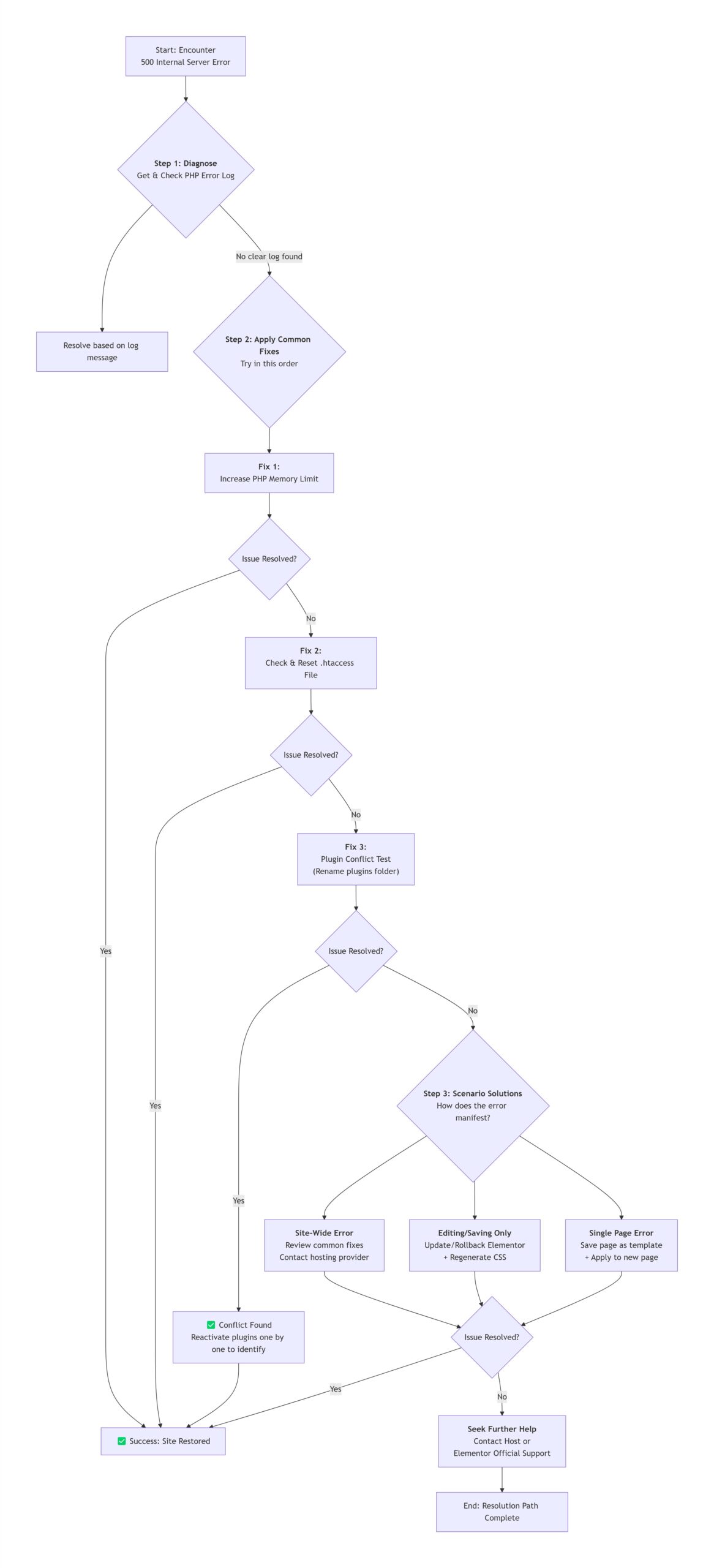
By following this structured approach, you can systematically diagnose and resolve the 500 Internal Server Error, restoring your Elementor website’s functionality. Always remember to create a full backup of your site before making significant changes.