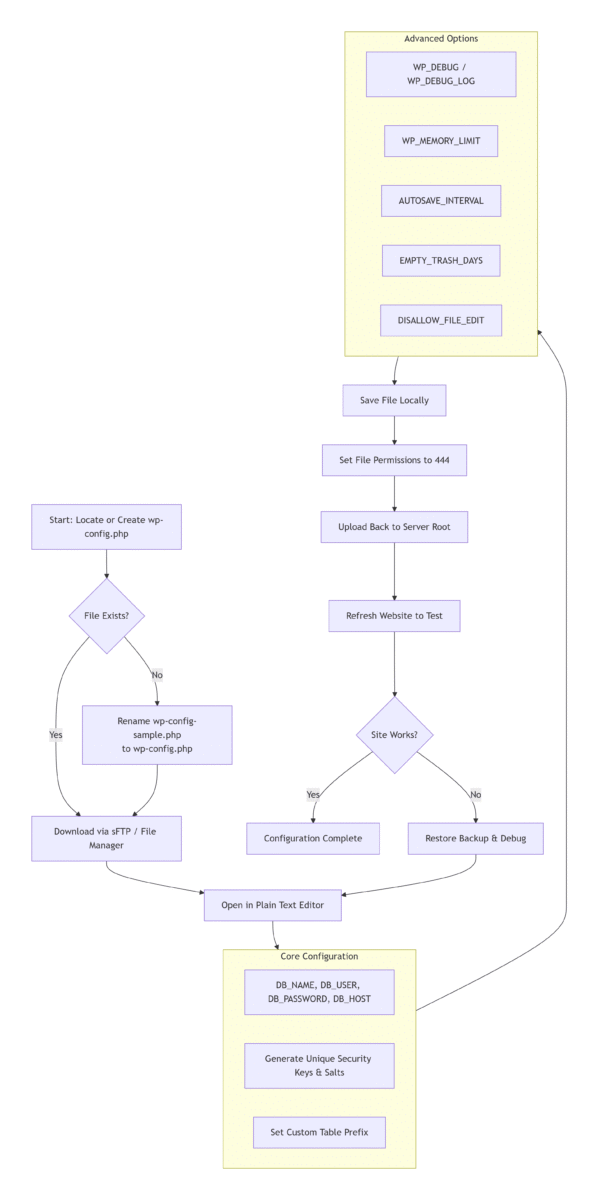
No matter what role you play in managing a WordPress website, it is critical to have an accurate understanding of what the wp-config.php file is and how it powers your site. In this guide to the WordPress configuration file, we will not only explain what this core WordPress file is, but also walk you through how to use it, along with practical working examples, official best practices, and advanced customization tips.
What Is the wp-config.php File?
The wp-config.php file stores the complete base configuration details for your WordPress website.
It is one of the most critical files in any WordPress installation. Without a valid wp-config.php file, your WordPress site cannot function properly. It holds all the essential information required for your site to run, including:
- MySQL database connection settings for your WordPress site
- WordPress secret authentication keys and salts
- WordPress database table prefix
- ABSPATH (the absolute path to your WordPress installation directory)
- Optional WordPress debug mode and advanced runtime settings
This file follows a strict, mandatory PHP syntax and supports a wide range of configurable constants. In short, it dictates how WordPress should behave under different circumstances, and its contents will vary significantly from one site to another.
Core Functionality of the WordPress Configuration File
While we will cover practical code examples of a complete wp-config.php file later in this guide, let's first take a deeper dive into the core functionality of the WordPress configuration file and the types of variables it defines.
Core Database Connection Configuration
First and foremost, the wp-config.php file strictly defines database access credentials. Your WordPress database is a MySQL database that stores the vast majority of your site's content, including posts, pages, comments, user data, encrypted and salted passwords, and much more. The file establishes the connection to the database itself, and these settings typically make up the first code block of the file.
Security Hardening with Keys and Salts
Other core settings in the WordPress configuration file include security salting, which adds an extra layer of encryption to make it exponentially harder for malicious actors to exploit your database even if they are able to steal its contents.
Runtime & Developer Settings
Additional constants are defined further into the code to control WordPress runtime behavior. For example, developers can set the WP_DEBUG constant to true to run the site in debug mode, enabling advanced diagnostic capabilities for troubleshooting.
Core Contents of the wp-config.php File
The contents of the wp-config.php file are evaluated every time an uncached page on your site loads. This means the file is reprocessed for every new visitor to your site, making it absolutely critical that the file is up-to-date and configured correctly.
The file consists of a series of constant definitions that control WordPress core functionality. It is also a best practice to thoroughly comment any custom code you add to this file. While the reasoning behind your customizations may be obvious to you, it may not be clear to other developers who work on the project later.
Below is an outline of the basic contents of a standard WordPress wp-config.php file.
Note: The contents of the default
wp-config-sample.phpfile are arranged in a specific order. Rearranging the contents of the file can cause unexpected errors on your site.
MySQL Database Settings
WordPress sites run on a MySQL database, which stores all your blog content, including posts, comments, and more.
You can typically obtain your database credentials from your hosting provider. If you manage your own web server or hosting account with cPanel access, you can retrieve this information after creating a database and database user via the MySQL Databases section in cPanel.
| Code Line | Description |
|---|---|
| define('DB_NAME', 'database_name_here'); | The name of your WordPress database. Replace database_name_here with your actual database name, e.g., MyDatabaseName. |
| define('DB_USER', 'username_here'); | The MySQL username used to access your database. Replace username_here with your actual username, e.g., MyUserName. |
| define('DB_PASSWORD', 'password_here'); | The MySQL password for the authorized database user. Replace password_here with your actual password, e.g., MyPassWord. |
| define('DB_HOST', 'localhost'); | The MySQL hostname. Replace localhost with your database host address, e.g., MyDatabaseHost. A port number or Unix socket file path may also be required here. For most installations, the default localhost will work correctly. |
| define('DB_CHARSET', 'utf8'); | The database character set used to create database tables. The default value of utf8 (Unicode UTF-8) is almost always the optimal choice, as it supports all languages. |
| define('DB_COLLATE', ''); | The database collation type (the sort order for the character set). In most cases, this value should be left blank, allowing MySQL to automatically assign the appropriate collation based on the DB_CHARSET value. |
WordPress Secret Keys and Salts
WordPress uses cookies to authenticate logged-in users and commenters. For this reason, WordPress includes secret authentication security keys and salts in the wp-config.php file. In essence, these security keys are an additional layer of password protection for your site: they are long, random, and highly complex, making them nearly impossible to brute-force.
The four security keys are required to enhance site security. The four corresponding salts are recommended but not mandatory, as WordPress will generate them automatically if they are not provided. All eight values are included in the default wp-config.php file.
Note: You can generate a complete set of unique, cryptographically secure keys and salts directly from the official WordPress.org Secret Key Service. Changing these values at any time will invalidate all existing user cookies, forcing all users to log in again.
| Code Line | Description |
|---|---|
| define('AUTH_KEY', 'put your unique phrase here'); | Security key to improve encryption of information stored in user cookies. Added in WordPress 2.5. |
| define('SECURE_AUTH_KEY', 'put your unique phrase here'); | Security key to improve encryption of information stored in user cookies. Added in WordPress 2.5. |
| define('LOGGED_IN_KEY', 'put your unique phrase here'); | Security key to improve encryption of information stored in user cookies. Added in WordPress 2.5. |
| define('NONCE_KEY', 'put your unique phrase here'); | Security key to improve encryption of information stored in user cookies. Added in WordPress 2.7. |
| define('AUTH_SALT', 'put your unique phrase here'); | Salt corresponding to the AUTH_KEY. |
| define('SECURE_AUTH_SALT', 'put your unique phrase here'); | Salt corresponding to the SECURE_AUTH_KEY. |
| define('LOGGED_IN_SALT', 'put your unique phrase here'); | Salt corresponding to the LOGGED_IN_KEY. |
| define('NONCE_SALT', 'put your unique phrase here'); | Salt corresponding to the NONCE_KEY. |
WordPress Database Table Prefix
The $table_prefix variable defines the value prepended to your database table names. You can change this value to use a prefix other than the default wp_. This is most commonly used when installing multiple WordPress instances in the same database (separate from the multisite feature). Only numbers, letters, and underscores are permitted.
| Code Line | Description |
|---|---|
| $table_prefix = 'wp_'; | The WordPress database table prefix. |
WordPress Language Settings
WordPress 4.0 introduced the ability to change the site language directly in the WordPress admin dashboard, rather than via the wp-config.php file. You can modify the site language by navigating to Settings > General and selecting your preferred Site Language from the dropdown menu.
ABSPATH: Absolute Path to the WordPress Directory
These final lines define the absolute server path to your WordPress installation and load the core WordPress settings file. They are included by default and should not be modified in most cases.
| Code Line | Description |
|---|---|
| if ( ! defined( 'ABSPATH' ) ) { define( 'ABSPATH', __DIR__ . '/' ); } | This line defines the absolute path to the WordPress installation directory. |
| require_once ABSPATH . 'wp-settings.php'; | Loads WordPress core variables and included files. |
Advanced wp-config.php Configuration Options
The following section covers advanced configuration options for wp-config.php.
Important: Modifying these advanced settings can cause unexpected issues on your site. Always create a full backup of your WordPress site before adding or changing these settings.
For a complete list of all available wp-config.php configuration options, visit the official WordPress Documentation.
| Option | Description | Code Line |
|---|---|---|
| WordPress Address (URL) | WP_SITEURL lets you define the WordPress address (URL), which is the location of your WordPress core files. It must include the http:// or https:// prefix and should not have a trailing slash /. Setting this value in wp-config.php overrides the siteurl value in the wp_options database table and disables the WordPress Address (URL) field in the Settings > General page of the dashboard. | define( 'WP_SITEURL', 'https://example.com/wordpress' ); |
| Modify Autosave Interval | When editing a post, WordPress uses Ajax to auto-save revisions to your content as you work. You can increase this value to extend the delay between autosaves, or decrease it to ensure you never lose changes. The default value is 60 seconds. | define( 'AUTOSAVE_INTERVAL', 160 ); // Seconds |
| Disable Post Revisions | By default, WordPress saves a copy of every edit you make to a post or page, allowing you to revert to previous versions. You can disable revision saving entirely with this setting. | define( 'WP_POST_REVISIONS', false ); |
| Specify Number of Post Revisions | To set a maximum number of revisions per post/page, replace false with an integer (e.g., 3 or 5). | define('WP_POST_REVISIONS', 3); |
| Set Cookie Domain | You can specify the domain set in WordPress cookies for users with non-standard domain configurations. A common use case is when static content is served from a subdomain. To prevent WordPress cookies from being sent with every request to static content on the subdomain, you can set the cookie domain to your non-static domain only. | define('COOKIE_DOMAIN', 'www.example.com'); |
| Enable Multisite/Network Capability | WP_ALLOW_MULTISITE enables WordPress's built-in multisite functionality, allowing you to run multiple WordPress sites from a single installation. It defaults to false if not defined in wp-config.php. | define( 'WP_ALLOW_MULTISITE', true ); |
| Redirect Nonexistent Blogs | You can use NOBLOGREDIRECT to redirect visitors who attempt to access a nonexistent blog on your multisite network, for example: https://nonexistent.example.com or https://example.com/nonexistent/. | define('NOBLOGREDIRECT', 'https://example.com'); |
| Disable Javascript Concatenation | To speed up the admin area, WordPress concatenates all JavaScript files into a single URL. If JavaScript is not functioning correctly in your admin area, you can try disabling this feature. | define( 'CONCATENATE_SCRIPTS', false ); |
| Increase PHP Memory Limit | The WP_MEMORY_LIMIT option lets you specify the maximum amount of memory that PHP can use for WordPress. You may need this setting if you receive errors such as "Allowed memory size of xxxxxx bytes exhausted". By default, WordPress attempts to increase the allocated PHP memory to 40MB, so the value set here should be larger than 40MB. Note: This setting may not work if your hosting provider does not allow increasing the PHP memory limit. | Increase PHP memory to 64MB:define('WP_MEMORY_LIMIT', '64M');Increase PHP memory to 96MB:define('WP_MEMORY_LIMIT', '96M'); |
| Enable Caching | When set to true, the WP_CACHE setting enables WordPress's built-in caching framework and loads the wp-content/advanced-cache.php script, used by most caching plugins. | define('WP_CACHE', true); |
| Alternative Cron Scheduling | This setting enables an alternative cron execution method, which is useful if scheduled posts fail to publish on your site. It uses a redirect approach to run cron jobs in the background without disrupting the user experience. | define( 'ALTERNATE_WP_CRON', true ); |
| Empty Trash Schedule | This setting controls the number of days WordPress waits before permanently deleting posts, pages, attachments, and comments from the trash. The default value is 30 days. | define('EMPTY_TRASH_DAYS', 30 ); // 30 days |
| Automatic Database Optimization | Enables the built-in WordPress database repair and optimization tool, accessible at {$your_site}/wp-admin/maint/repair.php.Warning: Enabling this definition allows any user to access the repair script without logging in, as its primary purpose is to fix a corrupted database when users are typically unable to log in. Disable this setting once you have completed repairs. | define('WP_ALLOW_REPAIR', true); |
| Disable Plugin and Theme Editor | Disables the built-in plugin and theme file editor in the WordPress admin dashboard. This prevents overzealous users from editing sensitive files and provides an extra layer of security if a hacker gains access to a privileged user account. | define('DISALLOW_FILE_EDIT', true); |
| Disable Plugin and Theme Updates & Installation | Blocks users from using the plugin and theme installation/update features in the WordPress admin area. Setting this constant also automatically disables the plugin and theme editor (no need to set DISALLOW_FILE_EDIT separately). | define('DISALLOW_FILE_MODS', true); |
| Force SSL for Login & Admin | FORCE_SSL_LOGIN secures the WordPress login process by requiring HTTPS for all login requests, preventing passwords from being sent in plain text. For full admin SSL, use FORCE_SSL_ADMIN instead. | define('FORCE_SSL_LOGIN', true); |
| Clean Up Image Edits | By default, WordPress creates a new set of images every time you edit an image, and retains edited versions even when you restore the original. Setting IMAGE_EDIT_OVERWRITE to true deletes edited image files when the original is restored, reducing server bloat. | define( 'IMAGE_EDIT_OVERWRITE', true ); |
Where Is the wp-config.php File Located?
On a fully functional, complete WordPress installation, the wp-config.php file is located in the root directory of your site. In most cases, unless you are using a custom shared hosting solution, this means you will connect to your site via a secure FTP client, navigate to the public_html folder, and find the file in this location.
However, if you have just installed WordPress or are setting up a new WordPress server, you may notice that this file does not exist. Rest assured, your installation is intact! On a fresh WordPress installation, the configuration file is named wp-config-sample.php by default.
Fresh Installation Notes
When you first install WordPress, it includes a sample configuration file to show you what the file should contain, and to demonstrate how to connect to a MySQL database to power your site.
You can easily create the actual wp-config.php file in the root directory by renaming the existing wp-config-sample.php file. Keep in mind, however, that your site will not work correctly without modifying the contents of the file first, as the sample file contains placeholder dummy information.
For small sites or if your web host does not provide a separate database server address, you can leave the DB_HOST value as localhost. You will, however, need to create a new database with the name you specify in the file, create a new MySQL user with only the minimum permissions required to access the database, and enter all these access credentials into the file.
How to Edit the wp-config.php File Safely
You can edit the wp-config.php file in several different ways. However, to edit the WordPress configuration file, you will need access to the files on your server.
Prerequisites
- A secure FTP/sFTP client such as FileZilla (completely free and compatible with all operating systems), or access to your hosting control panel's file manager (most commonly cPanel).
- Your hosting account's FTP/sFTP or control panel credentials. Contact your hosting provider if you do not know these details.
- A plain text editor (such as VS Code, Sublime Text, or Notepad++). Never use word processors like Microsoft Word or Pages, as they can inject hidden formatting that breaks the PHP file.
- A full backup of your WordPress site. Always back up your site before modifying core files.
Note: For a fresh WordPress installation, you will first need to rename the
wp-config-sample.phpfile towp-config.phpbefore editing. This can be done via any FTP client or hosting file manager.
The best practice for editing the file is to download it to your local computer, edit it in a plain text editor, verify all changes are correct, keep a backup of the original file, and then re-upload the modified version. This ensures your site remains functional if you make a mistake that renders the file unusable.
Step-by-Step Editing Guide
- Create a full backup of your WordPress site. Ensure you have a tested method for backing up and restoring your site in case of issues.
- Locate the wp-config.php file in the root directory of your WordPress installation via FTP/sFTP or your hosting file manager.
- Download a copy of the file to your local computer as a backup, then open the active file using a plain text editor.
- Make your changes carefully, paying close attention to PHP syntax. Double-check values against the official WordPress documentation.
- Inspect all values you enter for leading or trailing spaces. Never remove the single quotes around parameter values!
- Before saving the file, confirm once more that you have not accidentally deleted any single quotes around parameter values. Ensure there is no content after the closing PHP tag at the end of the file. The final line of the file should be
require_once ABSPATH . 'wp-settings.php';with no trailing spaces or line breaks. - Save the modified file, then re-upload it to the root directory of your WordPress installation, overwriting the original file.
- Refresh your WordPress site in a browser to confirm everything is working correctly. If you encounter a white screen or error, restore the original backup file and troubleshoot your changes.
wp-config.php File Permissions & Security Best Practices
Despite its user-friendliness, WordPress does not always clearly explain how to set server permissions for critical files such as wp-config.php. Incorrect file permissions are one of the most common security vulnerabilities for WordPress sites.
How WordPress File Permissions Work
If you are unfamiliar with the concept, WordPress file permissions define who can access which files and how they can interact with them on your web server.
When working with file permissions, there are three types of users:
- Owner – essentially the site administrator/hosting account user
- Group – users within a defined group with specific administrative access to the domain
- World – every other person on the internet who can access your site
There are also three core permission actions that can be allowed or denied for each user type:
- Read – the ability to view the contents of the file
- Write – the ability to view and edit the contents of the file
- Execute – the ability to run the file on the server side, without being able to view its source code
Since the most critical WordPress files are written in PHP, the server needs execute permissions to run them. However, granting read or write access to unauthorized users for a file with sensitive database credentials can expose your site to significant risk.
Permissions are most commonly set using a three-digit numeric value. A value of 777 means completely open permissions for all users, which should never be used for the wp-config.php file.
Recommended File Permissions
In short, per the official WordPress recommendations, the numeric permission value for the wp-config.php file should be 444 (read-only for all users). This allows the server to access and execute the file as needed, while preventing any user from modifying or viewing its contents directly via the web.
You can set this using any web-based file manager or FTP client. If you have access to a Linux terminal, you can make this change using the chmod 444 wp-config.php command.
Critical Security Best Practices
- Never use default database credentials or table prefixes: Automated hacking tools target default
wp_table prefixes and default database usernames. Use a random table prefix and unique, strong database credentials. - Always use unique, secure keys and salts: Generate keys and salts from the official WordPress service, never use placeholder values.
- Restrict file permissions: Never set wp-config.php permissions to anything higher than
444on a live site. - Never edit the file on a live site without a backup: A single typo can bring down your entire site. Always keep a backup of the working original file.
- Disable debug mode on live sites:
WP_DEBUGshould only be enabled on staging or local development sites, as it can expose sensitive error information to visitors.
Debugging WordPress with wp-config.php
As mentioned earlier, while the primary purpose of the WordPress configuration file is to store database connection details, it is also used to set advanced options, including WordPress's built-in debug mode.
Even if you are not a developer, enabling debug mode can help you identify why a specific error is occurring, or get more detailed information about issues on your site.
Full Debug Configuration Example
The following code, inserted in your wp-config.php file BEFORE the /* That's all, stop editing! Happy publishing. */ line, will log all errors, notices, and warnings to a file called debug.log in the wp-content directory. It will also hide errors from public visitors, so they do not interrupt page generation.
// Enable WP_DEBUG mode
define( 'WP_DEBUG', true );

// Enable Debug logging to the /wp-content/debug.log file
define( 'WP_DEBUG_LOG', true );

// Disable display of errors and warnings to public visitors
define( 'WP_DEBUG_DISPLAY', false );
@ini_set( 'display_errors', 0 );

// Use dev versions of core JS and CSS files (only needed if you are modifying core files)
define( 'SCRIPT_DEBUG', true );
Note:
WP_DEBUGmust be enabled forWP_DEBUG_LOGandWP_DEBUG_DISPLAYto work. You can toggle these settings independently, however. It is strongly recommended to disableWP_DEBUG_DISPLAYon live sites, even when debugging.
Key Debug Constants Explained
| Constant | Description |
|---|---|
WP_DEBUG | The master toggle for WordPress debug mode. Defaults to false on live sites. When set to true, it enables all PHP errors, warnings, and notices to be logged or displayed. |
WP_DEBUG_LOG | When set to true, all errors are saved to a debug.log file in the wp-content directory. You can also set this to a custom file path to store the log elsewhere. |
WP_DEBUG_DISPLAY | Controls whether debug messages are shown in the HTML of your site's pages. Defaults to true when WP_DEBUG is enabled. Should be set to false on all live sites. |
SCRIPT_DEBUG | Forces WordPress to use the development versions of core CSS and JavaScript files, rather than the minified versions. Useful for troubleshooting issues with custom scripts or themes. |
SAVEQUERIES | Saves all database queries to an array, allowing you to analyze slow or problematic database requests. Will impact site performance, so only enable temporarily for debugging. |
Complete Working wp-config.php Example File
As we discussed, WordPress includes a file named wp-config-sample.php with every installation, which provides a working template for the wp-config.php file. Below is the official, up-to-date sample template, along with a production-ready example with secure keys.
Default wp-config-sample.php Template
When installing WordPress manually for the first time, you will need to update the placeholder values in this file, then rename it to wp-config.php.
<?php
/**
 * The base configuration for WordPress
 *
 * The wp-config.php creation script uses this file during the
 * installation. You don't have to use the website, you can
 * copy this file to "wp-config.php" and fill in the values.
 *
 * This file contains the following configurations:
 *
 * * MySQL settings
 * * Secret keys
 * * Database table prefix
 * * ABSPATH
 *
 * @link https://wordpress.org/documentation/article/editing-wp-config-php/
 *
 * @package WordPress
 */

// ** MySQL settings - You can get this info from your web host ** //
/** The name of the database for WordPress */
define( 'DB_NAME', 'database_name_here' );

/** MySQL database username */
define( 'DB_USER', 'username_here' );

/** MySQL database password */
define( 'DB_PASSWORD', 'password_here' );

/** MySQL hostname */
define( 'DB_HOST', 'localhost' );

/** Database Charset to use in creating database tables. */
define( 'DB_CHARSET', 'utf8' );

/** The Database Collate type. Don't change this if in doubt. */
define( 'DB_COLLATE', '' );

/**#@+
 * Authentication Unique Keys and Salts.
 *
 * Change these to different unique phrases!
 * You can generate these using the {@link https://api.wordpress.org/secret-key/1.1/salt/ WordPress.org secret-key service}
 * You can change these at any point in time to invalidate all existing cookies. This will force all users to have to log in again.
 *
 * @since 2.6.0
 */
define( 'AUTH_KEY',         'put your unique phrase here' );
define( 'SECURE_AUTH_KEY',  'put your unique phrase here' );
define( 'LOGGED_IN_KEY',    'put your unique phrase here' );
define( 'NONCE_KEY',        'put your unique phrase here' );
define( 'AUTH_SALT',        'put your unique phrase here' );
define( 'SECURE_AUTH_SALT', 'put your unique phrase here' );
define( 'LOGGED_IN_SALT',   'put your unique phrase here' );
define( 'NONCE_SALT',       'put your unique phrase here' );

/**#@-*/

/**
 * WordPress Database Table prefix.
 *
 * You can have multiple installations in one database if you give each
 * a unique prefix. Only numbers, letters, and underscores please!
 */
$table_prefix = 'wp_';

/**
 * For developers: WordPress debugging mode.
 *
 * Change this to true to enable the display of notices during development.
 * It is strongly recommended that plugin and theme developers use WP_DEBUG
 * in their development environments.
 *
 * For information on other constants that can be used for debugging,
 * visit the documentation.
 *
 * @link https://wordpress.org/documentation/article/debugging-in-wordpress/
 */
define( 'WP_DEBUG', false );

/* That's all, stop editing! Happy publishing. */

/** Absolute path to the WordPress directory. */
if ( ! defined( 'ABSPATH' ) ) {
	define( 'ABSPATH', __DIR__ . '/' );
}

/** Sets up WordPress vars and included files. */
require_once ABSPATH . 'wp-settings.php';
Production-Ready Example with Secure Keys
Below is a complete example with pre-generated secure keys (you can replace these with your own from the official WordPress service). You only need to update the database credentials, table prefix, and any advanced settings you wish to enable.
<?php
/**
 * The base configuration for WordPress
 *
 * @link https://wordpress.org/documentation/article/editing-wp-config-php/
 * @package WordPress
 */

// ** MySQL settings ** //
define( 'DB_NAME', 'your_secure_database_name' );
define( 'DB_USER', 'your_secure_database_user' );
define( 'DB_PASSWORD', 'your_strong_secure_password' );
define( 'DB_HOST', 'localhost' );
define( 'DB_CHARSET', 'utf8' );
define( 'DB_COLLATE', '' );

/**#@+
 * Authentication Unique Keys and Salts.
 * Generated from https://api.wordpress.org/secret-key/1.1/salt/
 */
define('AUTH_KEY',         ',(1-M;kP.[MntT/Ow??L1gjq(5v?t!Q@S /v&T-+`0u[jH1.]v0&y!a.2W1TWF%v');
define('SECURE_AUTH_KEY',  '#SeT&Xrbr01M7pT<.Y!l2w>3]#yb;!OTPJtxvXXj6G@pq=}bv?^@2Kh>0w%//1hW');
define('LOGGED_IN_KEY',    '-!NhcM`E&l#%O)|.:b|jtL~Xhi9fd7s4vlkOTx2k)iY0D=4T<{H)C)`9D&}+Ffuk'); define('NONCE_KEY', '0pSt#H>z?*2LyYrF.b+ZHABIm$vL+|raodblri^;v|#_J<+}J *A_Vs0M-8EG#;-');
define('AUTH_SALT',        'Liq_v&Y yJ2M+^)|/@Rhh0Y~@4K[rElZjDT:-Gw|odp&07 xKnJ:}nBIGYIaxo`+');
define('SECURE_AUTH_SALT', 'gd*+.uG)6D|~+.<c||NGVfPf0L-;!-v)`!tlxWsPadB|0i65v3,Un1;&b+|T{9:+');
define('LOGGED_IN_SALT',   'w2l:YTf|-b@2CPqT|!1|grfUjb^5EKC@p!vdm[X`#-gK=_-I9F{p<4-9$d}Ya+KA');
define('NONCE_SALT',       '.+5k|K]R9AfnT@TOIHnIomZ*jB-.1+?+^ *_*8,!Y|hv4+Sv2:)sqACmD?aa(Nt4');
/**#@-*/

/**
 * WordPress Database Table prefix.
 * Use a unique, non-default prefix for security.
 */
$table_prefix = 'wp_secure123_';

/**
 * Debug Mode - DISABLE on live sites
 */
define( 'WP_DEBUG', false );

/* That's all, stop editing! Happy publishing. */

/** Absolute path to the WordPress directory. */
if ( ! defined( 'ABSPATH' ) ) {
	define( 'ABSPATH', __DIR__ . '/' );
}

/** Sets up WordPress vars and included files. */
require_once ABSPATH . 'wp-settings.php';
Summary
The wp-config.php WordPress configuration file is easy to understand once you learn where it is located, what it contains, and how to edit it correctly. This critical configuration file is the foundation of your WordPress site, controlling everything from database connections to security settings, developer tools, and advanced runtime behavior.
By following the official best practices outlined in this guide, you can configure your wp-config.php file correctly, harden your site's security, troubleshoot issues effectively, and customize your WordPress installation to fit your exact needs.