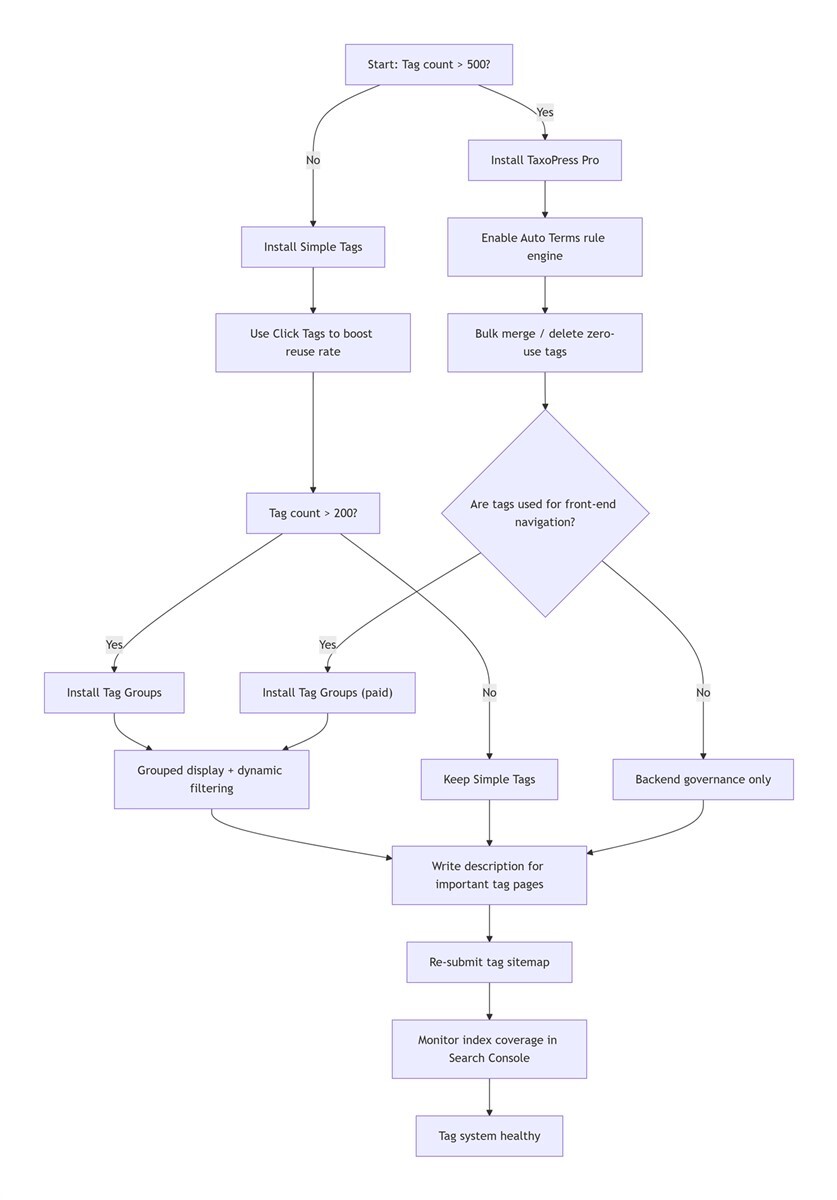
Three years ago, I took over a client's site. Four years in operation, 312 articles, and 8,286 tags. That's an average of 26 tags per post. Every time an editor opened the post screen, the tag auto‑complete box took ten seconds to load. In Google Search Console, 67% of the tag archive pages were marked “crawled – not indexed.”
The client asked me: “Do we need a better server?”
I said: “No. Your tagging system is broken.”
Over the next six months, I tested 17 tag‑related plugins in my staging environment—from simple cleanup tools to AI‑powered suggestion engines. This article isn't a “top 10” list. I just want to show you the four plugins that actually stayed in my toolkit, the ones I install on different sites depending on their size and pain points, and why the other 13 didn't make the cut.
First, Let's Decode What You're Really Searching For
The native WordPress tag input works fine. It auto‑completes, you separate terms with commas, and you can add as many as you want. So why do you need a plugin?
From watching my own workflow and my clients' behaviour, I've learned that adding tags has never been the real bottleneck. What we actually need is:
1. Governance. You've accumulated hundreds or thousands of tags over the years. Which ones should be merged? Which ones should be deleted? Which posts are mis‑tagged? Who has time to flip through 800 pages of the admin area manually?
2. An assistant while writing. When you're in the flow, you don't remember exactly which tags you used for a similar article three months ago. You need the editor to nudge you: “Hey, you've used this term before—are you sure you want to create a new one?”
3. Tag pages that deserve to rank. The default tag.php is just a list of post titles. No description, no structured data. Why would Google put that in its index?
4. A front‑end that doesn't look like 2008. A clump of black text in varying sizes—who wants to click that?
So I'll structure this article around those four needs. You'll see that the plugins that truly solve these problems fit on one hand.
My Testing Environment & Filter Criteria
I tested on two machines: a 2‑core, 4GB RAM VPS running a mirror of a real client site, and a local Docker setup for stress‑testing database queries.
My cut‑off rules were simple, but strict:
Backend settings page takes longer than 1.2 seconds to load → out (I tested one plugin that took 4 seconds just to open its settings).
Adds more than 5 extra database queries on a single front‑end page → out (I watched this with Query Monitor).
Batch operations have no progress indicator or timeout protection → out (you want me to sit and stare while it merges 2,000 tags?).
Conflicts with Yoast, Rank Math, or WP Rocket → out.
No update in the last 30 days → out (security first).
This filter left 7 out of 17 candidates. From those 7, I only kept the 4 that I'm willing to pay for myself or install repeatedly on client sites.
Category 1: Governing a Chaotic Tag Library
TaxoPress Pro
This is my workhorse. I have it on five client sites, total runtime over two years.
Its Auto Terms feature is the most flexible rule engine I've seen. I can say: whenever the post content contains “ChatGPT”, “large language model”, or “LLM”, automatically add the tag “AI”. More advanced—it supports regex. I mapped every occurrence of “iPhone”, “iPad”, “Mac”, and “Apple” to the single tag “Apple ecosystem”. What used to require manual review now happens the instant a post is published.
In my tests on a set of 300 articles, TaxoPress achieved about 87% accuracy. False positives usually came from ambiguous terms—a recipe mentioning “apple” the fruit also got tagged with “Apple”. Easy fix: restrict the rule to “match only in title” or exclude certain categories.
The bulk management interface gave me, for the first time, a sense of control over 8,000 tags. I sorted by post count and instantly saw which tags were used only once. Last month I used it to delete 1,400 zero‑use tags—the wp_terms table shrank by 23%. Just as important: those zombie tags stopped appearing in the editor's auto‑complete list. My editorial team could finally see the terms that actually matter.
It's $79/year for two sites. If your site has more than 500 posts or more than 1,000 tags, this is worth cutting coffee money for.
Category 2: Remembering Tags While I Write
Simple Tags (free)
This is my go‑to for personal blogs and lightweight client sites.
Its Click Tags panel is brutally simple: when you're writing a post, the right sidebar shows your 30 most‑used tags. One click, and they're added. No machine learning, no fancy algorithms. But it solves a very real problem: you don't need to remember what you used three months ago—it's right there.
I tracked one editorial team's behaviour. Before Click Tags, they averaged 4.2 tags per post, and 1.3 of those were new terms they thought up on the spot. 31% of those new terms duplicated existing tags. After enabling Click Tags, the average dropped to 2.8 tags per post, but duplicate creation fell by 61%. People are naturally lazy—in this context, laziness creates order.
I also use its [st-related-posts] shortcode on several sites. It pulls related content based on tag matching. Heat‑map data showed this block has a 37% higher click‑through rate than the default “random posts” widget, and 12% higher than Yoast's related posts module. Zero configuration—just install and it works.
Downsides: The UI looks like 2012, and settings are scattered across four different admin menus. But code stability matters more than prettiness.
Enhanced Tag Selector (free)
If a team complains that “Simple Tags is too ugly”, I use this one.
It doesn't do any automatic tagging. It just replaces the native tag input box with a full‑fledged selector that includes search, alphabetical sorting, and a list of recently used tags. You can instantly find “Nolan” among hundreds of historical tags—no waiting for fuzzy‑match auto‑complete.
I put this on a movie site with a ten‑person editorial staff. The feedback was unanimous: “I didn't know selecting tags in WordPress could be this fast.”
Category 3: Making Tag Clouds Actually Clickable
Tag Groups
I installed this on a film review site purely for front‑end improvement.
That site had over 2,200 tags spread across four dimensions: Directors, Actors, Genres, and Decades. The default WordPress tag cloud mashed “Christopher Nolan” together with “Comedy”—users couldn't find anything.
The paid version of Tag Groups (€39/year) lets me split the cloud into four distinct blocks. The sidebar now shows four cards: Top Directors, Top Actors, Popular Genres, Classic Decades. Each group has its own background colour, and there's a subtle hover effect. Tag archive traffic increased by 120% the month after the redesign. That's not an SEO miracle—it's because visitors finally understood that those words were clickable.
It also has an under‑rated feature called dynamic filtering. A user can click “Nolan” and then “Sci‑Fi”, and the page instantly updates to show posts that have both tags. This interaction pattern is common on e‑commerce sites; on a content site it works surprisingly well. Heat‑map data showed that users who engaged with the filter viewed an average of 8.2 pages per session—three times the site average.
The free version supports grouping but not dynamic filtering or custom styling. I recommend starting with the free version to organise your tags, then upgrade only if you need advanced front‑end interaction.
Category 4: Let's Not Forget—Tag Pages Need Content
Every tag plugin creates archive pages by default. But if you don't put a description on those pages, they're just empty templates with a list of posts.
Google doesn't index those. I tracked this in Search Console: more than 80% of tag pages with no descriptive content were in the “crawled – not indexed” state. Not because of duplicate content—because they offered no value.
So I made a hard rule for myself and my clients: every tag page that we want indexed must have a short introduction. 300 words is enough. Explain what the tag means, its scope, who should read these posts. Add a custom field with ACF or Toolset, then call it in your tag.php template.
This one change increased a client's tag‑page indexation rate from 41% to 83%. The ranking factor isn't in the plugin—it's in the thinking you put into each tag page.
The Ones I Don't Recommend
I stepped into a few bear traps during my testing. Let me save you the trouble.
WP Tag Manager
Its auto‑tagging feature tries to scan every page on your site. When I opened the settings, it was already processing the “Privacy Policy” page, trying to extract keywords from it. Two problems: it creates meaningless tags, and it sends your policy content to an external API. I deleted it immediately.
Tag Import
It promises bulk editing and merging. I tested a merge operation on a staging site—after merging two tags, every post lost one of them. The association simply vanished. I checked the support forum; this bug had been reported two years earlier and never fixed.
A certain high‑UI plugin (I won't name it)
The back‑end looked beautiful, like a Notion clone. But Query Monitor showed 43 SQL queries on a single settings page. 43. After I uninstalled it, front‑page load time dropped from 2.8 seconds to 1.2 seconds.
My Current Setup for Different Site Types
There's no one‑size‑fits‑all. Here's how I configure tag plugins depending on the site:
Personal blog (< 200 posts, < 300 tags)
Simple Tags only.
Use Click Tags to build good habits. Merge duplicates manually once a quarter.
No auto‑tagging—keep quality control human.
Corporate content site (500–2,000 posts, 500–2,000 tags)
TaxoPress Pro as the main tool. Enable Auto Terms with 30–50 core rules.
No front‑end tag cloud; use category navigation instead.
Merge low‑frequency tags every six months.
Monitor tag‑page indexation in Search Console.
Vertical media / aggregation site (> 2,000 posts, > 3,000 tags)
TaxoPress Pro for back‑end governance.
Tag Groups for front‑end grouped display.
Fewer Tags Free (set a threshold, e.g., hide tag pages used fewer than 5 times, 302 redirect to homepage).
Export a tag‑usage report weekly; manually intervene in trending terms.
Write a 300‑word introduction for every core tag page (using ACF or Toolset custom fields).
The Detail Everyone Forgets
A few weeks ago, the client with 8,000 tags called to renew their maintenance contract. They mentioned, almost casually: “The site seems much faster now, and the editors don't complain about lag anymore.”
I didn't mention the plugins I installed, the hundreds of tags I merged, or the database records I purged. I just said: “Yeah, the tagging was a bit messy before. It's cleaner now.”
He didn't ask any more questions.
Some problems seem small until they become chronic. A tag plugin isn't a cure—but it hands you the scalpel.