


Is your WordPress site stuck in an infinite loop, failing to load and showing the ERR_TOO_MANY_REDIRECTS error in your browser? This common yet critical issue halts your website, turning visitors away. As an experienced developer, I've resolved this countless times. The solution lies in a logical, step-by-step troubleshooting approach. Follow this definitive guide to diagnose and resolve the redirect loop on your site.
1. Clear Your Browser Cache and Cookies
The Core Issue: Stale or corrupted data stored locally in your browser is enforcing an outdated redirect path.
The Actionable Fix: Eliminate local browser data as the first and simplest step.
Open your browser's settings or history menu.
Find the option to Clear Browsing Data or History.
Select Cached Images and Files and Cookies and Other Site Data.
Choose the time range All Time or From the Beginning of Time.
Click Clear Data.
Perform a hard refresh by closing the browser, reopening it, and navigating to your site (e.g., https://www.wptroubleshoot.com).
2. Correct WordPress URL Settings
The Core Issue: A discrepancy between the WordPress Address (URL) and Site Address (URL) is a primary configuration cause.
The Actionable Fix: Verify and align these core settings in the WordPress dashboard.
Access your WordPress admin dashboard.
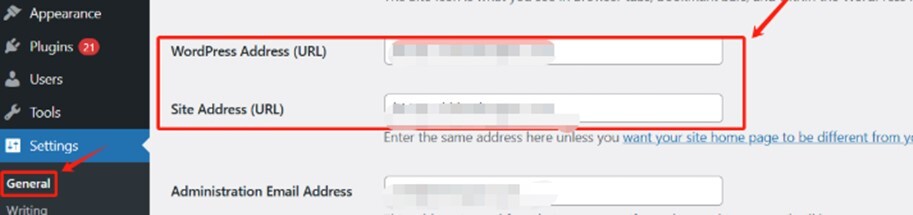
Navigate to Settings > General.
Locate the two critical fields: WordPress Address (URL) and Site Address (URL).
Ensure they are identical. If your site uses SSL (HTTPS), both must start with
https://. If not, both must start withhttp://.Click Save Changes at the bottom, even if you made no alterations, to refresh the configuration.
3. Validate SSL/HTTPS Configuration
The Core Issue: Improper SSL implementation causes conflict between HTTP and HTTPS versions of your pages.
The Actionable Fix: Enforce consistency and verify your SSL certificate status.
Confirm the URLs from Step 2 correctly use
https://if you have an SSL certificate.Manually visit your site's HTTPS URL (e.g.,
https://www.wptroubleshoot.com). Check the browser's address bar for a padlock icon. A warning or strikethrough indicates a certificate problem—contact your hosting provider.If you use a proxy service like Cloudflare, log into its dashboard. Navigate to SSL/TLS and ensure the encryption mode is set to Full or Full (strict). Temporarily disable features like "Always Use HTTPS" or "Automatic HTTPS Rewrites" to test.
4. Disable All WordPress Plugins
The Core Issue: A faulty plugin, particularly caching, security, or redirection plugins, is injecting erroneous redirect rules.
The Actionable Fix: Rule out plugin conflict by disabling them at the server level.
Connect to your website's server using FTP or your host's File Manager.
Navigate to the
/wp-content/directory.Find the
pluginsfolder. Rename it toplugins.oldorplugins_deactivated.This instantly disables all plugins. Immediately check if your front-end site loads.
If the error is resolved, rename the folder back to
plugins.In your WordPress admin, reactivate plugins one by one, checking the site after each, to identify the culprit.
5. Restore the Default .htaccess File
The Core Issue: Corrupted or miswritten mod_rewrite rules in the .htaccess file are causing Apache to loop.
The Actionable Fix: Replace the .htaccess file with a clean, WordPress-generated version.
Via FTP/File Manager, access your WordPress root directory (containing
wp-config.php).Locate the
.htaccessfile. Download it as a backup, then delete it from the server.Log into your WordPress dashboard.
Go to Settings > Permalinks.
Without changing any settings, click Save Changes. This action regenerates a standard
.htaccessfile.The default, functional
.htaccesscode should be:# BEGIN WordPress <IfModule mod_rewrite.c> RewriteEngine On RewriteRule . /index.php [L] </IfModule> # END WordPress
6. Audit Nginx Server Configuration (Nginx Users Only)
The Core Issue: Misconfigured server blocks (server {}) or duplicate redirect directives in Nginx.
The Actionable Fix: Inspect the Nginx configuration files for conflicting rules.
Access your server via SSH.
Open your site's Nginx configuration file, typically in
/etc/nginx/sites-available/your_site.Scrutinize
return 301,rewrite, andlistendirectives. Ensure you don't have conflicting rules forwww/non-wwwand HTTP/HTTPS on the same ports.After editing, test the configuration syntax with
sudo nginx -t.If the test passes, reload Nginx:
sudo systemctl reload nginx.
7. Review and Adjust CDN Settings
The Core Issue: Your Content Delivery Network (CDN) is applying its own redirect rules, creating a loop with your origin server.
The Actionable Fix: Isolate the issue by temporarily bypassing the CDN.
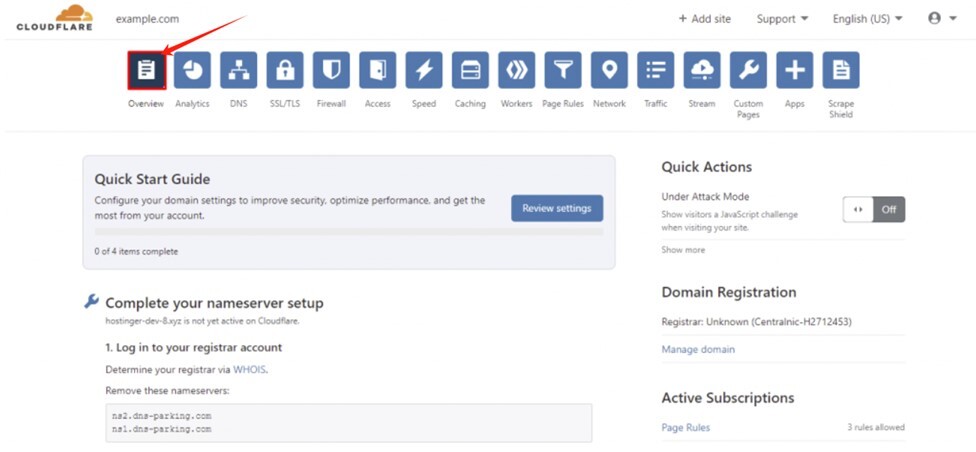
Log into your CDN provider's dashboard (e.g., Cloudflare).
For the affected domain, find the option to Pause or Bypass the CDN. In Cloudflare, this is Overview > Advanced Actions > Pause Cloudflare on Site.
Test your site's direct origin server URL (often provided by your host). If the error disappears, the issue is within the CDN configuration.
Re-enable the CDN and investigate: Check SSL/TLS settings, Page Rules (for forced HTTPS or redirects), and Caching levels. Ensure settings align with your origin server's configuration.
8. Inspect Custom Code and Theme Functions
The Core Issue: Manual redirects hard-coded into your theme's functions.php file or a custom plugin.
The Actionable Fix: Identify and comment out any custom redirection logic.
In your WordPress file system, navigate to
/wp-content/themes/your-active-theme/.Open the
functions.phpfile in a code editor.Search for functions using
wp_redirect(),header("Location:"), or custom rewrite hooks.Temporarily comment out these sections (using
/* */) and check your site.Alternatively, switch temporarily to a default WordPress theme (e.g., Twenty Twenty-Six) to rule out theme-specific code.
9. Escalate to Your Web Hosting Provider
The Core Issue: A server-level misconfiguration (e.g., main Apache/Nginx config, PHP handler, load balancer settings) beyond user control.
The Actionable Fix: Contact your host's support with detailed evidence of your troubleshooting steps.
Provide your host with a concise list of the steps you've already completed (e.g., "Cleared cache, verified WordPress URLs, disabled plugins, reset .htaccess").
Request they check:
Server-wide redirects in the main Apache
httpd.confor Nginxnginx.conf.PHP configuration or conflicting
php.inisettings.Proper installation and linkage of your SSL certificate on the server.
Any firewall or load balancer rules that might be causing redirects.