With over 7 years of hands-on experience building and optimizing WordPress sites—from niche blogs and B2B business sites to DTC (Direct-to-Consumer) e-commerce stores with 200+ SKUs and $1M/month revenue—WordPress Duplicate Page (page cloning) is a function I use daily. It's also the most common SEO mistake I see site owners make, often with devastating results.
In Q2 2025, I took over this high-revenue DTC e-commerce site where the client was frantic: core product keyword rankings dropped by 30% in two months, and organic search traffic had been cut in half. When I opened their Google Search Console (GSC) account, I was met with 78 duplicate content warnings.
After a 3-day full-site audit, we traced every single issue back to improper use of WordPress page cloning tools: unchanged canonical tags on plugin-cloned product pages, indexed URLs with and without trailing slashes, staging pages not set to noindex accidentally crawled by Google, and even product descriptions copied directly from suppliers with zero edits to titles or meta descriptions.
That experience is why I'm breaking down how to duplicate a page in WordPress safely: from proven cloning methods to step-by-step SEO recovery from duplicate content penalties. There's no fluff here—only tactics I've personally tested and used to fix issues for dozens of clients, even if you're brand new to WordPress.
Why a Single Duplicate Page Action Can Crash Your Site's SEO Performance
Too many site owners see WordPress Duplicate Page as nothing more than a time-saving shortcut, without realizing that improper cloning is one of the fastest ways to tank your organic rankings. First, let's clarify the core issue: WordPress duplicate content refers to identical or near-identical content that's accessible via multiple unique URLs. This is extremely common in the WordPress ecosystem, from minor URL formatting differences to full 1:1 page clones.
According to Google's official documentation on duplicate content, duplicate content does not result in a direct site penalty, but it causes two critical, ranking-breaking problems:
- Link equity dilution: Search engines cannot determine which version of the page should rank for target keywords, so the authority and ranking power that should be concentrated on your core page is split across multiple duplicate URLs. This is exactly what happened to the e-commerce site I took over, as core product page authority was split across dozens of clones, letting competitors outrank us.
- Wasted crawl budget: Googlebot has a fixed crawl quota for every site. Wasting that budget on duplicate pages means your new, high-value core pages may not be crawled, indexed, or ranked in a timely manner.
Over the years, I've seen every possible cloning misstep, including:
- Hidden "clone" buttons built into free themes that trigger accidental duplicate page creation, with the site owner completely unaware the pages exist until they show up in GSC
- Cloned pages with default "-2" permalink suffixes left unedited, with no canonical tags, leading to both the original and cloned page being indexed
- Styling issues and bloated page code from page builder clones, slowing down load times and breaking mobile responsiveness
- Duplicate database IDs from import/export errors, causing broken internal search results and site backend glitches
- Half-deleted duplicate pages left in the trash, with residual database entries bloating the site and slowing load times
Note: WordPress has no native one-click page cloning feature. Every cloning method we use is either an extension of built-in tools or a third-party plugin. The problem is never the tool itself—it's unregulated, improper use.
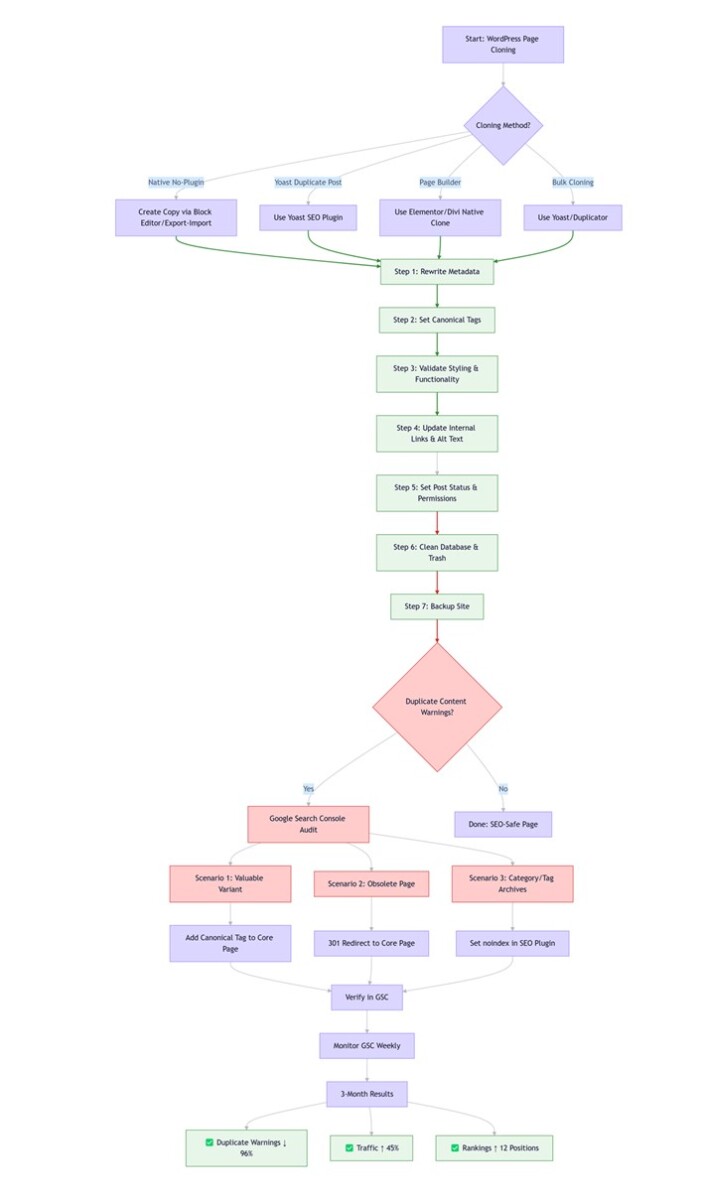
4 Proven, Safe Methods to Execute WordPress Duplicate Page (My Go-To Tools After 7 Years)
Comparison Table: Choose the Right Cloning Method for Your Needs
| Cloning Method | Best For | Key Benefits | Requires Plugin? |
|---|---|---|---|
| Native No-Plugin (Block/Export-Import) | Lightweight, one-off simple page copies | No bloat, 100% secure, no compatibility risks | No |
| Yoast Duplicate Post | High-frequency cloning, custom pages, full data retention | Industry-standard, full SEO/page builder compatibility | Yes |
| Page Builder Native (Elementor/Divi) | Custom-designed pages with complex styling | 100% design fidelity, no extra plugins | No (built into page builder) |
| Bulk Cloning (Yoast/Duplicator) | Bulk landing pages, cross-site migrations | Saves time, scalable for large sites | Yes (Yoast or Duplicator) |
Native No-Plugin Method: For Lightweight, One-Off Copies
For simple, text-only page copies where you want to avoid adding extra plugins, WordPress's built-in native features are the most secure, bloat-free option available.
Method A: Full Block Copying (Gutenberg Editor)
- Open the page you want to clone in the WordPress editor
- Click the three-dot icon in the top-right corner of the editor
- Select Copy all blocks to copy every text, image, button, and list block with its base styling intact
- Create a new blank page and paste the blocks into the editor
Method B: Single-Page Export/Import
- From your WordPress dashboard, go to Tools > Export
- Select Pages as your content type and check the single page you want to clone
- Click Download Export File to save an XML backup
- Go to Tools > Import, install the WordPress Importer, upload your XML file, and complete the import prompts
Critical Limitation: These native methods do not copy SEO configurations, custom fields, featured images, page templates, user permissions, or custom designs from page builders like Elementor or Divi. Attempting to clone page builder pages with these methods will almost always result in styling issues.
Plugin Method: Yoast Duplicate Post, The Industry-Standard Choice
For high-frequency cloning, custom-built pages, and full data retention, Yoast Duplicate Post (the #1 plugin for WordPress page duplication with 1M+ installs) is the most reliable, compatible plugin on the market. For more details, visit the official Yoast Duplicate Post documentation.
Yoast Duplicate Post vs Generic "Duplicate Page" Plugins
| Feature | Yoast Duplicate Post | Generic Plugins |
|---|---|---|
| Canonical Tag Support | Fully replicates canonical tags | Leaves tags unchanged |
| SEO Plugin Compatibility | Works with Yoast SEO, Rank Math | Often breaks SEO settings |
| Page Builder Compatibility | 100% design fidelity | Frequent styling issues |
| Database Cleanliness | No bloat | Leaves redundant entries |
Setup Workflow:
- Install and activate Yoast Duplicate Post from the WordPress repository
- Go to Settings > Duplicate Post to configure which elements to clone (custom fields, featured images, taxonomies, etc.)
- Set default post status for clones (always set to Draft for safety)
- Configure user permissions to restrict cloning access
Cloning Options:
- Clone: Creates an exact 1:1 duplicate with your pre-configured settings
- New Draft: Creates a clone and opens it directly in the editor for immediate edits
Warning: 90% of "Duplicate Page" plugins from unverified developers break site functionality (tested 30+ plugins). These often contain security vulnerabilities or leave bloated database entries.
Page Builder Native Method: The Optimal Choice for Custom Design Pages
If you build pages with Elementor, Divi, Beaver Builder, or other leading page builders, their built-in template tools deliver 100% design fidelity with zero compatibility risks—no extra plugins required.
Elementor Workflow (Most Popular Page Builder):
- Open the page you want to clone in the Elementor editor
- Click the arrow icon in the bottom-left corner and select Save as Template
- Name your template and click Save to store the full page design
- Create a new blank page, open Elementor, go to Templates Library, find your saved template, and click Insert
Pro Tip: This is the method I use exclusively for page builder sites. It eliminates all compatibility risks and styling issues that can come from third-party cloning tools.
Bulk Cloning Method: For High-Volume and Cross-Site Operations
For bulk landing page creation, multi-page updates, or cross-site migrations, these streamlined bulk methods saved hours of repetitive work without sacrificing accuracy.
In-Site Bulk Cloning with Yoast Duplicate Post:
- Go to your Pages or Posts list in WordPress admin
- Check all pages you want to clone using the checkboxes
- Select Clone from the Bulk Actions dropdown
- Click Apply—all selected pages clone in seconds
Real Result: I used this method to create 100 targeted landing pages for a client, saved 2 full days of repetitive work.
Cross-Site Cloning:
- For page builder pages: Use the builder's template export/import feature for 100% design retention
- For standard pages: Use WordPress native export/import tool (XML format)
- For full-site migrations: Use Duplicator plugin (distinct from Yoast Duplicate Post—Duplicator handles full-site transfers, Yoast focuses on page-level cloning)
7 Mandatory Steps After Cloning a Page to Avoid Duplicate Content & SEO Penalties
90% of cloning missteps happen not during cloning, but after—when site owners publish cloned pages with zero edits. Even with the most reliable plugin, you must complete these 7 steps before publishing. This is the mandatory workflow I enforce for my team, without exception.
Step 1
Rewrite Core Page Metadata and Create Content Differentiation ✓
Rewrite the page's title tag, permalink (slug), meta description, and target SEO keyword. Even for similar landing pages, these elements must be clearly differentiated from the original.
Action Item: Never leave the default "-2" permalink suffix—replace it with a descriptive, keyword-rich slug.
Why It Matters: Differentiated metadata helps search engines understand the unique value of each page, avoiding confusion.
Step 2
Set Correct Canonical Tags ✓
If your new page is a variant of the original, add a canonical tag to the new page's <head> section, pointing to the preferred URL you want to rank.
Action Item: With Yoast SEO/Rank Math, go to the Advanced tab in SEO settings and enter the primary page URL in the Canonical URL field.
Why It Matters: Canonical tags tell search engines which page to index, preventing duplicate content penalties.
Step 3
Validate Full Page Styling and Functionality ✓
Preview the page on desktop and mobile to check for styling issues, missing media, or broken animations. Test forms, buttons, and custom fields.
Critical Reminder: Google uses mobile-first indexing, so always check the mobile preview first before desktop. Double-check SEO settings and page templates to ensure no data is missing.
Why It Matters: Broken elements hurt user experience and signal low-quality content to search engines.
Step 4
Update Internal Links and Image Alt Text ✓
Update internal links to point to relevant URLs for the new page, not the original. Rewrite image alt text to align with the new page's content.
Action Item: For tutorial screenshots, use descriptive ALT text like "Yoast Duplicate Post plugin settings page" instead of generic "image1.jpg".
Why It Matters: Broken links waste crawl budget and harm user trust; generic alt text misses SEO opportunities.
Step 5
Adjust Post Status and Access Permissions ✓
Set cloned pages to Draft until edits are complete. For staging/test pages, set to noindex to block crawlers.
Action Item: This prevents accidental indexing of incomplete or duplicate content.
Why It Matters: Unintentionally indexed test pages create duplicate content and dilute link equity.
Step 6
Clean Up Residual Data and Database Bloat ✓
Permanently delete discarded cloned pages from the trash. Use WP-Optimize to clean residual entries and post revisions.
Action Item: This reduces database bloat and speeds up site load times.
Why It Matters: Residual data slows down your site, hurting both UX and search rankings.
Step 7
Back Up Your Site Before and After Bulk Operations ✓
Use UpdraftPlus to create a full site backup before cloning/bulk editing. This ensures you can restore quickly if something goes wrong.
Action Item: This step is non-negotiable for bulk cloning and cross-site operations.
Why It Matters: Backup prevents irreversible errors from bulk operations, protecting your site's data.
Already Got Duplicate Content Warnings? A Step-by-Step Audit & Recovery Workflow
If your site already has duplicate content warnings in Google Search Console, or you've seen ranking drops and traffic loss from duplicate pages, don't panic. This is the exact workflow I've used to restore rankings for over a dozen sites with the same issue.
Step 1: Accurately Map Every Duplicate URL on Your Site
Use these 3 industry-standard audit methods to identify all duplicate URLs:
- Google Search Console Coverage Report: Log into GSC, go to Index > Coverage, and find the Duplicate category. Google lists every duplicate URL with labels like "Duplicate, Google chose different canonical than user."
- Full-Site Screaming Frog Crawl: Screaming Frog SEO Spider crawls every URL, identifying duplicate title tags, meta descriptions, and content. It uncovers hidden duplicates not yet picked up by GSC.
- Manual Audit of High-Risk Pages: In your WordPress dashboard, go to Pages, sort by Last Modified, and audit cloned pages (especially drafts). Audit category/tag archives—common sources of auto-generated duplicates.
Step 2: Scenario-Specific Fixes for Duplicate Pages
Scenario 1: Page Has Value, But Is Highly Similar to Original
Add a canonical tag to every variant page, pointing to the core page you want to rank. This consolidates link equity while keeping the variant active for users.
Scenario 2: Page Is Obsolete and Has No Ongoing Value
Use a 301 permanent redirect to send the duplicate URL to the relevant core page. For pages with no core counterpart, set to 404 and request URL removal in GSC.
Use the Redirection plugin to manage redirects. Never create redirect chains (A→B→C)—use direct, one-step redirects (A→C) to save crawl budget.
Scenario 3: Duplicate Content from Category/Tag Archive Pages
Set all category/tag pages to noindex, follow in your SEO plugin. This preserves internal navigation without duplicate content issues.
Step 3: Phased Implementation and Performance Validation
Critical Warning: If your site has hundreds of duplicate pages, do not fix them all at once. Prioritize the top 20% of pages that drive 80% of traffic/conversions first, then address remaining pages in phases over 4-6 weeks.
After implementation, monitor GSC weekly, and track core keyword rankings and organic traffic. For the e-commerce site I worked on, within 3 months:
- ✓ Google Search Console duplicate content warnings dropped from 78 to 3
- ✓ Core product page average rankings improved by 12 positions
- ✓ Organic search traffic increased by 45%
- ✓ Googlebot crawl efficiency improved, with new page indexing time dropping from 7 days to 1-2 days
Long-Term Prevention: Habits to Eliminate Duplicate Page Risks For Good
Fixing existing duplicate content issues is only the first step. These are the habits I've enforced for 5 years, to eliminate duplicate page risks for my own sites and client sites permanently.
- Enforce server-level URL standardization: Use your
.htaccessfile (Apache) or Nginx config to enforce HTTPS, consistent www/non-www formatting, and standardized trailing slashes. This redirects all URL variants to a single canonical version. - Create a mandatory page cloning workflow: For team-managed sites, create a standardized post-cloning checklist. My team's checklist requires permalink edits, title/meta rewrites, canonical tag setup, styling validation, and internal link updates.
- Implement role-based access controls: Restrict page cloning permissions to only team members who need it. For an education platform client, this reduced accidental duplicates by 90%.
- Run quarterly full-site content audits: Every quarter, run a Screaming Frog crawl and review GSC for new duplicates. Last quarter, we caught 10 product pages with unedited supplier copy, fixing issues before they impacted rankings.
- Schedule monthly database maintenance: Use WP-Optimize monthly to clean up trash pages, post revisions, and residual entries. This eliminates hidden duplicates and optimizes site speed.
Final Thoughts
After 7 years in the WordPress space, my biggest takeaway is this: WordPress Duplicate Page is not the enemy of your SEO. When used correctly, it's an incredibly powerful tool that eliminates hours of repetitive work, streamlines your workflow, and lets you scale your site faster.
The issues never come from the tool itself—they come from a lack of understanding of SEO fundamentals, and unregulated, improper use. You don't need fancy plugins or complex code to use page cloning safely.
You just need to choose the right method for your use case, follow the mandatory post-cloning steps, and build simple, long-term guardrails to prevent issues. My hope is that these lessons help you avoid the same pitfalls, and use page cloning to grow your site without risking your hard-earned SEO rankings.
Found this guide helpful? Share it with your WordPress network: