On a regular Tuesday afternoon in March 2023, my WooCommerce store built on WordPress hit the white screen of death—teaching me why WordPress monthly maintenance is non-negotiable for any serious site owner. It was the peak traffic window of our spring sale, with real-time users hitting 5x our normal volume—and the site stayed down for 4 full hours. By the time my developer and I got it back online, we had lost over $4,500 in orders, and our Google search rankings tanked for a full week after.
That disaster taught me a lesson I have stuck to for 6 years running: consistent WordPress monthly maintenance is never an optional add-on for your site. It is the foundation of keeping your business online, secure, and profitable.
If you are here searching for guidance on WordPress monthly maintenance, you are likely facing one of these all-too-common frustrations: your site is getting slower by the month and you cannot pinpoint why; you are terrified of getting hacked but do not know how to lock down your site; you see update notifications in your dashboard every day but are scared to click them, worried you will break your site; or you simply have no idea where to start, with most online content either fragmented, overly technical, or just a sales pitch for managed services.
This playbook is built on 6 years of hands-on experience running 5 different WordPress sites, collaborating with 3 specialized development teams, and fixing every mistake you can make. No fluff, no unreadable code, just proven, actionable steps that work—even if you are a complete beginner with no technical background.
"Since following this WordPress monthly maintenance playbook, my boutique ecommerce site load time dropped from 4.2s to 1.1s, and we have not had a single minute of unplanned downtime in 18 months. The checklist alone saved us an estimated $12,000 in potential lost sales last year."
— Sarah M., Ecommerce Store Owner (US-based)
Why WordPress Monthly Maintenance Is Non-Negotiable For Your Site's Survival
Time and again, site owners pour all their energy into building their site, creating content, driving traffic, and optimizing conversions—while completely ignoring basic maintenance. They only spring into action when their site breaks, gets hacked, or disappears from search results.
After tracking data from my own 5 sites and 20+ fellow site owners, the numbers do not lie: WordPress sites without regular monthly maintenance have a 70% chance of critical functional failure within 6 months, and a 50% chance of a security breach within 12 months.
First and foremost, the invisible security risks. The 2024 Sucuri WordPress Security Report found that 61% of all hacked WordPress sites were compromised due to outdated core software, themes, or plugins. Hackers use automated scanners 24/7 to crawl the web for unpatched vulnerabilities, and one missed security update is all it takes to give them a backdoor into your site. A fellow blogger I know had his site hacked via a 2-year-old unupdated plugin in 2023; it took him 2 full weeks to fully clean the malware and blackhat links, and his Domain Authority dropped from 50 to 10, wiping out a year of SEO work.
Second, the hidden but deadly performance decay. WordPress is a dynamic system, and over time, your database fills up with post revisions, auto-drafts, spam comments, and expired transients. Your media library accumulates unused files, and old cache data bogs down your load times. These issues will not crash your site overnight, but they will slowly drag your load time from 2 seconds to 5, 8, or even 10 seconds.
Google has explicitly used page speed as a core ranking factor for years, and user patience is even shorter: 53% of mobile visitors will abandon a page that takes longer than 3 seconds to load. All the traffic you paid to drive to your site will be wasted, all because you skipped basic maintenance. The true cost of WordPress site downtime adds up fast, even for small businesses.
Third, the ever-present risk of compatibility breaks. Like my $4,500 mistake, WordPress core, themes, and plugins are constantly being updated. If one piece of the puzzle falls out of sync, you can face a WSOD, broken pages, or non-functional features. For ecommerce sites especially, a broken payment gateway, checkout flow, or product page means lost revenue every single minute your site is down.
At its core, WordPress monthly maintenance is about trading a small, fixed amount of time each month to eliminate unpredictable, catastrophic risks down the line.
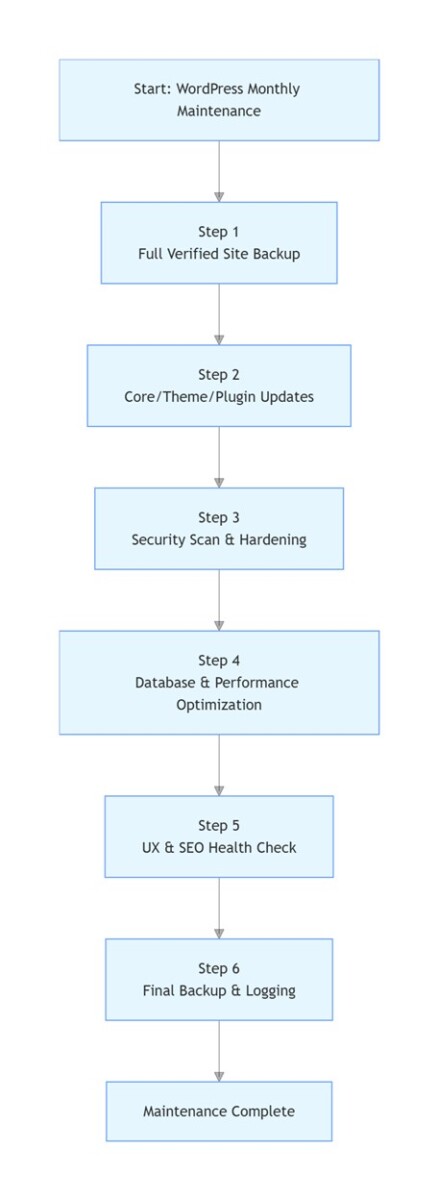
My 6-Year Battle-Tested WordPress Monthly Maintenance Workflow
After years of trial and error, I have refined this into a bulletproof, step-by-step process—follow the order exactly, and you will eliminate 99% of avoidable mistakes. There is one non-negotiable rule that runs through every step: any change to your site must be backed by a restorable backup first.
The Non-Negotiable Pre-Step: Full, Verified Backups Before Any Changes
Verified, offsite backups are the absolute foundation of safe WordPress monthly maintenance—no other step should happen before this.
I have watched too many site owners jump straight into updates, only to break their site and realize they have no way to roll back. I made this exact mistake early on: I skipped backups to save time, ran one-click updates on 12 plugins at once, and completely broke my site frontend. I could not pinpoint which plugin caused the conflict, and ended up having to rebuild the site from scratch, wasting an entire day.
That is why this step comes first, no exceptions. When I say a full backup, I do not just mean your database, or just your theme files. I mean a complete full-site backup: all site files + full database, no exceptions. Your site files include WordPress core, your theme, plugins, media uploads, and custom code; your database holds every post, product, user, and site setting. You cannot restore a fully functional site without both.
I have used UpdraftPlus for backups for 6 years; the free version has all the features most sites need, with zero coding required. Here are the hard rules I follow for backups, learned the hard way:
If your server gets hacked or your hard drive fails, your local backups will be lost too. I always sync my backups to two secure offsite locations: Amazon S3 and Google Drive. Always keep a minimum of 2 offsite copies of every full backup.
I have seen hundreds of site owners with backup plugins installed, only to find their backup files are corrupted or incomplete when they need them most. Every month, I download my latest backup and restore it in a local WordPress staging environment to confirm it works. It takes 10 minutes, but it is the only way to guarantee your safety net is solid.
Keep at least 3 copies of your data, on 2 different media types, with 1 copy stored offsite. In addition to my manual pre-maintenance backup, I set up automatic weekly backups for all sites, and daily backups for my core ecommerce store.
Step 1: Strategic Updates and Compatibility Testing
The sequence and approach you take with updates determines whether your site stays online and fully functional, while blind one-click updates are the #1 cause of preventable site breaks.
Most people think this is the entirety of WordPress monthly maintenance, but it is just one piece of the puzzle. The order of your updates will make or break your site stability.
For 6 years, I have followed this exact update order, and it has never failed me: update WordPress core first, then your theme, then your plugins. This order is non-negotiable. If you reverse it, you will almost certainly face compatibility issues with outdated core software not supporting newer theme or plugin versions.
Here are the core rules I follow for updates, which have helped me avoid 90% of compatibility disasters:
- Use a tiered update system, never update blindly
Security patch updates (minor versions) are non-negotiable: for example, an update from WordPress 6.4.2 to 6.4.3 is a minor release focused on security fixes and bug patches, and should be installed immediately. For major version updates (e.g., 6.4 to 6.5), never install them directly on your live site during monthly maintenance. I always test major updates first in an exact copy of my live site (a WordPress staging environment), confirm all functionality works, there are no conflicts, and there are no widespread bug reports from the community, before updating my live site 1-2 weeks later. - Update plugins one at a time, and test after each one
Never, ever use the bulk one-click update for all plugins. I have seen site owners do this, break their site, and have no way to track which plugin caused the issue. My process: update one plugin, refresh the frontend of your site, test core functionality, confirm no issues, then move to the next one. It may take an extra 10 minutes, but it is far better than spending hours troubleshooting a broken site. - Always read the changelog before updating
Once, a popular SEO plugin released a major update that completely rewrote title tag rules. I caught this in the changelog during staging testing, and avoided a disaster that would have wiped out title tags across my entire live site. - Replace abandoned plugins immediately
If a plugin has not received an official update in over 2 years, replace it—even if it still works. Abandoned plugins have no active security patches, and are the #1 target for hackers. - Do not panic if you hit the maintenance mode WSOD
Almost every site owner has seen this: "Briefly unavailable for scheduled maintenance." It happens when an update is interrupted (you closed the tab, your server lagged, etc.), and WordPress fails to delete the temporary .maintenance file it creates during updates. To fix the WordPress white screen of death in this scenario, simply access your site root directory (usually public_html) via FTP or your host file manager, find the .maintenance file, and delete it. Your site will be back online instantly.
After all updates are complete, clear your site cache and browser cache, then do a full walkthrough of your frontend and backend to confirm all pages load correctly and no functionality is broken.
Step 2: Proactive Security Hardening and Vulnerability Scanning
Proactive security hardening and scanning stop hacks before they happen, rather than forcing you to clean up the damage after.
WordPress is the most widely used CMS in the world, which makes it the most targeted by hackers. The vast majority of WordPress hacks do not come from sophisticated attacks—they come from unpatched vulnerabilities that could have been fixed with consistent WordPress monthly maintenance.
I use the free version of Wordfence for security scanning, which has all the features most personal and business sites need for monthly maintenance. Every month, I run a full deep scan, and complete these critical tasks:
- Scan for malware, backdoors, and malicious code. For any unknown files or flagged code, confirm it is not custom code you added, then delete it immediately.
- Scan for security vulnerabilities in core, themes, and plugins. If an official patch is available, update it; if not, deactivate and replace the plugin or theme immediately.
- Audit admin user accounts and permissions. Check for any unknown admin accounts—hackers often leave a hidden admin account behind even after you clean malware, so they can reaccess your site later. Every month, I also reset my admin password with a 16+ character strong password generated by a password manager, and never use weak passwords.
- Update firewall rules and block brute force attacks. I set up login attempt limits (5 failed attempts = IP ban) and block brute force attacks targeting xmlrpc.php. I also set up real-time email alerts for any admin logins, plugin installations, or core file modifications. Last year, this alert system let me catch and block a brute force attack before it could cause any damage.
- Audit file permissions. Confirm your wp-config.php file is set to 600 permissions, and that PHP execution is disabled in your wp-content/uploads directory—these are the most commonly exploited security gaps.
- Regional compliance checks
For US-based businesses, we include PCI DSS compliance scans for ecommerce sites handling card payments. For European sites, we add a monthly check to ensure GDPR compliance for user data handling, form submissions, and cookie consent tools. For Australian and Canadian site owners, we verify alignment with local privacy regulations including the Privacy Act 1988 and PIPEDA.
Step 3: Database Optimization and Site Performance Tuning
Regular database cleanup directly improves site speed, reduces bloat, and makes your backend run smoother.
Most site owners notice their site getting slower over time, and blame their hosting plan. But 9 times out of 10, the issue is bloated, unoptimized data dragging down your load times. This step is all about decluttering your site to make it run faster, and it is a non-negotiable part of any effective WordPress maintenance checklist for small business.
My optimization workflow has been the same for 6 years, with zero coding required, using user-friendly plugins that will not delete your critical data:
- Clean up database bloat
WordPress automatically saves post revisions, auto-drafts, spam comments, trash items, and expired transients—none of which add any value to your site, but all of which bloat your database and slow down queries. I use WP-Optimize to clean up this redundant data every month, and I always take a standalone database backup before cleaning. For one client site, we reduced the database from 800MB to 120MB, and saw an immediate jump in backend response time and page load speed. - Clean up unused media files
Most site owners upload images and videos that never get used on any page or post, and they sit on your server forever, wasting storage space and slowing down backups and load times. I use Media Cleaner, which automatically identifies unused media files not linked to any post, page, or product. I review the files, confirm they are unused, then delete them in bulk. - Refresh cache and preload critical pages
After updates, old cache files are useless. Every month, I clear all old cache files and regenerate full-site cache, to ensure visitors get the fastest load times and the most up-to-date content. - Run performance benchmark tests and optimize
Every month, I run standardized performance tests using GTmetrix and Google PageSpeed Insights, and track changes to core metrics—not just the overall score, but real load time, Time to First Byte (TTFB), Time to Interactive (TTI), and Cumulative Layout Shift (CLS). A rule of thumb I have learned: if your TTFB is over 600ms, you almost certainly have a server or database issue that needs fixing. If metrics are declining, I implement targeted fixes: image compression, merging redundant JS/CSS files, enabling lazy loading, and other speed optimization tips for WordPress, to keep load times in the optimal range.
Step 4: SEO Health Checks and End-to-End User Journey Testing
End-to-end user journey testing ensures your site does not just work—it converts, by catching broken functionality before your customers do.
This is the step I added after my $4,500 disaster, and it is the one most site owners skip completely. Most people do all their maintenance in the backend, and never walk through the user journey on the frontend. The result? Broken functionality that you do not notice for days, while you lose customers and revenue.
Before I added this step, I had an ecommerce site where the WooCommerce payment gateway API key expired, and the checkout process broke completely. I did not notice for 3 full days, and lost over $2,800 in sales. Now, every single month during WordPress monthly maintenance, I run a full end-to-end audit, with these critical tasks:
- Test your core business workflow end-to-end
For ecommerce sites, I walk through the full customer journey: account registration → adding products to cart → checkout → payment → order confirmation → order lookup. For business sites, I test form submissions, quote requests, and live chat functionality. For blogs, I test comment functionality and site search. I confirm every core feature works exactly as it should. - Test all form functionality individually
This is the most commonly missed detail. You think your contact form is working, but a plugin update or email configuration change may have broken it weeks ago. Every month, I submit every form on my site, and confirm the notification emails arrive in my inbox. Do not let qualified leads slip through the cracks because of a broken form. - Audit broken links and search indexing health
I log into Google Search Console to check for crawl errors, indexing issues, ranking drops, or manual penalties. I also run a full site scan for broken links. Too many broken links do not just frustrate users—they tell search engines your site is unmaintained, and hurt your rankings. For any broken links, I either set up a 301 redirect to a relevant page, or submit them for removal in Google Search Console if the page is permanently deleted. - Check mobile responsiveness and usability
Google uses mobile-first indexing for all sites, so mobile performance is non-negotiable. Every month, I check my site on multiple mobile devices, confirm pages do not have layout breaks, buttons and forms are clickable, and all media loads correctly. - Verify domain and SSL certificate status
An expired SSL certificate will trigger a "not secure" warning in browsers, drive away visitors, and hurt your search rankings. Even free Let's Encrypt certificates (which renew every 90 days) can fail to auto-renew. Every month, I check my SSL certificate expiration date and domain renewal date, to avoid catastrophic downtime from a preventable mistake.
Step 5: Post-Maintenance Wrap-Up: Secondary Backup, Logging, and Monitoring Checks
Post-maintenance backups, logging, and monitoring turn a one-time task into a long-term safety system for your site.
Most site owners finish the steps above and call WordPress monthly maintenance done. But these final wrap-up tasks are the ones that will save you when things go wrong between maintenance cycles, and I have stuck to them for 6 years.
Once all maintenance tasks are complete, and you have confirmed your site is fully functional with no issues, run another complete full-site backup. This is your clean, post-maintenance healthy version of your site. Archive it with a clear name like "YYYY-MM Post-Maintenance Healthy Backup", and store it in your offsite cloud storage, keeping at least 6 months of archived backups. Once, a site of mine was hacked between monthly maintenance cycles, and I restored it to this clean backup in 10 minutes, with almost zero downtime or data loss.
I have a dedicated spreadsheet where I log every single maintenance task for every site: maintenance date, site name, specific tasks completed, plugins/themes/core updated, security issues found and fixed, performance metrics, SEO data, and backup storage locations. It takes 5 minutes to fill out, but it is invaluable: if your site breaks later, you can trace the issue back to a specific change; you can track long-term site health trends; and if you ever hand the site off to a developer or new owner, the log is a complete record of the site history.
WordPress monthly maintenance is not a set-it-and-forget-it task—24/7 monitoring lets you catch issues the second they happen, between maintenance cycles. I use UptimeRobot free plan to monitor all my sites uptime 24/7, with instant email and SMS alerts if a site goes down. Every month, I confirm my monitoring is active, alerts are working correctly, and server CPU, memory, and disk space alerts are set to appropriate thresholds.
"As a small business owner with no technical background, this guide made WordPress monthly maintenance feel manageable. We used to pay $300/month for a basic maintenance service, and now we handle 90% of it ourselves with this step-by-step system."
— Mark T., Small Business Owner (UK-based)
WordPress Website Maintenance Cost: What You Are Actually Paying For
When it comes to WordPress monthly maintenance, the first question most site owners ask is: should I do it myself, or pay for a managed service? I have researched over a dozen providers, and pricing ranges from $30/month to over $500/month. The difference in price comes down to the depth of service, not just the brand name.
I have broken down the most common service tiers, to help you choose the right fit for your site:
- Basic Tier ($30–$80/month): Typically includes core, theme, and plugin updates, daily automated backups, and basic security scanning. This tier is best for low-traffic personal blogs or simple brochure sites. Critical note: most basic plans do not include hands-on troubleshooting or emergency fixes, and will charge you an hourly rate if your site breaks or gets hacked. This can lead to unexpected bills down the line.
- Professional Tier ($100–$300/month): Builds on the basic tier with database optimization, performance tuning, 24/7 uptime monitoring and emergency response, a detailed monthly maintenance report, and a set number of free emergency fix hours. This is the tier I use for my core business sites, and it is the best fit for most small business sites, ecommerce stores, and high-traffic blogs. When choosing this tier, always confirm if it includes free emergency outage support, and if they offer a zero-downtime maintenance guarantee.
- Enterprise Tier ($500+/month): Includes custom development support, server load balancing optimization, deep security audits, a dedicated account manager, and 24/7 priority emergency response. This tier is designed for high-volume ecommerce stores, membership sites, and large enterprise sites with mission-critical functionality.
The biggest mistake I made early on was choosing the cheapest basic plan to save money. When my site got hacked, the malware cleanup fees and lost revenue cost me 10x more than the money I saved on the cheaper plan. WordPress maintenance cost is not an expense—it is insurance for your site and your revenue.
DIY vs. Managed WordPress Maintenance: How to Choose
I get asked this question all the time: should I handle WordPress monthly maintenance myself, or outsource it to a professional? There is no one-size-fits-all answer—it all comes down to your time, technical comfort, and risk tolerance.
| Maintenance Method | Monthly Cost | Time Commitment | Technical Skill Required | Risk Management |
|---|---|---|---|---|
| DIY (Do It Yourself) | ~$0 (free tools) | 1–4 hours/month | Basic WordPress literacy, simple troubleshooting skills | You bear all risk; you are responsible for fixing any mistakes or outages |
| Managed Professional Service | $30–$500+/month | ~0 hours/month | Almost none | Professional team handles risk, with a guaranteed Service Level Agreement (SLA) for uptime and response |
If you are running a personal blog or hobby site that does not generate revenue, DIY maintenance is a great option. You will learn how your site works, save money, and have full control over your site.
But if you are running a business site, ecommerce store, or any site that generates revenue for you, I strongly recommend outsourcing to a reputable managed service provider. Here is the math: if your site generates $5,000/month in revenue, spending $200/month on professional maintenance frees you up to focus on content, marketing, and growing your business—tasks that drive far more revenue than the cost of the service. After all, a single day of downtime could cost you more than a full year of maintenance fees.
When choosing a provider, do not just pick the cheapest option. I vet providers on these core criteria: do they have an in-house technical team (not just outsourcing to third parties)? Do they offer a clear, written Service Level Agreement (SLA) for response times? Can they provide verifiable case studies and client references? Can they share a sample of their monthly maintenance checklist and report? If a provider only talks in vague terms about "full-service maintenance" and cannot give you concrete details, walk away.
The Unspoken Rules of WordPress Maintenance (Lessons Learned the Hard Way)
After 6 years of maintaining WordPress sites, I have made almost every mistake in the book. Here are the unspoken details most guides will not tell you, that will save you from costly headaches:
First, less is more when it comes to plugins—audit them regularly. I audited a client site that had 47 plugins installed: 12 were deactivated but not deleted, and 8 had not been updated in over 2 years. The hard rule: every plugin you add is another potential point of failure and another attack surface for hackers. Every month, I take 5 minutes to review my plugin list, and delete any plugins I have not used in 6 months, are abandoned, or have functionality that is now covered by my theme.
Second, editing your parent theme files directly is a ticking time bomb. I have seen countless site owners edit their theme code directly, only to have all their changes erased when the theme updates. The correct way to add custom code is to use a WordPress child theme, or a dedicated code snippets plugin—never edit the parent theme core files.
Third, your error logs are your most powerful troubleshooting tool. Most site owners never look at their error logs until their site is completely broken. But taking 5 minutes every month to review your WordPress error logs, server access logs, and PHP error logs will let you catch small issues before they become big disasters—like a plugin throwing consistent errors, or suspicious access requests. Just make sure to set up log rotation, so your log files do not fill up your server disk space.
Fourth, deactivated themes and plugins still pose a security risk. Many site owners think deactivating a plugin or theme makes it safe, but that is not true. The files are still stored on your server, and can still be exploited by hackers. If you are not using a theme or plugin, delete it completely—do not just deactivate it.
Frequently Asked Questions About WordPress Monthly Maintenance
- What is WordPress monthly maintenance?
- WordPress monthly maintenance is a structured, recurring set of tasks designed to keep your WordPress site secure, fast, and fully functional. It includes critical updates, security scans, performance optimization, backups, and user experience testing—all completed on a monthly schedule to prevent downtime, hacks, and performance decay, rather than fixing issues after they happen.
- How long does WordPress monthly maintenance take?
- DIY maintenance takes 1-4 hours monthly depending on site complexity. Professional services handle it in the background with zero time investment from you. My 5-site routine takes exactly 3 hours every first Saturday of the month, with a streamlined checklist to avoid wasted time.
- Will my site go down during maintenance?
- When done correctly, no. Professional maintenance is performed during low-traffic hours, with all changes tested in a staging environment first. Even for live site changes, a professional maintenance mode plugin is used to show a friendly notice to visitors, with zero downtime for critical functionality. I require a zero-downtime maintenance guarantee from any provider I work with.
- My site has not been maintained in months (or years). Where do I start?
- First and foremost, take a full, verified backup of your site—this is non-negotiable. Then, work through the steps systematically: audit your WordPress core, theme, and plugin update status, check your database size, run a full security scan. Never bulk update everything at once, as this will almost certainly cause compatibility conflicts. Test updates in a staging environment first, or hire a professional to do a full site audit and create a prioritized repair plan.
- Does a small, low-traffic site still need monthly maintenance?
- Yes. Low traffic does not mean low risk—in fact, low-traffic sites are often hacked and used as link farms or malware hosts, because the owner is less likely to notice the breach for weeks or months. You can adjust the intensity of the maintenance, but the core security updates, backups, and security scans are non-negotiable.
- How do I know if a maintenance provider is reputable?
- Look for these three key signs: first, they ask about your site type, business goals, and pain points before giving you a price, instead of just sending a generic quote. Second, they can clearly explain exactly what their maintenance includes, step by step, not just vague marketing language. Third, they offer a monthly pay-as-you-go option or a free trial, instead of forcing you into a long-term annual contract upfront.
Stop Worrying About Downtime and Hacks
I always tell fellow site owners: website maintenance is like brushing your teeth. A few minutes of consistent care will save you from thousands of dollars in repairs, lost revenue, and stress down the line. It is easy to put off, until you are dealing with a disaster that could have been prevented.
I have been there: waking up at 3 a.m. to an uptime alert that my site is down, panicking about lost revenue and broken functionality. I also know the peace of mind that comes with a solid WordPress monthly maintenance routine, knowing my site is secure, fast, and reliable.
At the end of the day, WordPress monthly maintenance is not just a list of tedious tasks. It is a way to trade a small, predictable amount of time or money each month, to avoid unpredictable, catastrophic losses to your business.
If you have read this far, you are already ahead of 80% of site owners, who ignore maintenance until it is too late. The next step is to take action:
- Grab my free, printable WordPress Monthly Maintenance Checklist PDF – the exact checklist I use for all my client sites, delivered straight to your inbox when you subscribe below.
- Book a free 15-minute WordPress site audit – I will walk you through the top 3 risks to your site, and how to fix them fast.
- Use this playbook to build your own monthly maintenance SOP, or find a reputable provider to handle it for you.
After all, we build websites to drive traffic, generate leads, and grow our businesses—not to stress about downtime, hacks, and broken pages. I hope this battle-tested playbook helps you keep your site secure, fast, and profitable for years to come.