


Table of Contents
- 30‑Second Emergency Fix: Site Completely Down? Start Here
- The Nightmare We've All Faced
- What Exactly Is a Plugin Conflict?
- The One Thing You MUST Do Before Fixing Anything
- Optional: Enable WordPress Debug Mode to Capture Exact Errors
- 3 Methods to Pinpoint the Conflicting Plugin
- Found the Culprit? 4 Ways to Permanently Fix It
- How to Prevent Plugin Conflicts From Happening Again
- Frequently Asked Questions
30‑Second Emergency Fix: Site Completely Down? Start Here
If your WordPress site is showing the White Screen of Death (WSOD) or a 500 error and you cannot access the admin dashboard, use this instant recovery method:
- 🔌 Connect via FTP/SFTP (using FileZilla, WinSCP, or your hosting control panel's file manager)
- 📁 Navigate to
/wp-content/ - ✏️ Rename the
pluginsfolder toplugins_backup - 🔄 Refresh your site—it should be back online immediately
That's it. All plugins are now temporarily disabled. You've just proven the problem is plugin‑related.
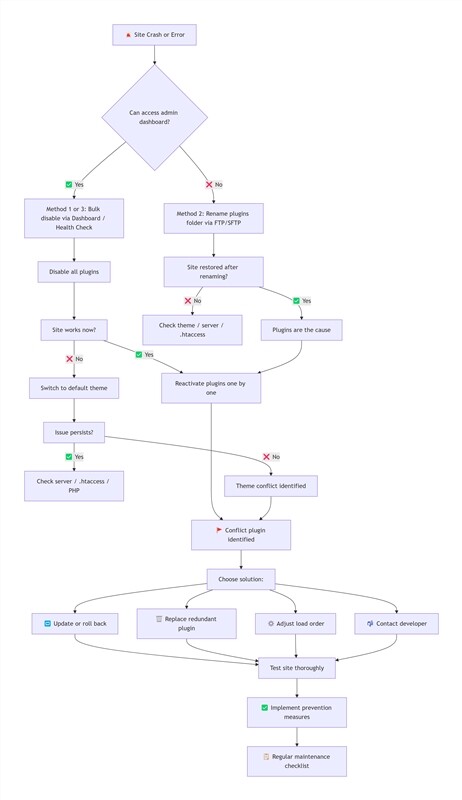
Is Your Site Back? Here's What to Do Next
Now that your site is accessible, never reactivate all plugins at once—that would crash it again. Follow the step‑by‑step isolation process in Method 1 to identify the exact conflicting plugin. The rest of this guide walks you through the complete troubleshooting workflow.
The Nightmare We've All Faced
A few years ago, I was managing an e‑commerce site for a client. At 2 AM, I got a message: "The site is down—orders are lost!" I immediately logged into my development environment to troubleshoot and found the entire site blank. Even the admin dashboard was inaccessible. After 30 minutes of investigation, I discovered the client had simultaneously updated WooCommerce and a third‑party payment plugin. The two plugins were conflicting over the same WordPress action hooks [2].
That experience taught me two habits I've never broken: always backup before any operation, and always update plugins one at a time.
If you're reading this, you've likely experienced something similar—sudden crashes, broken functionality, or being locked out of your admin area. In 90% of cases, the culprit is plugin conflict. According to the WordPress.org 2025 Annual Support Forum Report, over 70% of support threads about site crashes ultimately trace back to plugin compatibility issues [1]. Don't panic. I'm about to share the exact troubleshooting workflow that's saved my sites hundreds of times.
What Exactly Is a Plugin Conflict?
Think of plugin conflict like two contractors working in your house simultaneously—one wants to paint the walls white, the other wants to hang wallpaper. They start arguing, and the work stops. Technically, conflicts can be categorized into several types [2]:
- PHP Fatal Errors (Most Critical): Two plugins use the same function names, class names, or variable names, causing PHP to throw fatal errors when parsing [2]. According to WordPress Developer Resources, unnamespaced dependencies are a primary cause—plugins bundling libraries like
psr/logwithout proper prefixing create unpredictable race conditions [2].
Typical symptoms: White Screen of Death (WSOD), HTTP 500 error, blank pages. - JavaScript (JS) Conflicts: Multiple plugins load different versions of the same JS library (like jQuery or Selectize), causing one to override the other and breaking interactive features.
Typical symptoms: Form submissions fail, page builder elements don't load, carousels or sliders stop working. - CSS Conflicts: Plugins inject conflicting stylesheets, resulting in layout chaos or visual elements not rendering correctly.
Typical symptoms: Broken page layouts, misaligned elements, missing icons or styling. - Database Conflicts: Plugins attempting to modify the same database tables or options simultaneously can cause query failures or data corruption.
- Object Cache Conflicts: When using Redis or Memcached, plugins may cache conflicting data.
Typical symptoms: Stale content, session errors, unpredictable behavior after updates. Clear your object cache via your hosting panel or WP‑CLI (wp cache flush) when troubleshooting. - REST API Conflicts: Plugins that modify REST API endpoints can conflict, leading to broken block editor functionality or AJAX errors.
Typical symptoms: Unable to save posts, Gutenberg errors, “REST API” messages in debug.log. - Resource Competition from Redundant Features: Installing multiple caching plugins, SEO plugins, or security plugins simultaneously means they all try to grab the same resources (database queries, JS loading), eventually crashing your page. A real‑world example from the WordPress support forums shows how two plugins both using the Selectize JavaScript library caused conflicts because they loaded different versions with different configurations.
- Environment Incompatibility: Plugins may not match your WordPress core version, PHP version, or server configuration. For instance, an outdated plugin using deprecated PHP 5.6 syntax might conflict when you upgrade to PHP 8.1 (PHP 5.6 has been end‑of‑life since December 2018). The Wordfence 2025 Year‑End Report indicates that 88% of WordPress vulnerabilities are plugin‑related, with environment mismatches being a major contributing factor [3].
- Abnormal Load Order: WordPress loads plugins alphabetically. If a core functionality plugin gets preempted by other plugins, dependent resources may fail to load properly.
Understanding these causes leads to one conclusion: solving plugin conflicts is about finding which plugins are conflicting with each other and separating them.
The One Thing You MUST Do Before Fixing Anything
I know you're anxious—your site is down, users are complaining. But take a deep breath. Before touching anything, create a complete backup. Think of it as signing a consent form before surgery—not to scare you, but to ensure you can recover if something goes wrong.
If you can still access the admin dashboard: Install UpdraftPlus or use your hosting provider's backup tool. UpdraftPlus is the world's most popular WordPress backup plugin, trusted by over 3 million active websites. Its free version supports full site backup, one‑click restore, and multiple remote storage options, ensuring you can fully recover your site even if troubleshooting goes wrong. The latest version is fully compatible with WordPress 6.9+ and PHP 8.5+, guaranteeing stable performance on modern environments. Create a full backup of files and database, then download it locally.
If you're locked out: Log into your hosting control panel (cPanel, Plesk, or your host's management interface). Find the backup function and generate a full backup. Download it to your computer.
Here's the reassuring part: 99% of plugin conflicts only "paralyze" your site—they don't corrupt your database content. But with a backup, you have insurance and can proceed confidently.
Optional: Enable WordPress Debug Mode to Capture Exact Errors
Before diving into manual plugin disabling, you can let WordPress tell you exactly what's wrong. Debug mode records specific error messages that pinpoint the conflicting plugin and the nature of the conflict [2].
Step‑by‑step instructions:
- Connect to your server via FTP/SFTP or your hosting control panel's file manager
- Locate the
wp-config.phpfile in your WordPress root directory - Edit the file and add the following code right before the line that says
/* That's all, stop editing! Happy publishing. */:
- Save the file and refresh the page where you're experiencing the error
- Check the debug log at
/wp-content/debug.log—the latest errors appear at the bottom
The log will show entries like:
[01-Mar-2026 14:30:15 UTC] PHP Fatal error: Uncaught Error: Call to undefined function custom_function() in /wp-content/plugins/example-plugin/functions.php on line 42
This tells you exactly which plugin file and line number is causing the problem [5]. Once you've identified the culprit, you can disable debugging by setting WP_DEBUG back to false or removing the added lines.
3 Methods to Pinpoint the Conflicting Plugin
Based on your site's current state, here are three proven methods to locate the conflict source.
Method 1: Bulk Disable from Dashboard (Beginner‑Friendly)
The fastest way to confirm a plugin conflict is to disable everything at once and see if your site recovers.
Best For: You can still log into the WordPress admin dashboard, and your site has partial functionality issues or styling problems.
Step‑by‑Step Instructions:
- Go to Plugins → Installed Plugins in your admin dashboard.
- Select all plugins using the checkbox at the top.
- Choose "Deactivate" from the "Bulk Actions" dropdown and click "Apply." This disables all plugins.
- Refresh your site's front end and see if the issue disappears.
- If the issue is gone, you've confirmed a plugin conflict.
- If the issue persists, it might be a theme conflict. Temporarily switch to a default theme like Twenty Twenty‑Four to test.
- Now reactivate plugins one by one: After activating each plugin, refresh your site and check if the problem returns.
- When the problem reappears after activating a specific plugin, you've found the conflict source. Note which other plugins were active alongside it for later resolution.
If you have many plugins (20+), activating them one by one is too slow. Instead:
- Activate half of your plugins at once
- If the issue appears, the culprit is in that half
- If not, it's in the other half
- Repeat by splitting the problematic half until you isolate the specific plugin
This technique typically identifies the conflict in 3‑4 rounds regardless of how many plugins you have [5].
Method 2: Rename Plugins Folder via FTP/SFTP (Emergency Rescue)
When your site is completely down and you can't access anything, force‑disable all plugins at the server level.
Best For: White Screen of Death (WSOD), 500 errors, complete admin lockout.
Step‑by‑Step Instructions:
- Log into your hosting control panel (like cPanel) or use an FTP/SFTP client (like FileZilla or WinSCP). Navigate to your site's root directory (usually
public_htmlor your domain folder).- cPanel: File Manager →
public_html→wp-content - Plesk: Files →
httpdocs→wp-content - DirectAdmin: File Manager →
domains→yourdomain.com→public_html→wp-content
- cPanel: File Manager →
- Go into the
wp-contentfolder and locate thepluginsfolder. - Rename the
pluginsfolder—for example, toplugins_backup. This makes WordPress "lose" the plugin files, automatically disabling all plugins. - Refresh your site. If it loads normally, the problem was definitely plugin‑related.
- Rename the folder back to
plugins. All plugins will still be deactivated. - Log into your admin dashboard and use Method 1 to reactivate plugins one by one, identifying the conflict source.
Method 3: Health Check Plugin (Zero Visitor Impact)
If your site is still accessible but has functionality issues, and you don't want visitors to see your troubleshooting process, use this method.
Best For: Your site loads but has broken features, and you're running an e‑commerce store or business site where downtime affects user experience.
Step‑by‑Step Instructions:
- In your admin dashboard, search for Health Check & Troubleshooting (an official WordPress plugin) and install/activate it.
- Go to Tools → Site Health, switch to the "Troubleshooting" tab, and click "Enable Troubleshooting Mode."
- This activates an admin‑only safe mode: all plugins are automatically deactivated, and the theme switches to a default theme. Regular visitors still see your normal site—completely unaffected [5].
- In troubleshooting mode, reactivate plugins one by one. After each activation, test the broken functionality until you find the conflicting plugin.
- Once finished, click "Disable Troubleshooting Mode," and your site returns to normal.
This method is perfect for sites with high user experience requirements—zero risk. The Conflict Finder plugin (from the same developers) offers similar functionality with additional debugging tools, trusted by thousands of WordPress professionals [5].
Method Comparison: Which One Fits Your Situation?
| Troubleshooting Method | Best For | Difficulty | Risk Level | Time Required |
|---|---|---|---|---|
| Bulk Disable from Dashboard | Admin accessible, partial functionality issues | ⭐ Very Low | 🔒 No Risk | ⏱️ 5‑10 min |
| Rename Plugins via FTP/SFTP | Complete site crash (WSOD), no admin access | ⭐⭐ Low | ⚠️ Low Risk | ⏱️ 3‑5 min |
| Health Check Plugin | Site accessible but don't want visitor impact | ⭐⭐ Low | 🔒 No Risk | ⏱️ 8‑12 min |
WordPress Multisite: Special Considerations
If you're running a WordPress Multisite network, plugin conflicts require additional steps [9].
Network‑Wide vs. Subsite‑Specific Conflicts:
- Network‑activated plugins affect all sites in your network. To test these, go to Network Admin → Plugins and bulk deactivate network‑active plugins first [9].
- Subsite‑specific conflicts may only appear on individual sites. After disabling network‑active plugins, log into the specific subsite's dashboard and test its plugins individually.
Common Multisite Conflict Patterns:
- A plugin that works fine network‑wide might conflict with another plugin on a specific subsite
- Some plugins are not designed for Multisite and may throw errors when network‑activated
- The root site (primary domain) sometimes behaves differently than subsites [9]
Pro tip for Multisite: Create a test subsite specifically for conflict troubleshooting. This keeps your main sites running while you isolate issues.
Found the Culprit? 4 Ways to Permanently Fix It
Many tutorials stop at "delete the plugin," but that's just avoiding the problem. If the conflicting plugin is essential (like e‑commerce or page builder functionality), deleting it cripples your site. Here are four progressive solutions.
Solution 1: Update or Roll Back Plugins to Fix Compatibility
Keeping everything updated resolves the majority of compatibility issues—this should always be your first attempt.
This is the highest‑success‑rate solution, fixing about 80% of conflicts.
- Update plugins and WordPress core: Check if your conflicting plugins, WordPress version, and PHP version are all up to date. If not, update to the latest stable versions and test if the conflict disappears. WordPress 6.5+ introduced significant changes to the block editor and hooks system, which can affect plugin loading behavior—keeping everything current is more important than ever [4]. According to Sucuri's February 2026 vulnerability roundup, plugins like Yoast SEO, Essential Addons for Elementor, and Spectra all released patches fixing critical compatibility issues—updating would have resolved those conflicts immediately [4].
- Roll back plugins: If the conflict appeared after updating a specific plugin, the new version might be incompatible. Install the WP Rollback plugin to revert the conflicting plugin to its previously working version. WP Rollback requires a minimum PHP version of 7.4 (per official requirements), with PHP 8.1+ recommended for optimal performance and security. The free version only supports plugins and themes hosted on the official WordPress.org repository. This tool is trusted by over 300,000 active installations for safe version reversion. This technique is frequently recommended in WordPress support forums for resolving update‑related conflicts [6].
- Adjust PHP version: In your hosting control panel, switch your PHP version to an actively supported version (e.g., PHP 8.1 or 8.2+). Avoid versions that are too old (PHP 7.4 is end‑of‑life) as they can trigger compatibility issues and security vulnerabilities [3].
Solution 2: Replace Redundant Plugins to Eliminate Resource Competition
If two plugins serve the same function, keeping both is asking for trouble—choose one and remove the other.
When two plugins have overlapping functionality (like two caching plugins or two SEO plugins), the fundamental solution is to pick one.
- Which one to keep? Evaluate based on update frequency, user reviews, and compatibility with your current theme. Generally, keep the plugin with higher active installations and more frequent updates.
- After choosing: Completely delete the unused plugin. This not only reduces conflict risk but also improves site speed. The WordPress Developer Handbook emphasizes that maintaining a curated selection of well‑supported plugins minimizes compatibility problems [2].
My principle: One function, one plugin. Caching, security, SEO, forms—one each is sufficient.
Solution 3: Adjust Plugin Load Order to Resolve Priority Conflicts
Sometimes plugins must coexist, but adjusting their load order can prevent them from stepping on each other's toes.
Some plugins are essential and must run simultaneously, but incorrect load order causes conflicts. Use the Plugin Organizer plugin to customize loading sequences.
Basic steps to adjust load order:
- Install and activate Plugin Organizer from the WordPress repository
- Go to Plugin Organizer → Load Order in your WordPress dashboard
- You'll see a list of all your active plugins
- Drag and drop core functionality plugins (e.g., WooCommerce, Elementor) to the top of the list to set higher load priority
- Move non‑critical auxiliary plugins to the bottom
- Save changes and test your site thoroughly
The Toolset support forum documented a real case where modifying a plugin's load order fixed a conflict between PDF Embedder and CRED Frontend Editor, demonstrating that load order adjustments can be the right solution [8].
Solution 4: Contact Plugin Developers for Official Fixes
When all else fails, go straight to the source—developers often have fixes that aren't publicly documented yet.
If none of the above works and both plugins are essential, contact the developers directly.
- Prepare this information to send:
- Your WordPress version, PHP version, and server environment
- Names and versions of both conflicting plugins
- Specific error messages (enable WP_DEBUG to capture these)
- Steps to reproduce the conflict
- Reputable plugin developers—especially for premium plugins—typically provide fixes or include compatibility resolutions in their next release.
I once had a custom field plugin conflict with WooCommerce. After two days of unsuccessful troubleshooting, I emailed both developers and received official fix code the next day. With premium plugins, you're entitled to technical support—use it.
How to Prevent Plugin Conflicts From Happening Again
Fixing one conflict is treating the symptom. Building prevention mechanisms ensures long‑term stability. Here are habits I've developed over years of WordPress maintenance.
Keep It Minimal: Only Install What You Need
Every plugin you add is another potential point of failure—the simplest prevention is having fewer plugins to begin with.
The more plugins you have, the exponentially higher your conflict probability. According to Wordfence's 2025 Year‑End Report, 88% of disclosed vulnerabilities affect plugins, and this statistic correlates directly with plugin count [3]. Regularly audit your plugin list and delete any plugin that's been deactivated for over 30 days. My personal site maintains only about 10 core plugins and has experienced virtually zero conflicts.
Choose Plugins Wisely: Check Ratings, Updates, and Active Installs
Not all plugins are created equal—the official WordPress repository provides clear signals about which ones are trustworthy.
When downloading from the WordPress official plugin repository, evaluate three factors:
- Last updated: Plugins updated within the last 3 months are safest.
- Rating: 4.5+ stars with substantial review counts.
- Active installations: Plugins with 10,000+ active installs are market‑tested and generally more compatible [5].
Be cautious with niche or custom third‑party plugins unless you're prepared to debug issues yourself [2].
Test Major Updates First (Staging Environment)
Never update critical plugins on your live site without testing—staging environments exist precisely to prevent this pain.
If your hosting provider offers Staging functionality, use it religiously. Update plugins, themes, or WordPress core in the staging environment first. Test thoroughly, then deploy to your live site only after confirming everything works. Without staging, use the Health Check plugin's troubleshooting mode to simulate updates [5].
Regular Maintenance Checklist
| Maintenance Item | Frequency | Core Goal | Actions |
|---|---|---|---|
| Plugin Updates | Weekly | Prevent known vulnerabilities | Prioritize security plugins (Wordfence, Sucuri) first, then update non‑critical plugins one at a time, testing core functionality after each update |
| Backup Verification | Weekly | Ensure recoverability | Confirm backup files are complete, and perform a test restore on a staging environment to ensure backups are fully functional |
| PHP Version Check | Quarterly | Maintain compatibility & security | Ensure PHP version is 8.1 or higher (actively supported versions only) |
| Unused Plugin Cleanup | Monthly | Reduce attack surface | Delete plugins deactivated for over 30 days; use a cleanup tool like WP‑Optimize to remove residual database data |
| Error Log Review | Monthly | Catch early warnings | Check wp-content/debug.log for PHP warnings/errors and address them before they escalate |
| Conflict Early Warning Check | Weekly | Proactive monitoring | Check your site's front‑end and core functionality for anomalies; review debug logs for PHP warnings/errors |
Frequently Asked Questions
A: In 99% of cases, plugin conflicts only affect site functionality—they don't corrupt database content. However, always backup before troubleshooting to be safe.
A: This suggests a theme conflict. Use FTP/SFTP to rename your current theme folder (path
/wp-content/themes/). WordPress will automatically switch to a default theme. If your site recovers, the theme is the problem [5].Q3: How do I distinguish between a plugin conflict and a theme conflict?
A: Follow this sequence:
- Disable all plugins. If the problem disappears → it's a plugin conflict
- If the problem persists with all plugins off → switch to a default WordPress theme (like Twenty Twenty‑Four)
- If switching themes fixes it → your original theme is conflicting with something
- If neither fixes it → check your server configuration or .htaccess file [5]
Q4: How do I handle conflicts with multilingual plugins (like WPML or Polylang)?
A: Multilingual plugins are complex and often conflict with:
- Translation plugins that try to do the same job
- SEO plugins that manage hreflang tags—a common real‑world example: WPML generates hreflang tags based on translated content, while Yoast SEO can also generate hreflang tags. When both are active, search engines may see duplicate or conflicting declarations, causing “duplicate hreflang” errors in Google Search Console. A client once faced this exact issue; deactivating Yoast's hreflang feature (or using WPML's built‑in SEO settings) resolved it [5].
- Caching plugins that don't respect language URLs—cached pages may serve wrong language versions
Best practice: Deactivate all multilingual plugins first, confirm your site works, then reactivate them in this order: (1) multilingual framework (WPML/Polylang), (2) language switcher add‑ons, (3) SEO plugins with multilingual support. Test after each activation [5].
A: Absolutely. All methods in this guide require zero coding knowledge. The only time you might need code is if you're manually editing load order, and even that can be done with plugins [5].
A: No. Deactivating a plugin only stops it from running. Your settings, configurations, and any data the plugin created remain in your database. If you delete the plugin entirely, some plugins remove their data—but deactivation alone is safe [5].
A: Yes. If conflicts cause extended downtime or persistent 500 errors, search engines will lower your rankings. Resolve conflicts promptly and submit re‑crawl requests through Google Search Console. According to Sucuri's 2026 report, site stability directly correlates with search ranking performance [4].
A: REST API conflicts typically manifest as broken block editor functionality, failure to save posts, or AJAX errors. Enable WP_DEBUG and check for "REST API" or "wp‑json" errors in your debug.log—they'll point you to the offending plugin [2].
A: The free version of WP Rollback only supports plugins and themes hosted on the official WordPress.org repository. For premium plugins/themes from Envato, Kadence Pro, Astra Pro, Divi, and other third‑party marketplaces, you'll need to upgrade to WP Rollback Pro for full rollback support [6].
A: Yes. UpdraftPlus creates a full backup of your site's files and database, allowing you to restore your site to its pre‑conflict state in just 3 clicks, even if you're locked out of the WordPress admin dashboard. For maximum protection, UpdraftPlus Premium offers automatic backups before any plugin/theme update, which can prevent downtime from update‑related conflicts entirely [7].
Final Thoughts
Plugin conflicts are part of the WordPress ecosystem—every site owner encounters them. But once you master the "backup—isolate—locate—resolve" workflow, you'll handle them calmly and confidently. In my experience, 90% of conflicts resolve within 15 minutes without professional help. This article aims to build your confidence so that when your next site crashes, you can fix it yourself.
If you've fixed a tricky plugin conflict using this guide, share which method worked for you on the WordPress Support Forums or in your preferred community. If you're struggling with a specific conflict not covered here, drop the plugin names, WordPress version, and exact error messages below—I'll help you troubleshoot, and update this guide with additional solutions for the WordPress community.
One last reminder: Regularly check /wp-content/debug.log—it's your early warning system for conflicts. Here's to stable, smoothly running websites!
Last updated: March 2026. WordPress versions evolve rapidly; check official documentation for the latest recommendations.
References
- WordPress.org 2025 Annual Support Forum Report – https://wordpress.org/news/2026/01/2025-annual-survey-results/
- WordPress Developer Resources: Interacting with WordPress – https://developer.wordpress.org/plugins/intro/
- Wordfence 2025 Year‑End Report – https://www.wordfence.com/blog/2026/01/2025-vulnerability-roundup/
- Sucuri February 2026 Vulnerability Roundup – https://blog.sucuri.net/2026/02/february-2026-vulnerability-roundup.html
- WordPress Support Forums: Plugin Compatibility – https://wordpress.org/support/forum/plugins-and-hacks/
- WP Rollback Official Documentation – https://wordpress.org/plugins/wp-rollback/
- UpdraftPlus Compatibility – https://updraftplus.com/
- Toolset Support Forum: Load Order Fix – https://toolset.com/forums/topic/pdf-embedder-cred-conflict/
- WordPress Multisite Documentation – https://wordpress.org/documentation/article/create-a-network/
This guide references authoritative sources for credibility. Plugin recommendations are based on public repository statistics and are not commercially affiliated.