You need to move your WordPress site to a new host or server. The thought of potential hours of downtime, lost revenue, and broken functionality keeps you awake at night. Is there a way to migrate seamlessly while your site remains live?
Why Does the Thought of WordPress Migration Cause Anxiety?
The anxiety stems from a fundamental conflict: migration requires changing the very foundation your site runs on, while your business requires it to remain 100% operational. The risks are tangible and multifaceted.
First, there is the direct threat of extended downtime. Every minute your site is inaccessible translates to lost leads, abandoned carts, and damaged brand credibility. For service-based businesses, it can mean missed appointments and support blackouts.
Second, data integrity is non-negotiable. A corrupted database transfer can mean lost user accounts, mangled product variations, or broken content relationships. Restoring from a backup often means losing data generated during the failed migration window.
Finally, post-migration gremlins. These are the subtle breaks that appear only after the switch: broken links pointing to the old server, email delivery failures, forms that stop submitting, or third-party service APIs that reject requests from the new site’s IP address. Diagnosing these can take longer than the migration itself.
The root cause of failure is treating migration as a single, monolithic “flip the switch” event. The proven solution is to approach it as a phased, controlled process with a robust safety net and rollback plan.
The Four Pillars of a Zero-Downtime Migration
Before delving into tactics, these core principles form the foundation of every successful migration. Ignoring them is the fastest path to a migration disaster.
1. The Immutable Law of Redundant, Verified Backups. A true zero-downtime strategy requires multiple, real-time safety nets. This means having a full, verified backup of your original site untouched and ready for an instant rollback. More advanced setups may use database replication or staging syncing to minimize data loss potential.
2. The Staging Environment as Your Command Center. Your staging site is not just for testing; it’s the active rehearsal space for the entire migration. The new server environment (whether a new host’s staging or a separate VPS) must become an exact, fully functional clone of your production site before any domain changes occur.
3. Strategic DNS and Propagation Management. Understanding Time-to-Live (TTL) values is the secret weapon of seamless migration. By lowering your domain’s DNS TTL to 300 seconds (5 minutes) at least 48 hours before the cutover, you condition the internet for a quick switch. The final DNS change then propagates rapidly, minimizing the window where some users see the old site and some see the new.
4. Post-Migration Validation and Traffic Monitoring. The job is not done when the domain points to the new server. Rigorous post-migration checks for functionality, performance, and data integrity are crucial. Simultaneously, monitoring tools must watch for 404 errors, failed transactions, or server errors that indicate lingering issues.
The Step-by-Step Playbook for a Flawless Migration
This is the actionable, chronological blueprint to move your site without users noticing a blink.
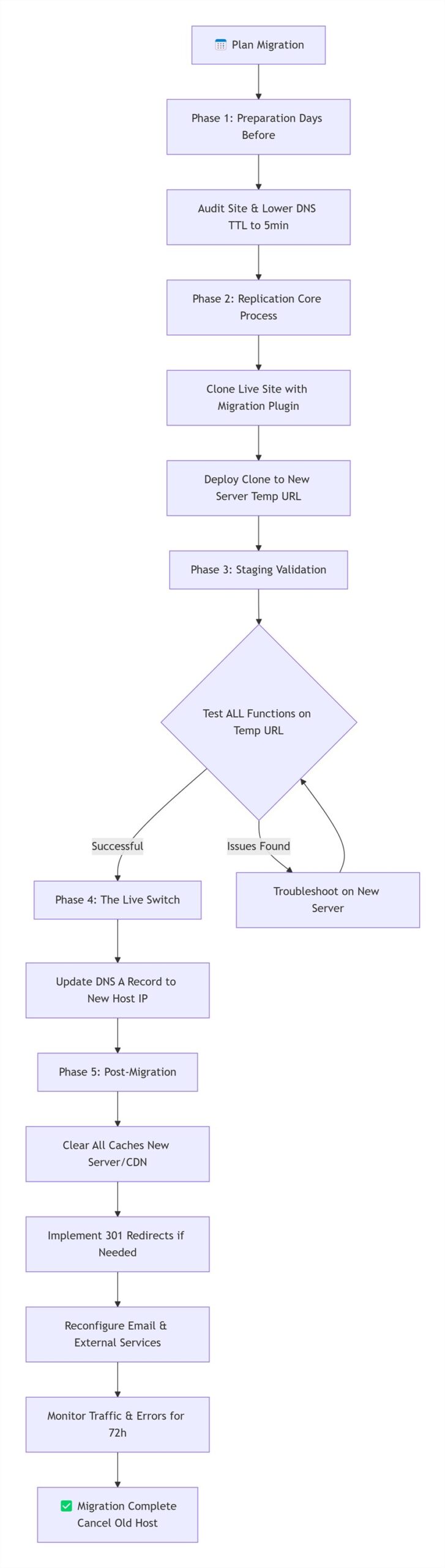
Phase 1: Preparation (Days Before Migration)
Audit & Document: Catalog all plugins, themes, custom code, and external integrations (payment gateways, SMTP, CDN). Note their configurations.
Lower DNS TTL: Access your domain registrar’s panel and reduce the A record and www record TTL to 300 seconds.
Prepare the Destination: Set up the new hosting account. Do not install a fresh WordPress. Instead, ensure you have the ability to create a pristine, empty database and upload directory.
Phase 2: Replication (The Core Migration)
Clone the Site: Use a reliable migration plugin (like Duplicator Pro, All-in-One WP Migration, or WPvivid) designed for zero-downtime moves. Create a “package” of your live site.
Deploy to Destination: Upload the migration package to your new server and run the installer, connecting it to the new, empty database. Your live site is now perfectly cloned on the new host in a temporary URL (e.g.,
newsite.host.comor an IP address).Search & Replace: The migration tool should handle updating all internal URLs and file paths from the old domain to the new temporary URL.
Phase 3: Staging Validation
Thorough Testing on New Server: Access your site via its temporary URL. Test every critical function: logins, form submissions, e-commerce checkout (use sandbox mode), search, and pagination. Verify that all images and assets load from the new server.
Final Sync (For High-Traffic Sites): For sites with constant user-generated content (like forums or membership sites), use a final database sync tool provided by some premium migration plugins to capture any last-minute changes from the old site just before the switch.
Phase 4: The Domain Cutover (The “Switch”)
Initiate DNS Change: In your domain registrar’s panel, change the A record to point to the new host’s IP address. This is the only moment of potential “downtime,” which, thanks to the low TTL, will be a rolling transition lasting just minutes for the global user base.
Keep Old Site Alive: Do NOT turn off your old hosting account yet. Leave it running as a backup for 48-72 hours.
Phase 5: Post-Migration & Cleanup
Clear Caches Aggressively: Flush the cache on your new WordPress site, your new server (if applicable), and your CDN (like Cloudflare).
Implement 301 Redirects: If your site structure or permalinks changed, implement 301 redirects on the new server to guide users and search engines from old URLs to new ones.
Update External Services: Reconfigure your CDN, SMTP service, and any security/firewall plugins (like Wordfence) to recognize and work with the new server’s IP address.
Monitor Relentlessly: Use uptime monitors and analytics to watch for traffic drops, error spikes, or failed goals.
Finalize: After 72 hours of stable operation, you can safely cancel your old hosting plan.
Troubleshooting Common Post-Migration Issues
Even with perfect planning, be ready to diagnose these common hiccups instantly.
Mixed Content Warnings (HTTP/HTTPS): Some assets (images, CSS) still load from the old, insecure
http://URL. Use a “Force HTTPS” plugin or search-and-replace in the database for remaining old URLs.“Site is Not Secure” Warning: The SSL certificate didn’t auto-install on the new server. Contact your new host’s support to install a free Let’s Encrypt SSL immediately.
Emails Are Not Sending: The new server’s IP might not be configured for outgoing SMTP or is blacklisted. Reconfigure your SMTP plugin (like WP Mail SMTP) with credentials from a dedicated service like SendGrid or your host.
Slow Performance on New Host: This is ironic but common. Clear all caches, and ensure opcode caching (like OPCache) and object caching (like Redis) are configured and running on the new server.
Long-Term Strategy: Making Future Migrations Routine
Mastering one migration prepares you for the next. Institutionalize these practices.
Maintain a “Migration Ready” Site: Keep your plugin list lean, use child themes, and document custom code. A clean site migrates faster and with fewer issues.
Choose Hosts with Migration-Optimized Tools: In 2026, prioritize hosts that offer automated, one-click staging sync and dedicated migration tools as part of their service.
Schedule Regular “Fire Drill” Migrations: For mission-critical sites, perform an annual migration drill to a staging environment. It validates your process and backups under safe conditions.
Own Your DNS Management: Consider using a dedicated, reliable DNS management service (like Cloudflare DNS) separate from your domain registrar or host. This gives you finer control and faster propagation during critical changes.
- True operational excellence is not the absence of complex tasks like migration, but the ability to execute them so smoothly that your audience never suspects a change occurred. A WordPress migration without downtime is not a luxury; in 2026, it is the standard for professional web management.
Vertical Process Flowchart: Zero-Downtime WordPress Migration