


An iframe (inline frame) is an HTML element that allows you to seamlessly embed external webpage content—like videos, maps, or forms—directly into your WordPress posts and pages.
How to Add an iFrame in WordPress
The most direct and common method is to manually insert the HTML code using WordPress’s built-in block editor.
Manual iFrame Embedding
Embedding basic content requires just one line of HTML code, centered around the src attribute which specifies the source URL.
Basic Syntax:
<iframe src="https://example.com"></iframe>
Step-by-Step Instructions
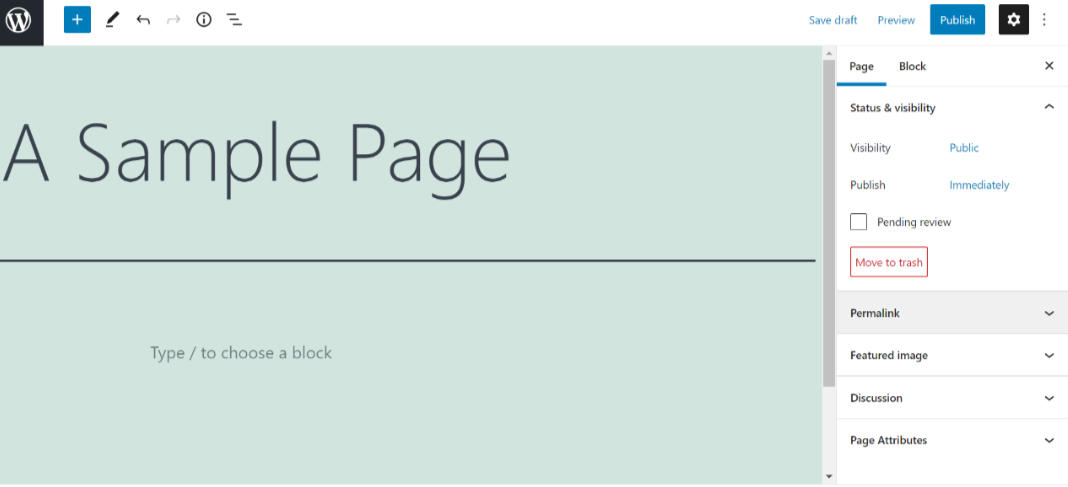
1.Edit Your Page/Post: Navigate to the WordPress page or post where you want the iframe to appear.
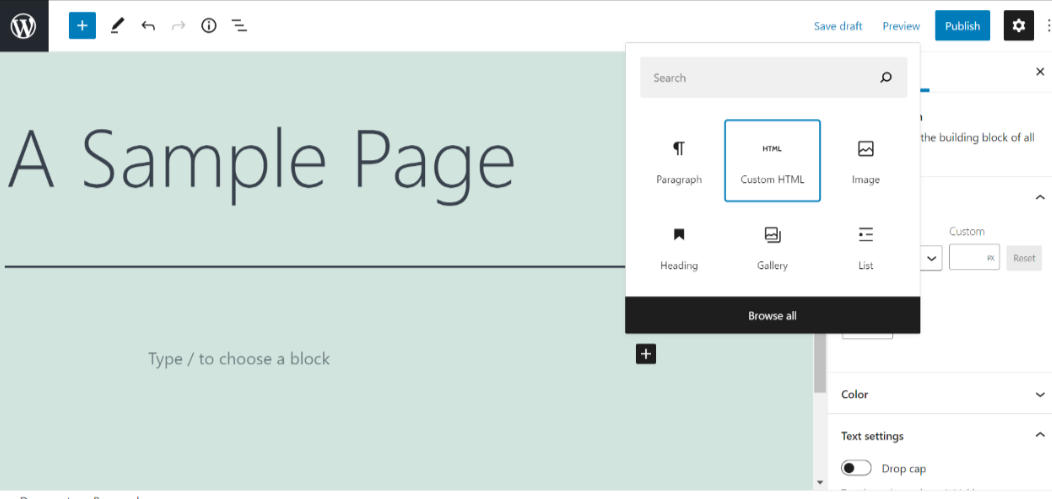
2.Add an HTML Block: Click the Add (+) Block button, then search for and select the “Custom HTML” block.
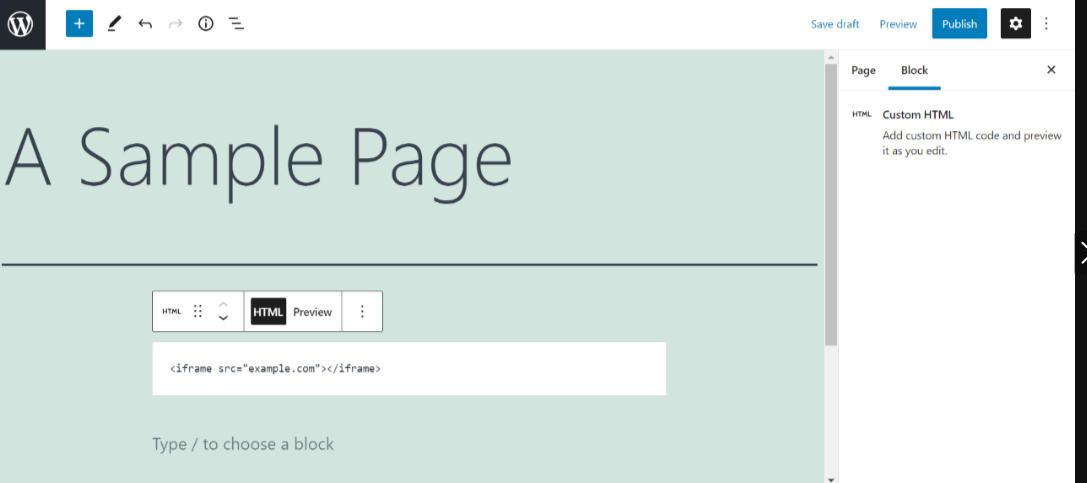
3.Insert Your Code: Paste your iframe HTML code into the newly added block.
4.Important Security Note: Observe protocol compatibility. For security, modern browsers may block mixed content. If your site uses HTTPS, ensure the embedded URL also uses HTTPS.
5.Save Changes: Click “Update” or “Publish” to make the changes live.
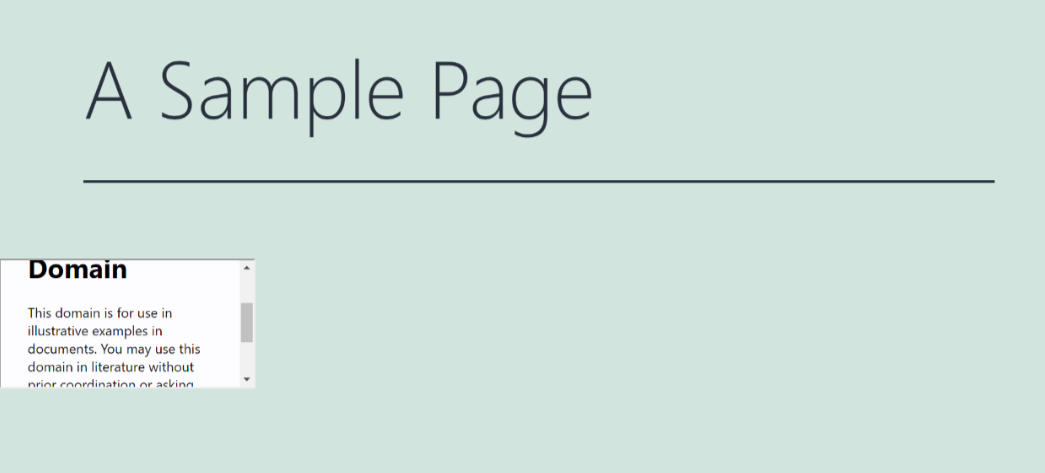
6.Preview: View the page to see the embedded content in action.
Customization with iFrame Attributes
Enhance functionality and appearance by adding attributes to the basic iframe tag.
src: Required. The source URL of the content to embed.width/height: Define dimensions in pixels (e.g.,"720") or percentage (e.g.,"100%").allow: Grants specific feature permissions (e.g.,allow="fullscreen"for videos).title: Provides an accessible label for screen readers, improving SEO and accessibility.loading: Useloading="lazy"to defer off-screen iframe loading and improve page speed.
Customized Example:
<iframe
  src="https://example-embedded-content.com"
  width="100%"
  height="600"
  allow="fullscreen"
  title="Interactive Map of Regional Offices"
  loading="lazy">
</iframe>
Why Use iFrames?
iFrames offer a secure and efficient way to enrich your site with third-party content without hosting it yourself. They are ideal for embedding Google Maps, YouTube videos, payment forms, or live social feeds, helping you maintain a dynamic website while managing resources effectively.