


Introduction
With the widespread adoption of WordPress Full Site Editing (FSE) and block themes such as Twenty Twenty-Five, many site owners encounter a tricky, intermittent issue: frontend layouts and CSS styles break or disappear at random. A page may load as a bare, unstyled HTML document with broken font rendering and misaligned blocks, only to display perfectly after a refresh or when opened in an incognito window.
Standard troubleshooting guides often recommend clearing your browser cache or reinstalling your theme, but these steps rarely resolve the root cause. As of 2026, this intermittent rendering failure stems from a technical conflict between dynamic FSE inline CSS generation (powered by theme.json), server-side transient storage, and overly aggressive CDN or caching optimizations.
This guide explains exactly why this happens and provides actionable, code-level solutions to permanently resolve intermittent block theme style failures.
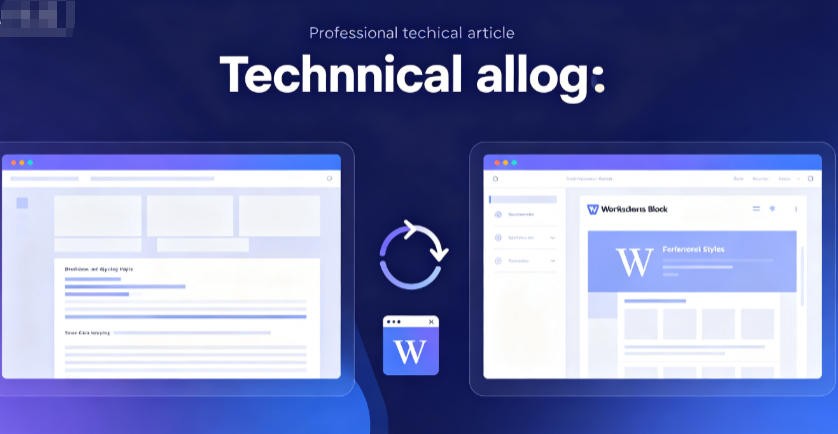
Why Do Block Theme Styles Break Intermittently?
Classic WordPress themes rely entirely on a static style.css file — browsers download the file once, cache it locally, and reuse it for subsequent page loads in a predictable workflow.
FSE block themes use a fully dynamic style rendering pipeline:
-
The
theme.jsonEngine – WordPress reads global theme settings, customizations made via the Site Editor, and block-specific style rules from the theme’s coretheme.jsonfile. -
Inline CSS Injection – Instead of enqueuing a large external stylesheet, WordPress generates a dedicated block of inline CSS (registered as
global-styles-inline-css) and injects it directly into the<head>section of the page HTML. -
Transient Caching – To reduce server load, WordPress stores the parsed output of this style generation process in your site’s database using WordPress Transients.
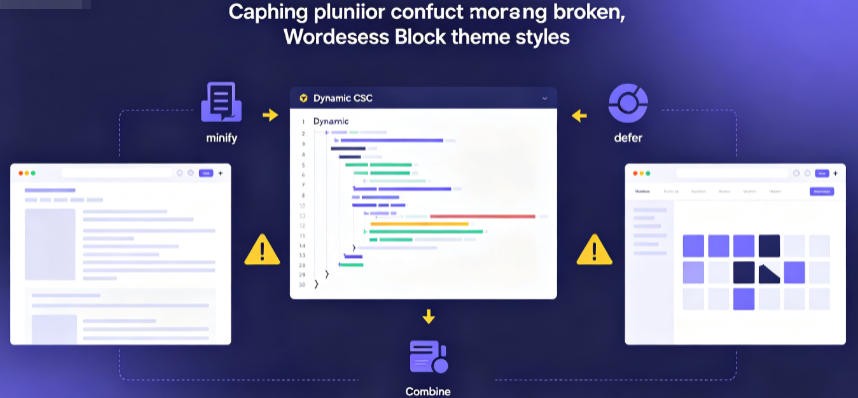
The root of the failure: When optimization plugins (such as WP Rocket or LiteSpeed Cache) or CDNs (such as Cloudflare) attempt to minify, defer, or split this dynamically generated inline CSS block, browsers cannot parse the styles correctly. The result is a completely unstyled page that only renders properly when a fresh, unoptimized request bypasses your cache layer.
Step 1: Isolate the Conflict (60-Second Diagnostic Test)
Before modifying any site files or adding custom code, confirm that caching or optimization tools are causing the style failure with two quick tests.
Action 1: Enable Cloudflare Development Mode (if applicable)
If you use Cloudflare, log into your dashboard, navigate to Caching → Configuration, and toggle on Development Mode. This temporarily bypasses Cloudflare’s edge cache and minification engine to serve unoptimized content directly from your origin server.
Action 2: Test With a Cache-Bypass Query String
Load the broken page and append a random query string to the end of the URL — for example:
https://yourdomain.com/?nocache=1
This forces most cache layers to serve a fresh, uncached version of the page.
Result Analysis: If the page renders correctly with the query string or while Cloudflare Development Mode is active, your theme itself is not broken. The issue is almost certainly caused by your caching layer or CDN misprocessing FSE-generated inline styles.
Step 2: Fix Caching Plugin Conflicts (WP Rocket, LiteSpeed, SG Optimizer, W3 Total Cache)
Performance plugins typically include CSS optimization features such as minification, combination, and deferred loading. While these tools improve PageSpeed scores, they frequently interfere with dynamically injected FSE inline styles.
1. WP Rocket
WP Rocket’s Optimize CSS Delivery and Delay JavaScript Execution features often target the core scripts and styles that render block theme assets.
Fix:
-
Go to Settings → WP Rocket → File Optimization.
-
In the Excluded CSS Files field, add the external file path (one per line):
wp-includes/css/dist/block-library/style.min.css
wp-block-library
-
In the Exclude Inline CSS field, add the inline style handle:
global-styles-inline-css
-
Scroll down to Delay JavaScript Execution and ensure core block hydration scripts are not delayed if your site uses interactive blocks.
-
Save changes and clear all WP Rocket caches.
2. LiteSpeed Cache (LSCache)
LiteSpeed’s aggressive CSS Combine and Load CSS Asynchronously features are a common cause of intermittent theme.json style breakage.
Fix:
-
Navigate to LiteSpeed Cache → Page Optimization → CSS Settings.
-
First, temporarily disable CSS Combine and Load CSS Asynchronously to confirm they are the cause.
-
If you wish to keep these features enabled, switch to the Excludes tab.
-
In the CSS Excludes field, add:
wp-block-library
global-styles-inline-css
-
In the Inline CSS Excludes field, add:
global-styles-inline-css
-
Save changes and purge all LiteSpeed caches.
3. SiteGround Optimizer (SG Optimizer)
Fix:
-
Go to SG Optimizer → Frontend → CSS.
-
Disable Minify CSS Files and Combine CSS Files for frontend rendering. Block themes already output optimized, minified structural styles, so these features add no meaningful benefit and introduce breakage risk.
4. W3 Total Cache (W3TC)
For users on W3 Total Cache, CSS minification and grouping can corrupt FSE inline style output.
Fix:
-
Go to Performance → Minify.
-
Under the CSS section, temporarily disable CSS minification to test for conflicts.
-
If you keep minification enabled:
-
Add
wp-block-libraryto the Never minify the following CSS files list. -
Add
global-styles-inline-cssto the Inline CSS exclusions list.
-
-
Save settings and empty all caches.
Step 3: Configure Cloudflare to Prevent CSS Truncation
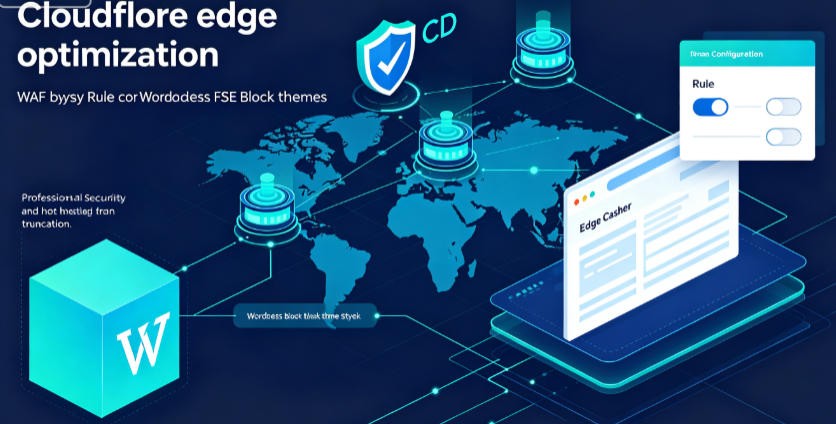
Cloudflare’s default edge optimization tools can treat large inline FSE CSS blocks as extraneous HTML content and truncate them during traffic spikes.
1. Disable Auto Minify for HTML
Cloudflare’s Auto Minify feature strips comments and unnecessary whitespace from HTML source code. Because FSE styles are embedded directly in <style> tags within the page <head>, Cloudflare occasionally misparses closing brackets and conditional comments, cutting off a portion of your site’s inline CSS.
Fix:
-
Log into Cloudflare, select your domain, and go to Speed → Optimization → Content Optimization.
-
Locate the Auto Minify section.
-
Uncheck the HTML option. You can leave CSS and JavaScript minification enabled, as these only apply to standalone external files and will not affect inline FSE styles.
2. Create a WAF Bypass Rule for the Site Editor
In some cases, Cloudflare’s Web Application Firewall (WAF) triggers a false positive when you save changes in the WordPress Site Editor, blocking the theme.json save process. This results in a corrupted, partial stylesheet being stored in your database.
Fix:
-
In Cloudflare, go to Security → WAF → Custom Rules.
-
Create a new custom rule with the following settings:
-
If incoming requests match:
URI Path contains /wp-admin/site-editor.php
OR
URI Path contains /wp-json/wp/v2/global-styles/ -
Then take action: Bypass → WAF Components (All)
-
-
Save and deploy the rule.
Step 4: Fix Corrupted Database Transients (PHP Code Snippet)
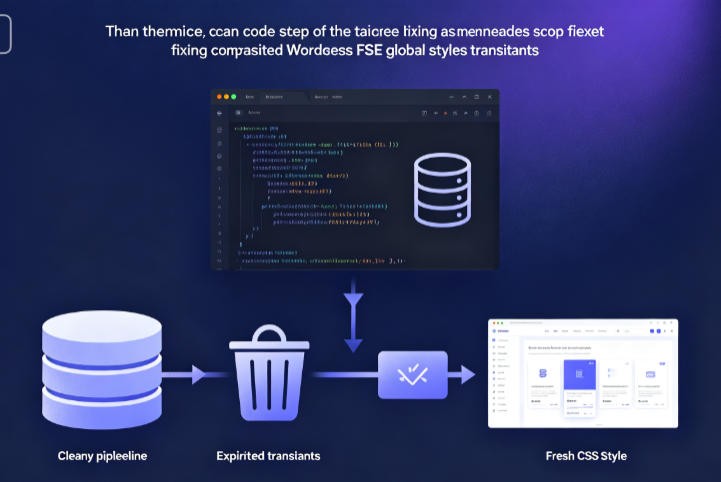
In some cases, the root cause is not your external cache layer, but corrupted WordPress transient data stored in your object cache or MySQL database. WordPress uses transients to cache the compiled output of your theme.json file so it does not need to reparse the file on every page load.
If your database experiences a load spike or interruption during an update, a partial style transient can be permanently saved to the database, causing intermittent layout breakage that varies based on which server process handles the request.
Important Precaution: Always back up your site’s files and database before adding custom code. We recommend using the Code Snippets plugin, or adding the code to your child theme’s
functions.phpfile to avoid losing changes after theme updates.
The following script automatically purges corrupted FSE block cache and global style transients whenever an administrator loads the WordPress backend, ensuring corrupted cache never persists on your site.
<?php
/**
 * Force reset and rebuild WordPress FSE global styles cache.
 * Purges corrupted transients on admin load for administrator users.
 */
add_action( 'admin_init', 'wptr_clean_corrupted_fse_cache' );
function wptr_clean_corrupted_fse_cache() {
    if ( ! current_user_can( 'manage_options' ) ) {
        return;
    }

    // Clear core block CSS file path mapping cache
    delete_transient( 'wp_core_block_css_files' );

    // Safely delete all corrupted FSE global style transients from the database
    global $wpdb;
    $wpdb->query(
        $wpdb->prepare(
            "DELETE FROM {$wpdb->options} WHERE option_name LIKE %s",
            $wpdb->esc_like( '_transient_global_styles_' ) . '%'
        )
    );
    $wpdb->query(
        $wpdb->prepare(
            "DELETE FROM {$wpdb->options} WHERE option_name LIKE %s",
            $wpdb->esc_like( '_transient_timeout_global_styles_' ) . '%'
        )
    );
}
How it works: Once added, simply log into your WordPress dashboard as an administrator. The code will immediately clear all fragmented style transients from your database, forcing WordPress core to generate a fresh, uncorrupted set of inline styles.
Additional note for object cache users: If you use a persistent object cache like Redis or Memcached, database cleanup alone may not resolve the issue. After adding this snippet, flush your object cache through your hosting control panel or run wp cache flush via WP-CLI to ensure stale transients are completely purged from memory.
Step 5: Adjust Server-Side Buffering & Compression (NGINX / Apache)
In rare cases, style breakage is caused by your web server configuration. FSE inline style blocks often exceed 50KB of text injected into the page <head>, and misconfigured server compression (Gzip / Brotli) can truncate the HTML output before the browser receives the full content.
1. For NGINX Servers
If your site runs on NGINX (common on Kinsta, RunCloud, or cPanel with an NGINX reverse proxy), default Gzip buffer sizes may be too small to handle large FSE style blocks.
Fix:
Open your NGINX configuration file (typically nginx.conf) and update or add the following directives in the Gzip settings block:
gzip_buffers 16 8k;
gzip_comp_level 5;
Save the file and reload NGINX with nginx -s reload for changes to take effect.
2. For Apache Servers
If you are running on an Apache stack, the mod_deflate compression module may prematurely compress dynamic inline style output, causing truncation.
Fix (recommended first step):
Increase the compression buffer size by adding this rule to the top of your site’s root .htaccess file:
<IfModule mod_deflate.c>
    DeflateBufferSize 8192
</IfModule>
.htaccess changes take effect immediately — no server restart is required.
Diagnostic test (only for temporary troubleshooting):
If buffer adjustment does not resolve the issue, temporarily disable HTML compression to confirm truncation is the cause. Add this rule to your .htaccess file, and remove it immediately after testing to avoid performance degradation:
<IfModule mod_deflate.c>
    SetEnvIfNoCase Content-Type "text/html" no-gzip
</IfModule>
Summary Troubleshooting Checklist
If you still experience layout breakage after completing the steps above, work through this definitive checklist in order:
-
Test with a Default Theme – Temporarily activate a default theme like Twenty Twenty-Four. If the issue disappears, your primary block theme has a flaw in its
theme.jsonstructure. -
Flush Object Caching – If you use Redis or Memcached via your hosting provider, flush the full object cache from your server control panel. Transients often persist in server memory even after database cleanup.
-
Purge All Caches – Clear your plugin cache, CDN cache, and any server-side page cache after making configuration changes.
-
Check the Browser Console – Right-click the broken page, select Inspect, and open the Console tab. If you see mixed content warnings or blocked resource requests, your site has an SSL/HTTPS configuration issue that prevents styles from loading securely.
Final Notes
Intermittent FSE style breakage occurs because modern block themes function as dynamic layout generators, not the static CSS-driven sites that most caching tools were originally built to optimize. The fixes above balance performance optimization with reliable style rendering, with minimal impact to your PageSpeed Insights scores.
For persistent issues, we recommend reaching out to your hosting provider’s support team to verify server-level caching and compression settings, as some managed hosts apply hidden optimization layers that can interfere with FSE functionality.