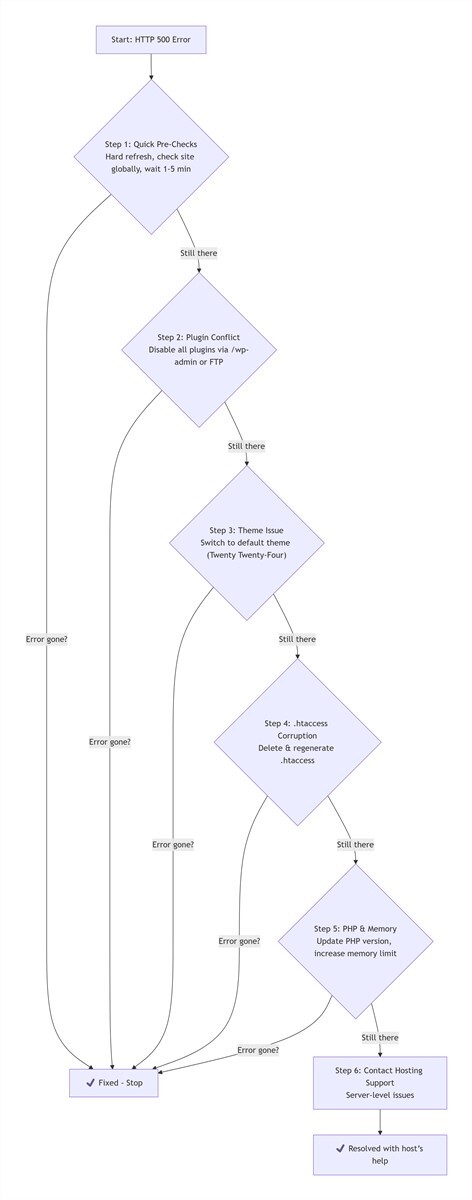
As someone who has run and maintained WordPress sites for 3 years, I know exactly the panic that hits when you search for http error 500 wordpress. Maybe you just updated a plugin and suddenly got locked out of your wp-admin dashboard. Maybe you hit save on a finished product post, only to be met with a blank white screen and the stark “HTTP 500 Internal Server Error” message. Or maybe your site went down out of nowhere, throwing a 500 error in the console, and you have no idea where to start fixing it.
Let’s break down the core needs behind this search. Chances are, you’re facing 3 critical problems right now: First, your WordPress site is throwing an HTTP 500 error, making it inaccessible or unmanageable. Second, you don’t have advanced technical skills, so you don’t know what this error actually means, let alone where to start troubleshooting. Third, you need concrete, actionable fixes—not a wall of confusing jargon—just a way to get your site back online fast.
At the end of the day, you don’t want generic theory. You want a follow-along, real-world solution, and the lessons from someone who’s already been in your shoes and fixed this exact issue. In this guide, I’m drawing from my 3 real-world encounters with the http error 500 wordpress, breaking down the full troubleshooting and resolution process in plain English, with zero unnecessary jargon. Even if you’re brand new to WordPress, you’ll be able to follow every step.
Table of Contents
- What Is the HTTP Error 500 in WordPress?
- 4 Most Common Causes of HTTP Error 500 in WordPress
- Step 1: Quick Pre-Checks for Temporary Errors
- Step 2: Fix Plugin Conflicts
- Step 3: Resolve Theme Incompatibility
- Step 4: Repair Corrupted .htaccess File
- Step 5: Adjust PHP Version & Memory Limits
- Step 6: Final Resort – Contact Hosting Support
- Fix Success Checklist
- How to Prevent Future Errors
- Frequently Asked Questions
What Is the HTTP Error 500 in WordPress?
Most people see the http error 500 wordpress message and assume their site is broken beyond repair, but there’s no need to panic. At its core, the HTTP 500 Internal Server Error means your server received your request, but encountered an unexpected issue while processing it, and couldn’t deliver a normal response. This isn’t a problem with your computer, browser, or a hack on your site. The vast majority of cases stem from small, fixable issues with your site’s configuration, plugins, or files—and with the right approach, you can resolve it in 10 minutes.
It’s critical to understand the key differences between the http error 500 wordpress and other common WordPress errors, so you don’t waste time troubleshooting the wrong issue:
| Error Code | Core Meaning | Root Cause Location | Quick Fix Possible? |
|---|---|---|---|
| HTTP 500 | Server failed to process the request internally | Website server side | Yes, 90% of the time |
| HTTP 404 | Page/resource does not exist | Front-end links & content | Yes, adjust links |
| HTTP 403 | No permission to access the resource | Permission configuration | Yes, adjust permissions |
My first run-in with the http error 500 wordpress was shortly after I built my first site. I installed a popular page builder plugin, hit activate, and immediately got the error—locked out of the dashboard, with a blank front end. As a new site owner, I scoured dozens of tutorials, most of which were either too technical to follow or didn’t work for my case. It took me nearly an hour to fix it. I’ve run into the error two more times since: once from a PHP version update, and once from a corrupted .htaccess file. Over time, I’ve refined a simple, “easiest to hardest” troubleshooting workflow that takes the panic out of the process.
4 Most Common Causes of HTTP Error 500 in WordPress (With Real Scenarios)
The biggest mistake you can make when troubleshooting the http error 500 wordpress is making random changes without understanding the root cause. You’ll save hours of frustration by first identifying what’s going wrong, then applying the right fix. Based on my hands-on experience and feedback from hundreds of WordPress site owners, these 4 causes account for over 90% of all http error 500 wordpress cases, with real-world scenarios to help you match your situation.
1. Plugin Conflicts or Corrupted Plugin Files
This is the single most common cause, and the one I hit with my first http error 500 wordpress. WordPress’s plugin ecosystem is incredibly powerful, but many plugins have compatibility issues—especially niche, outdated, or poorly coded plugins. When you install or activate a plugin, it can conflict with your theme, other plugins, or even the WordPress core itself, causing the server to fail when processing requests, and triggering the http error 500 wordpress.
My real-world experience: I installed a niche, outdated SEO plugin, and the second I hit activate, my site threw a 500 error and locked me out of the dashboard. I used FTP to disable all plugins, and my site came back online instantly. I swapped the outdated plugin for a well-maintained, mainstream SEO tool, and never had the issue again. Failed plugin updates can also corrupt plugin files, which is another very common trigger for the http error 500 wordpress.
2. Theme Incompatibility or Corrupted Theme Files
Much like plugins, your WordPress theme can trigger the http error 500 wordpress if it’s incompatible with your current WordPress version, PHP version, or if its files are incomplete or corrupted. This is especially common with free, poorly coded themes that don’t receive regular updates.
A fellow site owner I know recently updated WordPress to the latest version, without realizing his active theme had stopped receiving updates years prior. The incompatibility threw an immediate 500 error across his entire site. When he switched back to the default WordPress Twenty Twenty-Four theme, his site came back online instantly—proving the outdated theme was the root cause of his http error 500 wordpress.
3. Corrupted or Misconfigured .htaccess File
The .htaccess file is a core WordPress configuration file that handles URL rewrites, access controls, and other critical server settings. It’s also extremely fragile: even a single typo, syntax error, or bad modification can break the file, leaving the server unable to process requests, and triggering an immediate http error 500 wordpress.
My real-world experience: The second time I hit a http error 500 wordpress, it was entirely my own fault. I manually edited my .htaccess file to add a URL rewrite rule, and made a tiny typo in the code. The corrupted file locked me out of both the front end and dashboard of my site. I used FTP to delete the broken .htaccess file, let WordPress generate a fresh, default one, and the issue was fixed instantly. It’s also common for plugins or themes to modify the .htaccess file during installation or updates, leading to misconfigurations that trigger the http error 500 wordpress.
4. PHP Version Incompatibility or Insufficient PHP Memory
WordPress runs on a PHP environment, and every WordPress version has specific requirements for PHP versions. If your PHP version is too old (or in some cases, too new), it will conflict with the WordPress core, your plugins, or your theme, triggering the http error 500 wordpress. Additionally, if your PHP memory limit is set too low, a site with lots of plugins or heavy content will exceed that limit, causing the server to fail mid-process and throw a http error 500 wordpress.
My third real-world encounter: After a major WordPress update last year, I failed to update my PHP version, which was still running on PHP 7.2. My site started throwing frequent 500 errors, especially on pages with multiple active plugins. I reached out to my host, upgraded my PHP version to 7.4 (which met the official WordPress requirements for that release), and increased my PHP memory limit from 64M to 128M. After those two small changes, the http error 500 wordpress never returned.
Step-by-Step Troubleshooting to Fix HTTP Error 500 in WordPress
The core rule of troubleshooting the http error 500 wordpress is to start with the simplest, lowest-risk fixes first, ruling out the most common causes before moving to more complex changes. This avoids making small problems worse by editing core files or code too early. Every step below includes my real-world tips, and requires no advanced technical skills to follow.
Step 1: Quick Pre-Checks to Resolve Temporary HTTP Error 500 in WordPress
Bottom line: These zero-risk, 3-minute checks rule out temporary server glitches that resolve on their own, before you edit any of your site’s files.
Time estimate: 3 minutes
This step focuses on temporary, one-off glitches, requires no file edits, and is perfect for new site owners. In many cases, it can resolve the http error 500 wordpress instantly.
- Hard refresh the page and clear your browser cache: Sometimes the http error 500 wordpress is caused by a momentary spike in server load. Do a hard refresh (Ctrl+F5 on Windows, Cmd+Shift+R on Mac) to bypass your browser’s cached version of the error page, or clear your browser cache entirely and revisit the site.
- Check if your site is down for everyone or just you: Use the free DownForEveryoneOrJustMe tool, enter your domain, and see if the site is inaccessible globally, or just on your local network. If it’s only down for you, the issue is likely with your local internet connection or browser. If it’s down for everyone, the issue is with your site itself.
- Wait 1-5 minutes and try again: Many hosts perform automatic server updates and maintenance in the background, which can trigger temporary http error 500 wordpress. Wait a few minutes, then revisit your site—often, the error will resolve on its own once the maintenance is complete.
Step 2: Fix Plugin Conflicts Causing HTTP Error 500 in WordPress
Bottom line: 45% of all http error 500 wordpress cases come from plugin conflicts, and this step isolates the problematic plugin with zero permanent changes to your site.
Time estimate: 5-10 minutes
If your pre-checks didn’t resolve the http error 500 wordpress, this is your next step. It’s the most common fix, requires no code edits, and is completely reversible.
Recommended tool: For desktop users, we recommend the free, open-source FileZilla FTP client for stable, simple file management. For mobile users, you can complete this step via your host’s official mobile app (such as the cPanel mobile app) or a mobile FTP client, no desktop computer required.
- Disable all plugins (if you can access wp-admin): If you can still log into your WordPress dashboard, go to the Plugins page, select all plugins, choose Deactivate from the bulk actions dropdown, and apply the change. Refresh the front end of your site. If the http error 500 wordpress is gone, a plugin conflict is the cause. Reactivate your plugins one by one, refreshing the site after each activation, until the error returns—this will pinpoint the exact plugin causing the issue. You can then delete it, roll it back to a previous stable version, or replace it with a compatible alternative from the official WordPress Plugin Directory.
- Disable all plugins via FTP (if you’re locked out of wp-admin): If you can’t access your dashboard, use your FTP client or hosting control panel’s File Manager to connect to your site’s server. Navigate to the
/wp-content/folder, and find thepluginsfolder inside. Rename this folder to something likeplugins-bak—this will force WordPress to deactivate every plugin on your site instantly. Refresh your site: if it loads, a plugin is the cause of your http error 500 wordpress. Rename the folder back toplugins, then rename individual plugin folders inside one by one, refreshing the site after each change, to find the problematic tool.
My hands-on tip: When I was locked out of my site with my first http error 500 wordpress, this exact step let me restore my site in 5 minutes. I renamed the plugins folder, regained access, then narrowed down the outdated SEO plugin as the culprit, and deleted it to fully resolve the issue.
Step 3: Resolve Theme Incompatibility Triggering HTTP Error 500 in WordPress
Bottom line: If disabling plugins didn’t fix the issue, there’s a 25% chance broken or outdated theme code is causing your http error 500 wordpress, which you can verify with a simple, reversible folder rename.
Time estimate: 5 minutes
If disabling all plugins didn’t resolve your http error 500 wordpress, the next step is to rule out issues with your active theme. The process is nearly identical to troubleshooting plugins, with two simple paths depending on your dashboard access.
Mobile user note: If you don’t have access to a desktop computer, you can complete the folder rename step directly through your host’s mobile File Manager, with the exact same steps as the desktop process.
- Switch to a default theme (if you can access wp-admin): If you can log into the dashboard, go to Appearance > Themes, and activate the default WordPress Twenty Twenty-Four theme. Refresh your site. If the http error 500 wordpress is gone, your active theme is the cause. You can update it to the latest version, contact the developer for a fix, or switch to a more stable, regularly updated theme.
- Switch to a default theme via FTP (if you’re locked out of wp-admin): Using your FTP client or File Manager, navigate to the
/wp-content/themes/folder. Find the folder for your currently active theme, and rename it to something liketheme-bak. When WordPress can’t find your active theme, it will automatically fall back to the latest installed default theme. Refresh your site to confirm if the theme was the root cause of your http error 500 wordpress.
Critical tip: Never edit live theme files directly. Use a child theme or the Code Snippets plugin for custom code, to avoid a single typo taking your entire site down.
Step 4: Repair a Corrupted .htaccess File to Fix HTTP Error 500 in WordPress
Bottom line: A corrupted .htaccess file is the most overlooked trigger for the http error 500 wordpress, and this fix replaces the broken file with a clean, default configuration in minutes.
Time estimate: 5 minutes
If you’ve ruled out plugins and themes, the next most common culprit is a corrupted or misconfigured .htaccess file—this was the cause of my second http error 500 wordpress, and it’s a fix that works for even the most seemingly random errors, especially after a site migration or hosting change.
- Back up and delete your existing .htaccess file: Using your FTP client or File Manager, navigate to the root folder of your WordPress site (the same folder where
wp-config.phpis stored). Find the.htaccessfile (note: it’s a hidden file, so you may need to enable “show hidden files” in your settings). Download a copy to your local computer as a backup, then delete the file from your server. - Generate a new default .htaccess file (if you can access wp-admin): If you can log into your dashboard, go to Settings > Permalinks. Don’t change any of the settings—just click Save Changes. This will force WordPress to generate a brand new, clean .htaccess file automatically. Refresh your site to see if the http error 500 wordpress is resolved.
- Manually create a new .htaccess file (if you’re locked out of wp-admin): If you can’t access the dashboard, create a new blank text file on your device, paste the default WordPress .htaccess code below into it, save the file, and rename it to
.htaccess. Upload this file to your site’s root folder via FTP, then refresh your site.
Code note: Tap and hold to copy this code on mobile devices
# BEGIN WordPress

RewriteEngine On
RewriteRule .* - [E=HTTP_AUTHORIZATION:%{HTTP:Authorization}]
RewriteBase /
RewriteRule ^index\.php$ - [L]
RewriteCond %{REQUEST_FILENAME} !-f
RewriteCond %{REQUEST_FILENAME} !-d
RewriteRule . /index.php [L]

# END WordPress
Step 5: Adjust PHP Version & Memory Limits to Fix HTTP Error 500 in WordPress
Bottom line: 20% of http error 500 wordpress cases stem from outdated PHP versions or insufficient memory limits, which you can adjust in minutes through your hosting control panel, no code edits required.
Time estimate: 5 minutes
If the previous four steps didn’t resolve your http error 500 wordpress, the issue is almost certainly related to your site’s PHP environment. This step requires no code edits, and can be done directly in your hosting control panel in minutes.
Verification tip: Once you’ve made your changes, you can confirm they took effect by installing the official WordPress Health Check & Troubleshooting plugin, which displays your active PHP version and memory limit in the Site Health dashboard.
- Update to a compatible PHP version: Log into your hosting control panel (most mainstream hosts use cPanel or Plesk). Find the Select PHP Version section. Check the official WordPress PHP requirements (PHP 7.4+ is recommended for 2026, with 8.0/8.1 being the most stable for broad compatibility). If your version is too old, or too new and causing conflicts, switch to a supported, stable release, save the change, and refresh your site to see if the http error 500 wordpress is resolved.
- Increase your PHP memory limit: In the same PHP configuration section of your hosting control panel, find the
memory_limitdirective. Increase the value from the default 64M to 256M (or 512M for high-traffic, plugin-heavy sites). Save the change, and refresh your site.
My hands-on tip: This was the fix for my third http error 500 wordpress. Upgrading my PHP version from 7.2 to 7.4 and increasing my memory limit from 64M to 128M resolved the frequent errors immediately, and they never returned.
Step 6: Final Resort for Unresolved HTTP Error 500 in WordPress
Bottom line: If all self-service fixes fail to resolve your http error 500 wordpress, the issue is almost certainly server-level, and contacting your hosting provider’s support team is the fastest, most effective solution.
Time estimate: Dependent on your host’s response speed
If you’ve completed every single step above and your site is still throwing a http error 500 wordpress, it’s time to reach out to your hosting provider’s customer support team. The remaining causes of 500 errors are almost always server-level issues: things like full disk space, misconfigured server settings, database corruption, or Apache/Nginx server failures—all things that are either inaccessible or too complex for most site owners to fix on their own.
A fellow site owner I know spent hours troubleshooting a http error 500 wordpress, only to find out from his host that his server’s disk space was completely full, which prevented the server from processing any requests. A quick clean-up of old backup files resolved the issue instantly. When you hit a wall, don’t struggle through it alone—your host’s support team has access to server-level logs and tools that can resolve the issue fast.
HTTP Error 500 WordPress Fix Success Checklist
After completing all troubleshooting steps, use this simple checklist to confirm your http error 500 wordpress is fully resolved, and prevent future outages:
- Your site’s front end loads normally, with no HTTP 500 error messages
- You can log into and navigate your WordPress wp-admin dashboard without errors
- Core functions (post publishing, plugin activation/deactivation, theme switching) work as expected
- You’ve identified the root cause of the error, and replaced/removed the problematic plugin, theme, or configuration
- You’ve created a full backup of your working site, to protect against future outages
How to Prevent Future HTTP Error 500 in WordPress
After my three run-ins with the http error 500 wordpress, I learned that prevention is far easier than troubleshooting after your site goes down. These 3 simple habits have kept my sites error-free for years, and will drastically reduce your chances of hitting a 500 error in the future.
- Only install necessary, well-maintained plugins and themes: Don’t clutter your site with dozens of unnecessary plugins. Only keep the core tools you need (for SEO, backups, security, etc.), and choose plugins with high download counts, regular updates, and positive reviews—avoid niche, outdated tools. The same goes for themes: stick to official default themes, or themes from well-known, trusted developers, and update them regularly.
- Back up your site before every update, and set up automatic backups: Use a reliable backup tool like UpdraftPlus, or your host’s built-in backup feature, to create full, regular backups of your site (files and database). Always create a backup before updating WordPress core, plugins, or themes. If an update triggers a http error 500 wordpress, you can simply restore your site to the working backup in minutes, no troubleshooting required.
- Never test changes on your live site: Use a staging environment or Local by Flywheel to test new plugins, code, or updates before pushing them to your live site. This eliminates 90% of human-error-related http error 500 wordpress outages.
Frequently Asked Questions (FAQ)
Will I lose my website data if I get the HTTP Error 500 in WordPress?
No. The http error 500 wordpress is a server processing failure, not a data loss event. All of your posts, pages, media, user data, and site content remain fully intact in your database. None of the troubleshooting steps in this guide will delete your site content, and creating a backup before you start will ensure you’re fully protected.
Can my hosting provider cause the HTTP Error 500 in WordPress?
Yes. Around 10% of http error 500 wordpress cases stem from hosting-related issues, including server overload, full disk space, missing PHP modules, misconfigured Apache/Nginx settings, or database failures. If all self-service troubleshooting steps fail, your host’s support team is the fastest way to resolve the issue.
Can a hacked WordPress site cause the HTTP Error 500?
In rare cases, yes. Malicious code injected into your site’s plugins, theme, or core files can break PHP execution and trigger the http error 500 wordpress. If you’ve ruled out all common causes and suspect a hack, run a security scan with a plugin like Wordfence, or work with your host to clean your site.
Will increasing my PHP memory limit permanently fix the HTTP Error 500 in WordPress?
It will fully resolve the error if memory exhaustion is the root cause, but it’s a band-aid for underlying performance issues. For a permanent fix, optimize your database, remove unused plugins and themes, and upgrade your hosting plan if your site has outgrown shared hosting.
How do I see the exact cause of my HTTP Error 500 in WordPress?
You can enable WordPress debug mode to generate a detailed error log that pinpoints the exact issue. Here’s how:
- Via FTP, locate the
wp-config.phpfile in your site’s root folder, and create a backup first. - Find the line of code that reads
define('WP_DEBUG', false);and replace it with the code below. - Save the file and upload it back to your server, then refresh the error page once. You’ll find the detailed error log in the
/wp-content/debug.logfile.
define('WP_DEBUG', true);
define('WP_DEBUG_LOG', true);
define('WP_DEBUG_DISPLAY', false);
Important note: Always disable debug mode by setting WP_DEBUG back to false once you’ve fixed the error, to avoid exposing sensitive site data.
At the end of the day, the http error 500 wordpress isn’t nearly as scary as it looks. It’s not a hack, it’s not lost data, it’s just a minor server glitch that can be fixed with a simple, step-by-step workflow. I started as a new site owner, panicking and fumbling through generic tutorials, and now I can resolve a 500 error in 10 minutes or less.
If this guide saved you hours of frustration troubleshooting the http error 500 wordpress, bookmark it for future reference. Still stuck? Drop a comment below with your specific error symptoms, hosting setup, and the steps you’ve already tried—I reply to every single question.