


Few things trigger instant panic quite like clicking the "Upgrade" button in your hosting dashboard, only to watch your entire website disappear and be replaced by a stark, blank page that reads: "HTTP 500 – Internal Server Error."
In 2026, this has become the single most common technical disaster for independent publishers and WooCommerce store owners. Managed hosts — including Hostinger, SiteGround, and Bluehost — are aggressively sunsetting PHP 7.4 and 8.0, forcing production sites to upgrade to PHP 8.2 and PHP 8.3.
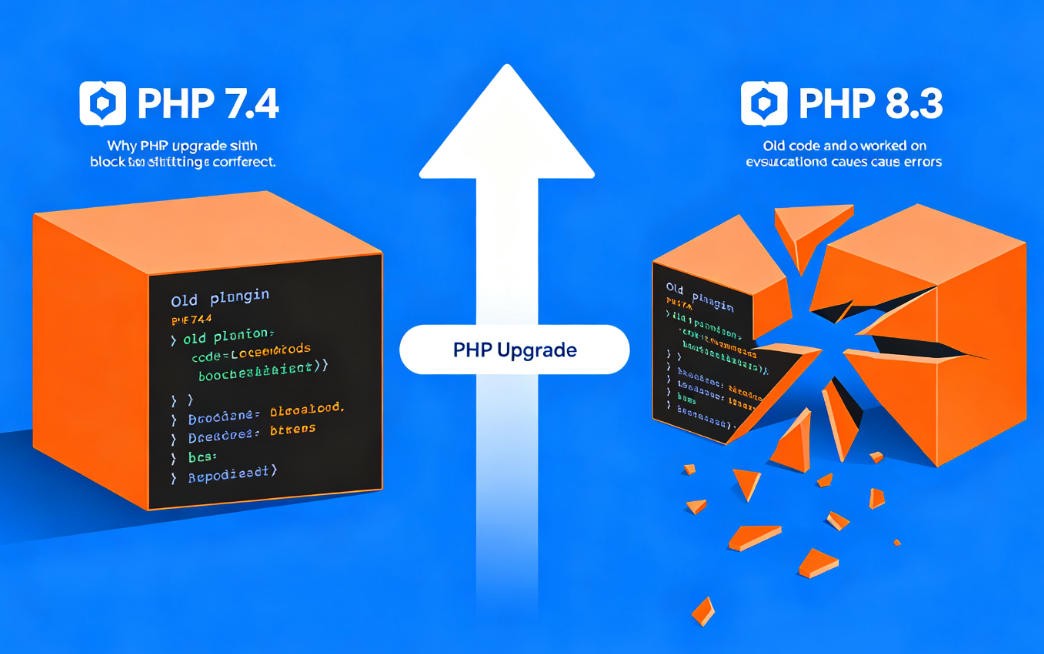
While PHP 8.x delivers dramatic performance improvements, it also enforces stricter type handling and removes long-deprecated syntax. Older themes, unmaintained plugins, and custom code snippets that worked flawlessly under PHP 7.4 can trigger unhandled fatal runtime errors under PHP 8.3, taking your entire site offline instantly.
If generic guides that tell you to blindly deactivate all plugins via FTP haven't worked, this advanced troubleshooting guide will show you how to look under the hood, pinpoint the exact line of code causing the 500 error, and apply a precise technical fix.
Step 0: Back Up Your Site First
Before editing any core files, create a full backup of your WordPress installation (files and database). If something goes wrong during troubleshooting, you can always restore to a working state.
Step 1: Enable Debug Logging to Bypass the White Screen
The "500 Internal Server Error" message is a generic safety blanket. Your server knows exactly what failed — but for security reasons, it suppresses detailed error output so attackers cannot map your file structure. To fix the issue, you need to see what's actually breaking.
Since a 500 error typically locks you out of /wp-admin/, you'll need to access your site's files directly:
-
Log in to your hosting File Manager or connect via an FTP client.
-
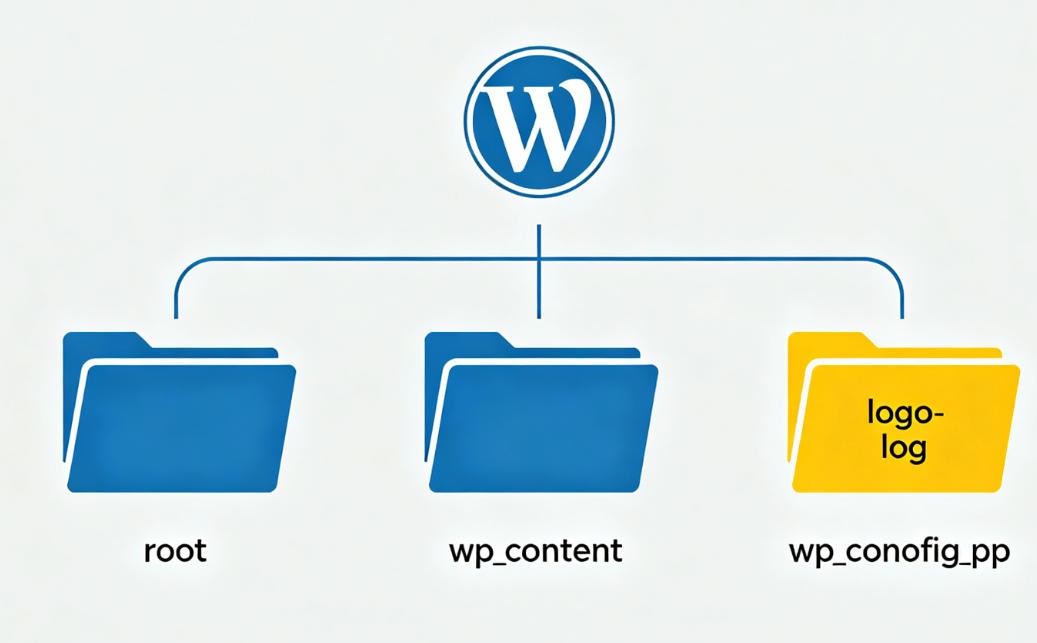
Navigate to your root directory (usually
/public_html/) and locate thewp-config.phpfile. -
Open the file for editing, scroll down, and find the
WP_DEBUGconfiguration lines. -
Replace them with the following debug configuration:
define('WP_DEBUG', true);
define('WP_DEBUG_LOG', true);
define('WP_DEBUG_DISPLAY', false);
@ini_set('display_errors', 0);
Why this configuration works: Setting WP_DEBUG_DISPLAY to false ensures your visitors never see raw error output. Meanwhile, WP_DEBUG_LOG forces WordPress to write every fatal error, warning, and notice to a protected log file located at /wp-content/debug.log.
Step 2: Read the Fatal Stack Trace to Identify the Culprit
Once debugging is enabled, refresh your broken site once to trigger the error again. Then navigate to your /wp-content/ folder and open the newly generated debug.log file.
Scroll to the very bottom of the file. You'll see a detailed technical entry that looks something like this:
[13-Jul-2026 06:42:15 UTC] PHP Fatal error: Uncaught TypeError: strpos():
Argument #1 ($haystack) must be of type string, null given in
/home/public_html/wp-content/plugins/old-slider-plugin/includes/core.php on line 142
How to Read This Like a Developer
-
PHP Fatal error— Confirms the cause of the 500 response: the script encountered an unrecoverable error and stopped execution immediately. -
/wp-content/plugins/old-slider-plugin/…— The full file path. This tells you exactly which component is at fault — in this case, theold-slider-pluginplugin. -
on line 142— The exact line number within that file where the incompatible code lives.
Step 3: Disable the Problematic Component (Without Dashboard Access)
Now that you've identified exactly what's crashing your site, you can disable it surgically — without affecting anything else and without access to wp-admin.
If the Culprit Is a Plugin
-
In your File Manager or FTP client, navigate to
/wp-content/plugins/. -
Find the folder matching the broken plugin from your error log (e.g.,
old-slider-plugin). -
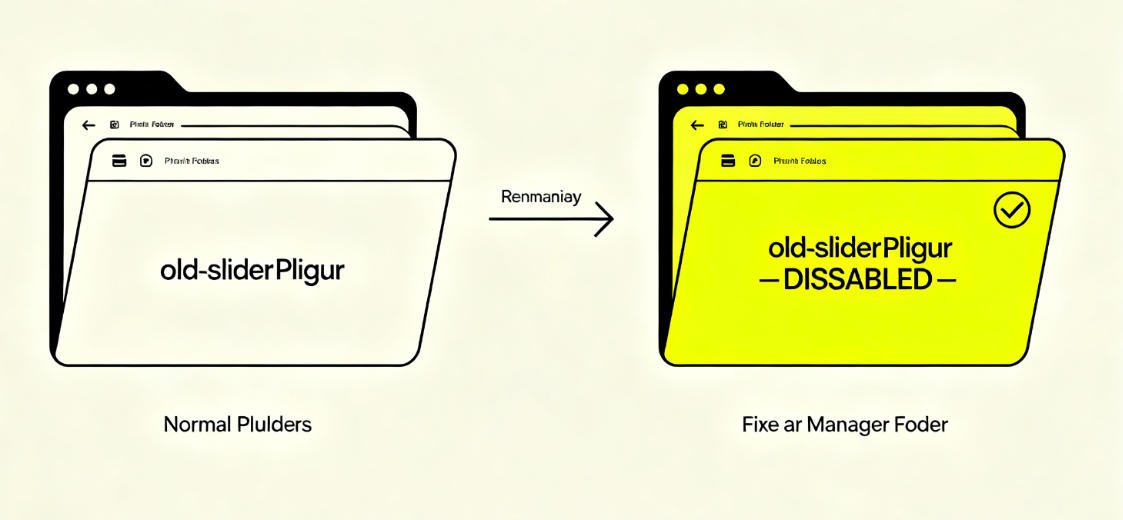
Rename the folder — for example, to
old-slider-plugin-DISABLED. -
Refresh your website. The 500 error should disappear immediately, as WordPress will simply skip loading any plugin directory it doesn't recognize.
Advanced Shortcut: If you have WP-CLI access, you can disable a plugin in one command:
wp --skip-plugins plugin deactivate old-slider-plugin
If the Culprit Is Your Theme
If the error path points to /wp-content/themes/your-active-theme/, don't just rename the theme folder — this can cause additional issues. Instead, switch to a default theme via the database:
-
In your hosting control panel, open phpMyAdmin under the Databases section.
-
Select your WordPress database and open the
wp_optionstable. -
Find the rows where
option_nameistemplateandstylesheet. -
Edit both
option_valuefields and change them to a default core theme such astwentytwentyfour. This safely forces WordPress to load a stable, compatible default theme.
Pro Tip: If you're using a premium theme, always apply customizations through a child theme instead of editing the parent theme directly. This prevents your changes from being overwritten and isolates compatibility issues.
Step 4: Patch the Most Common PHP 8.2/8.3 Compatibility Issues
If you rely on the broken plugin or theme and no update is available from the developer, you can often apply a targeted hotfix directly to the code to restore compatibility with PHP 8.x.
The biggest breaking change from PHP 7.4 to 8.x is stricter type enforcement. Below are the two most common failure patterns in 2026 and how to fix them.
Failure Pattern A: Null Type Handling (TypeError)
PHP 8.2+ no longer silently accepts null values passed to built-in string functions like strpos(), strlen(), or explode().
The Broken Code (Line 142):
$length = strlen($plugin_option_variable);
If $plugin_option_variable returns null (e.g., because the database option doesn't exist), PHP 8.3 throws a fatal TypeError.
The PHP 8.3-Compatible Fix:
Wrap the variable in a null-coalescing operator to provide a safe fallback value:
$length = strlen($plugin_option_variable ?? '');
Failure Pattern B: Deprecated Class Constructors (Fatal Error)
Older plugins and frameworks sometimes use the legacy PHP 4 style where a class constructor shares the class name. This syntax was deprecated in PHP 7.0 and completely removed in PHP 8.0.
The Broken Code:
class OldClassExtension {
    function OldClassExtension() { // Fatal error in PHP 8.x
        // initialization code
    }
}
The PHP 8.3-Compatible Fix:
Replace the legacy constructor with the standard __construct method:
class OldClassExtension {
    function __construct() { // Modern standard
        // initialization code
    }
}
Quick Reference Table
| Error Type | Common Cause | Quick Fix |
|---|---|---|
| TypeError: null given | String function receives null value | Wrap variable in ?? '' |
| Fatal error: old constructor | PHP 4-style class method name | Rename method to __construct() |
| Blank debug.log | Crash occurs before WordPress loads | Check .htaccess / server error log |
Verify Your Fix
If you previously renamed the plugin or theme folder to disable it, rename it back to its original name now. Then refresh your site to confirm the 500 error is fully resolved.
Note: PHP 8.x also generates many deprecation warnings for older code. These won't crash your site on their own, but they can bloat your debug log. Once you've resolved the fatal error, consider turning off
WP_DEBUGon production, or useerror_reporting(E_ALL & ~E_DEPRECATED)to filter out noise.
Step 5: Fix Server-Level Configuration Issues
If your debug.log remains completely empty after triggering the 500 error, the crash is happening at the web server level — before WordPress even loads.
1. Reset Your .htaccess File
A malformed redirect rule or corrupted permalink structure in .htaccess can cause an immediate 500 error at the server level.
-
Locate the
.htaccessfile in your root directory. -
Rename it to
.htaccess_oldto disable all current rules. -
If you can now access wp-admin, go to Settings → Permalinks and click Save Changes. WordPress will automatically regenerate a clean, default
.htaccessfile.
2. Clear Server-Side Object Caches
Performance-optimized hosts use OPcache, Redis, or Memcached to store pre-compiled PHP bytecode. After a PHP version switch, stale cached bytecode from the old runtime often causes mismatches and crashes.
-
Log in to your hosting control panel.
-
Find the Cache Management or PHP Options section.
-
Execute the Flush Object Cache / Clear OPcache option to force the server to recompile all PHP files under the new runtime.
3. Check Your Hosting's Native Error Log
If debug.log is empty, the error is being logged at the server level instead. Most hosts provide an Error Log section in cPanel or the hosting dashboard — check there for Apache/Nginx-level errors that never reach WordPress.
Frequently Asked Questions
Why does a PHP upgrade show a 500 error instead of the actual problem?
For security, production servers disable public error display by default. When a fatal error occurs, the server halts execution, suppresses the raw error details (to prevent attackers from learning your file paths), and returns a generic HTTP 500 response. Enabling WP_DEBUG_LOG lets you see the real error without exposing it to visitors.
Can I just downgrade back to PHP 7.4 to fix this?
Switching your hosting panel back to PHP 7.4 or 8.0 will temporarily resolve the 500 error — but it's strongly discouraged, and in many cases no longer possible in 2026. Older PHP versions no longer receive security patches, leaving your site vulnerable. Major hosting providers are also actively removing outdated PHP extensions from their infrastructure. Patching or replacing the incompatible code is the only sustainable solution.
What if the error points to a core WordPress file?
Core WordPress files are almost never the true source of a PHP 8.3 fatal error — as long as you're running the latest version of WordPress core. If you see a core file path (e.g., inside /wp-includes/) in your stack trace, look further up the trace. The root cause is almost always a plugin or theme passing invalid data into that core function.
Summary: Future-Proof Your WordPress Infrastructure
Carefully managing PHP version upgrades is essential for maintaining security, performance, and compatibility. If your business site consistently experiences 500 errors, timeouts, or database connection drops every time your host performs maintenance, your current shared hosting plan may not have the resources or flexibility to handle modern PHP workloads.
For WooCommerce stores, high-traffic publications, and active community forums, running mission-critical sites on constrained shared hosting creates ongoing operational risk.
To protect your site from future upgrade headaches, consider moving to a managed cloud or VPS environment. Solutions like Hostinger Managed Cloud or Cloudways Managed VPS isolate your resources on dedicated virtual instances, with features like built-in staging environments, one-click PHP version switching, and automatic error logging — giving you the tools to test and deploy PHP upgrades safely, without risking live downtime.
Did this guide help you track down and fix that 500 error on your site? Let us know in the comments — which plugin or line of legacy code was causing your upgrade to fail?