

Comments26Characters 1772Views5min54sRead

With the proliferation of automated WordPress workflows, millions of site owners rely on AI content generators, bulk SEO tools, and real-time AI translation plugins to streamline operations. However, these tools come with significant hidden technical overhead: they frequently trigger the notorious PHP Fatal Error: Allowed memory size of X bytes exhausted.
What’s most frustrating is that many site owners increase the memory limit to 512MB or even 1GB in their
wp-config.php file, only for memory errors to persist in background processes.This happens because modern AI-powered operations do not just consume temporary, static memory — they hold PHP runtime processes in an active, blocked state for far longer than typical WordPress plugins. In this guide, we will walk through end-to-end optimization for popular control panels (aaPanel, cPanel, and CyberPanel) to stop AI background tasks from overwhelming your server infrastructure.
The Root Cause: Why AI Plugins Bypass Standard Memory Limits
Standard WordPress optimization plugins consume memory briefly during execution and release it within seconds. AI and translation plugins behave fundamentally differently due to three core behaviors:
- Massive token payloads: Sending and receiving large text context windows via external APIs (such as OpenAI or Anthropic) forces PHP to store enormous string data in its memory heap for extended periods, both during transmission and post-processing of API responses.
- Synchronous cURL request blocking: Most AI plugins use synchronous HTTP/cURL requests to call external APIs. If the API takes 30–60 seconds to generate content or process a translation, the entire PHP-FPM worker process remains active and blocked while waiting for a response, holding onto all allocated memory the entire time.
- The concurrency trap: If a plugin triggers multiple bulk AI operations simultaneously, it will rapidly exhaust all available PHP-FPM worker processes. Each active worker consumes its own block of memory, multiplying total resource usage and quickly maxing out your server’s physical RAM.
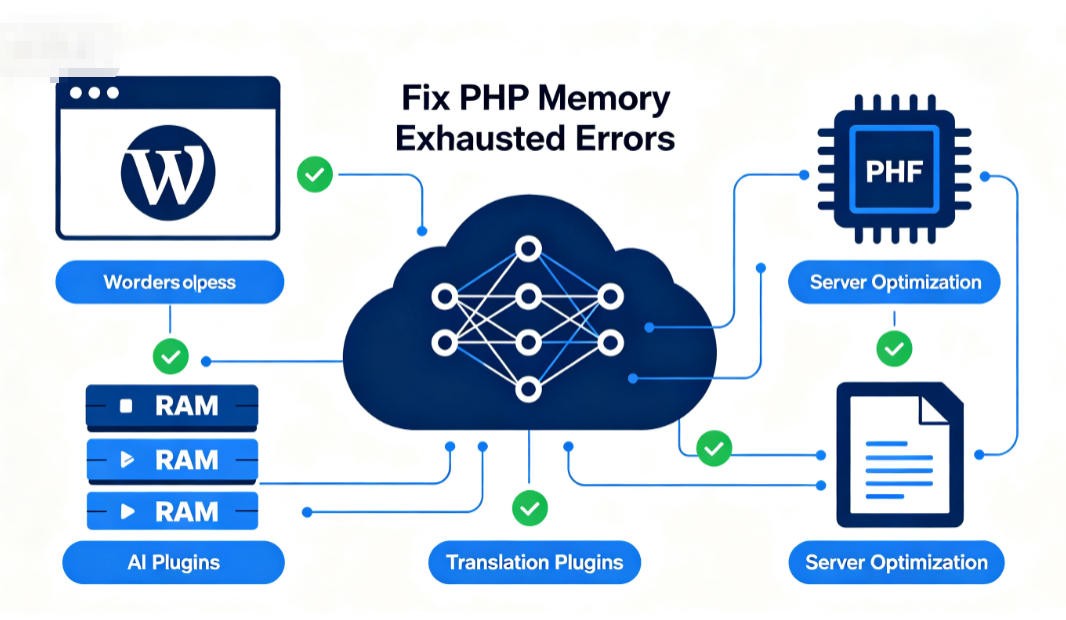
Step 1: Upgrade Server-Level PHP Limits + WordPress Memory Constants
Setting memory limits inside WordPress has no effect if your server’s core PHP configuration enforces a lower cap. You must first align server-level PHP limits, then configure WordPress correctly to use the available resources.
For aaPanel / CyberPanel / Custom VPS
- Log into your control panel dashboard and navigate to the App Store or Software Manager.
- Click Settings next to your active PHP version (e.g., PHP 8.2 or 8.3).
- Open the Configuration or
php.iniedit tab. - Update the following directives to these recommended production values:
ini
memory_limit = 1024M
max_execution_time = 300
max_input_time = 300
- Save the changes and click Restart to apply the new PHP configuration.
For cPanel (Shared / Reseller Hosting)
- Locate the Software section on your cPanel home screen.
- Click Select PHP Version and open the Options tab.
- Find
memory_limitand select1024Mfrom the dropdown menu. - Update
max_execution_timeto300andmax_input_timeto300. - Settings are saved automatically once you select a value or click outside the input field.
Critical WordPress-Side Configuration (Fixes "wp-config Changes Don’t Work")
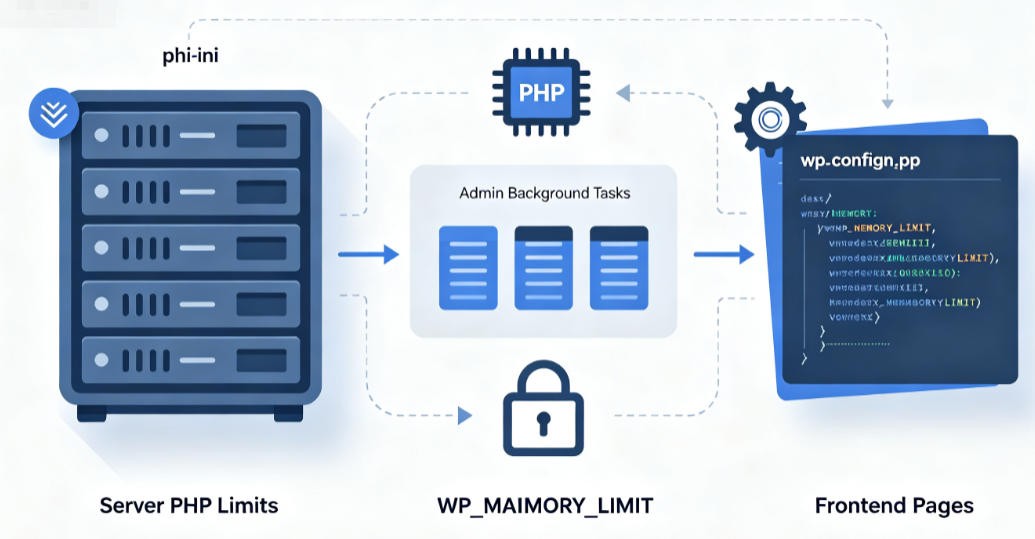
WordPress uses two separate memory constants, and most site owners only configure
WP_MEMORY_LIMIT, or set both incorrectly:WP_MEMORY_LIMIT: Applies only to front-end, visitor-facing pages.WP_MAX_MEMORY_LIMIT: Applies to the WordPress admin dashboard and background operations, where nearly all AI and translation plugins run.
To configure both correctly, add the following lines to your
wp-config.php file, above the /* That's all, stop editing! Happy publishing. */ line:php
/** Front-end memory limit */
define( 'WP_MEMORY_LIMIT', '256M' );
/** Admin/background memory limit (matches your server's PHP memory_limit) */
define( 'WP_MAX_MEMORY_LIMIT', '1024M' );
This ensures AI background tasks have access to the full memory allocation you configured at the server level.
Bonus: Enable OPcache for Reduced Memory Usage
OPcache is a built-in PHP caching engine (enabled by default in most PHP 7.0+ installations) that cuts memory usage and execution time by storing precompiled script bytecode. It is highly recommended for sites running heavy AI plugins:
- In your PHP settings, confirm the
opcacheextension is enabled. - Add these recommended OPcache values to your
php.ini(values are in seconds/MB):
ini
opcache.enable = 1
opcache.memory_consumption = 128
opcache.max_accelerated_files = 10000
opcache.revalidate_freq = 60
Step 2: Optimize PHP-FPM Process Pools to Avoid Resource Starvation
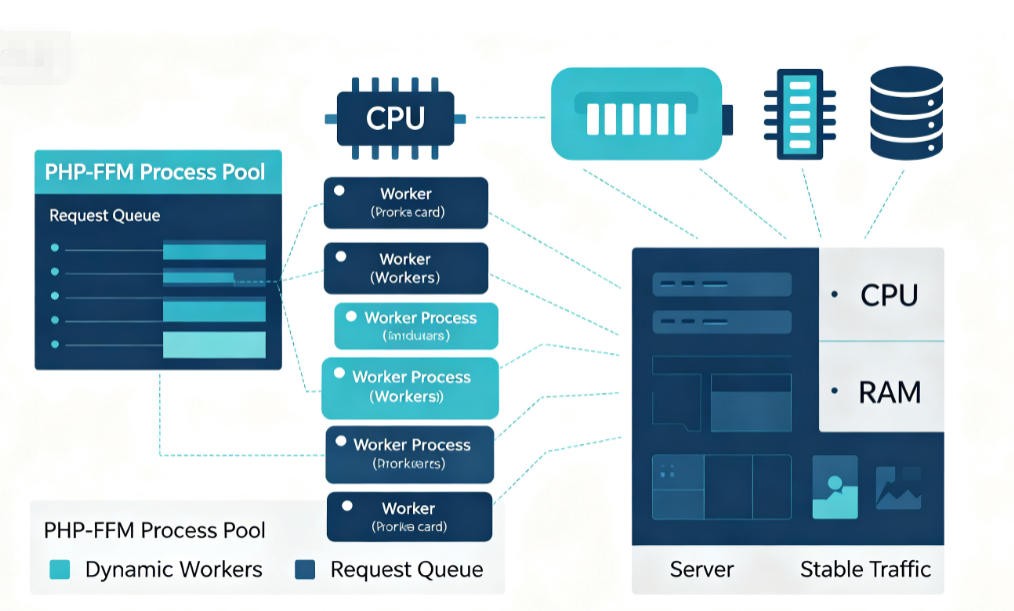
On VPS setups (such as aaPanel), simply raising memory limits can worsen crashes if your PHP-FPM process management is misconfigured. Too many concurrent AI tasks can exhaust all available workers, triggering cascading system errors.
How to Configure PHP-FPM (aaPanel Example)
- Open your PHP version’s settings window in aaPanel.
- Navigate to the FPM Configuration or Performance Optimization tab.
- Set the process manager mode from
statictodynamic(dynamic mode scales worker count based on demand, ideal for spiky AI workloads). - Adjust the process limits according to your server’s available RAM. A typical PHP-FPM process for WordPress uses 30–80MB of memory. To estimate a safe
max_childrenvalue, divide the RAM you allocate to PHP by the average per-process memory size, and leave 30–40% of total RAM free for the operating system, database, and web server.
Safe starting values for common server configurations:
| Server RAM | pm.max_children | pm.start_servers | pm.min_spare_servers | pm.max_spare_servers |
|---|---|---|---|---|
| 4 GB | 30 | 8 | 5 | 15 |
| 8 GB | 50 | 10 | 10 | 30 |
Full example configuration for an 8GB server, including memory leak protection:
ini
pm = dynamic
pm.max_children = 50
pm.start_servers = 10
pm.min_spare_servers = 10
pm.max_spare_servers = 30
pm.max_requests = 500
- Save the configuration and reload PHP-FPM. This setup allows your server to spin up extra worker processes to absorb spikes in AI automation without disrupting front-end visitor traffic.
Step 3: Offload Heavy AI Workloads to System-Level Cron
By default, WordPress uses WP-Cron — a virtual scheduler that triggers on every page load by visitors or bots. When AI plugins attach heavy API calls to WP-Cron, page loads slow down or crash entirely, as each visitor request can inadvertently trigger a resource-heavy background task.
To fix this, disable the built-in WP-Cron and offload all scheduled tasks to your server’s native system cron, which runs independently of visitor traffic.
Part A: Disable WP-Cron in WordPress
- Open your site’s root
wp-config.phpfile via your control panel’s File Manager. - Add the following line above the
/* That's all, stop editing! Happy publishing. */comment:
php
/** Disable default WP-Cron to offload AI tasks to system cron */
define( 'DISABLE_WP_CRON', true );
- Save and close the file.
Part B: Create a System Cron Job
Next, configure your server to run WordPress cron tasks every 5 minutes. You can choose between two trigger methods.
Method 1: Web request via wget or curl (full web context, compatible with all plugins)
For aaPanel
- Go to Cron > Add Cron Job.
- Set Type to Shell Script.
- Set Execution Cycle to Every 5 Minutes.
- Paste one of the commands below, replacing
shturl.cc/xtlHe1USoeoVwith your actual site URL:
bash
wget -q -O - shturl.cc/xtlHe1USoeoV/wp-cron.php?doing_wp_cron > /dev/null 2>&1
If
wget is not available on your server, use curl instead:bash
curl -s shturl.cc/xtlHe1USoeoV/wp-cron.php?doing_wp_cron > /dev/null 2>&1
For cPanel
- Locate Cron Jobs under the Advanced tab.
- Under Common Settings, select Once Per 5 Minutes (
*/5 * * * *). - Paste the same
wgetorcurlcommand, adjusted for your domain.
Tip: If your server uses a self-signed certificate and you encounter SSL errors, add--no-check-certificateto the wget command, or-kto the curl command. Only use this for temporary debugging — never in production, as it disables SSL security validation.
Method 2: PHP CLI execution (more stable, no web server timeout limits)
CLI mode does not require the
?doing_wp_cron parameter, and avoids web server timeouts for long-running AI tasks. Replace the file path in the command with your site’s full root directory path:- aaPanel path example:
/www/wwwroot/your_site_directory/wp-cron.php - cPanel path example:
/home/username/public_html/wp-cron.php
bash
/usr/local/bin/php /full/path/to/wp-cron.php > /dev/null 2>&1
Important: First verify your PHP CLI binary path by runningwhich phpvia SSH. If the path differs from/usr/local/bin/php, adjust the command accordingly. Note that PHP CLI may load a separatephp.inifile — confirm its memory limit matches your web configuration to avoid hidden limits.
Note: Test both methods with your AI plugins. Most plugins work with CLI mode, but some rely on web-specific constants and require the wget/curl method to function correctly.
Step 4: Plugin-Level Optimizations to Reduce Memory Bloat
Server configuration addresses the symptoms; optimizing your AI/translation plugins reduces memory demand at the source:
- Limit concurrent batch operations: Set your plugin to process 1–2 items at a time instead of bulk processing dozens of posts simultaneously.
- Split large jobs: Break bulk translation or content generation jobs into smaller batches to avoid holding massive datasets in memory.
- Disable unused AI features: Turn off real-time content suggestions, auto-generated alt text, or other background AI triggers you do not actively use.
- Leverage plugin-specific cron controls: Many AI plugins include built-in settings to adjust task frequency and concurrency. Prioritize these settings before further increasing server-wide limits.
Post-Optimization Verification Checklist
After applying the changes above, confirm your configuration is working correctly with these checks:
-
Verify PHP limits in WordPress
Go to Tools > Site Health > Info > Server in your WordPress dashboard. Confirm that PHP Memory Limit shows
1024Mand Max Execution Time shows300. -
Monitor real-time resource usage
Run a batch AI generation or translation task while watching your control panel’s CPU and RAM graphs. Resource usage should remain stable, without spiking to 100% utilization and triggering crashes. For more granular data, use command-line tools like
htopon your VPS. -
Confirm system cron execution
Check your control panel’s cron execution logs after 10–15 minutes. Successful entries for the
wp-cron.phpcommand mean your AI tasks are now running safely in the background, completely decoupled from visitor page loads.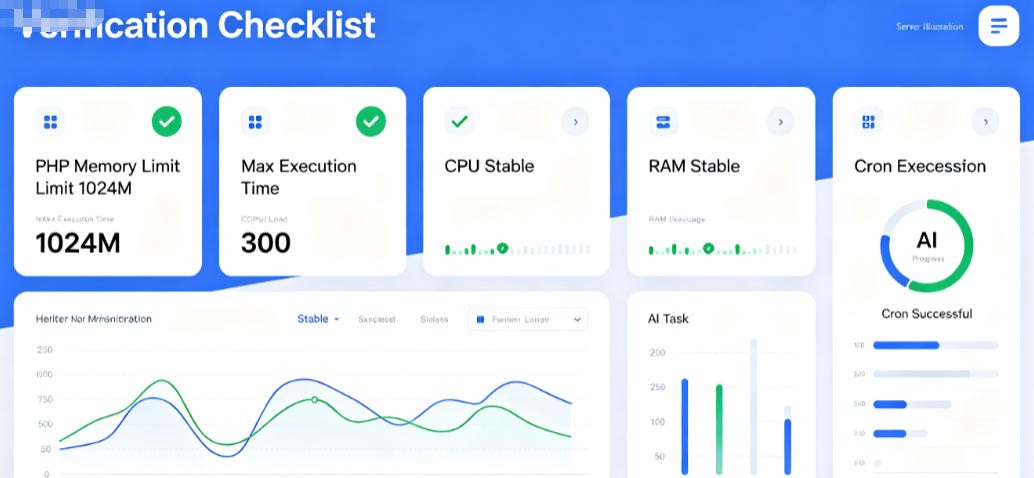
Final Note: Is Your Hosting Ready for Heavy AI Automation?
For sites running daily bulk AI operations or large-scale automated translation, a dedicated VPS with at least 4GB of RAM is the minimum requirement for reliable stability. For best performance, use PHP 8.1 or newer — PHP 7.4 has reached end-of-life, and newer versions offer significantly better memory efficiency and performance under heavy workloads.
If errors persist after optimization, locate your PHP error logs (available in your control panel) to identify exactly which plugin or process is consuming the most memory, then adjust your configuration or plugin settings accordingly.
How to Fix the WordPress White Screen of Death (WSoD): A 9-Step Troubleshooting Guide (2026)
Is your WordPress site showing a blank white screen? Don‘t panic. Our definitive 2026 guide explains 9 proven methods to diagnose & fix the White Screen of Death (WSoD) error step-by-step.
How to Fix WordPress “Updating Failed. Not Valid JSON Response” Error (2026)
{
"@context": "https://schema.org",
"@type": "HowTo",
"name": "How to Fix WordPre...