


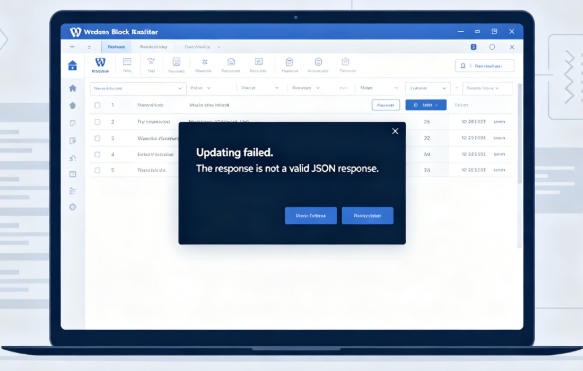
Few things are more frustrating than spending hours drafting a perfect post, clicking "Update," and being blocked by a cryptic inline error notice that reads: "Updating failed. The response is not a valid JSON response."
This error typically occurs when you are using the Gutenberg Block Editor, uploading images to the Media Library, or saving a page builder layout like Elementor.
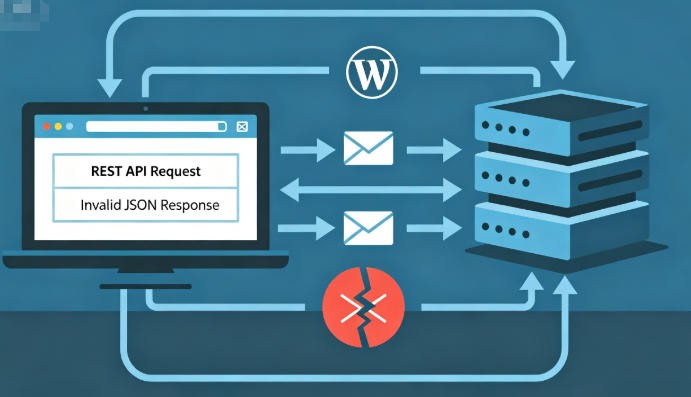
To put it simply, WordPress uses a background technology called the WordPress REST API to communicate between your browser and your server using a data format called JSON. If your server sends back broken data—or blocks the communication entirely—your browser gets confused and throws this exact error.
In this comprehensive technical guide, we will skip the generic, outdated advice and show you exactly how to diagnose and fix the root causes of the invalid JSON response error in 2026.
Quick Diagnosis: Locate the Broken Request
Before changing any settings, you need to see what your server is actually responding with.
-
Open the page or post where the JSON error occurs.
-
Right-click anywhere on the screen and select Inspect, then switch to the Network tab.
-
Attempt to save the post or upload the file again to trigger the error.
-
Look for a red request in the Network log (it will usually be named autosaves, posts, or revisions).
-
Click on that red request and select the Response tab.
If you see a series of PHP warnings from your host, a Cloudflare security page, or a 403 Forbidden message instead of valid JSON output, that text is what is breaking your JSON response. Match what you find to the steps below.
Step 1: Fix REST API Blockages from Cloudflare WAF (Most Common)
If you route your website traffic through Cloudflare, its Web Application Firewall (WAF) frequently flags Gutenberg block saves as a potential cyberattack because post drafts contain raw HTML code and script-like content.
How to fix Cloudflare blocking your JSON requests:
-
Log in to your Cloudflare Dashboard.
-
Navigate to Security → Events.
-
Look for a blocked or challenged event matching the timestamp of your WordPress error. The triggered rule will often be a Managed Rule related to XSS or SQL Injection.
-
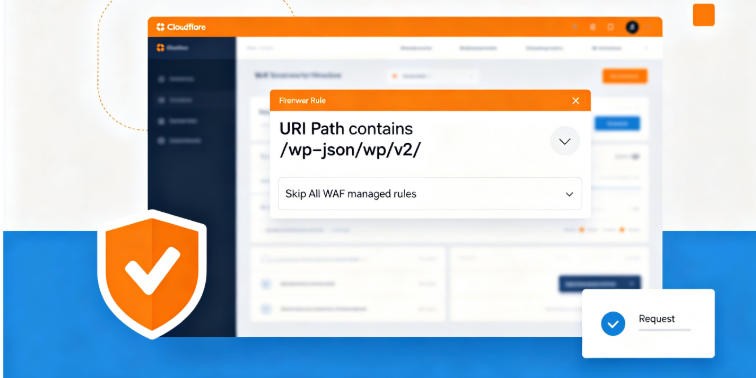
To fix this safely without disabling your firewall, go to Security → WAF → Custom Rules and click Create Rule.
-
Configure the rule as follows:
-
Field: URI Path
-
Operator: contains
-
Value: /wp-json/wp/v2/
-
Action: Skip → Check the box for All WAF managed rules.
-
-
Click Deploy. This ensures WordPress can securely update posts without Cloudflare interfering.
Step 2: Resolve Mixed Content & SSL Certificate Mismatches
If your website URL settings do not perfectly align with your SSL certificate setup, your site will attempt to load secure API requests over an insecure connection, resulting in a fatal mixed content block.
1. Match Your Site Addresses
Go to your WordPress Dashboard and navigate to Settings → General. Look closely at these two fields:
-
WordPress Address (URL)
-
Site Address (URL)
Ensure both URLs are identical and strictly start with https:// instead of http://. If they are grayed out, you will need to open your wp-config.php file via FTP and update the lines manually:
define('WP_HOME', 'https://yourdomain.com');
define('WP_SITEURL', 'https://yourdomain.com');
Use this code with caution.
2. Fix Cloudflare SSL Encryption Mode
If your site URLs use https but your Cloudflare encryption mode is set to "Flexible," the server will fall into a redirect loop that corrupts JSON responses.
Go to your Cloudflare Dashboard → SSL/TLS → Overview, and change the encryption mode from Flexible to Full or Full (Strict).
Step 3: Deactivate REST API Restrictions in Security Plugins
Overly restrictive security plugins often block the WordPress REST API to anonymous users or external applications to prevent user enumeration attacks. However, this frequently breaks core WordPress functionality.
If you are using security plugins like Wordfence, or Solid Security (formerly iThemes Security), check for these specific options:
-
Wordfence: Go to All Options → Advanced Firewall Options and ensure the firewall is set to Learning Mode if you are building complex pages, or look at the Tools → Live Traffic log to whitelist your own IP address when a block occurs.
-
Solid Security: Navigate to Settings → Advanced → WordPress REST API and ensure access is set to Default Access or allowed for authenticated users.
Step 4: Flush Damaged Permalink Rewrite Rules
Sometimes, the internal .htaccess rewrite rules that control your clean URL structures get corrupted during plugin or core updates. This breaks the routing for all requests sent to the /wp-json/ API endpoint.
Fixing this takes less than 10 seconds:
-
Navigate to Settings → Permalinks in your WordPress dashboard.
-
Do not change any settings or selections on the page.
-
Scroll straight to the bottom and click Save Changes.
This forces WordPress to completely delete and rebuild your site’s rewrite configuration, instantly fixing the vast majority of hidden 404 REST API errors.
Step 5: Check for PHP Errors and Site Health Issues
If the console network response reveals a 500 Internal Server Error, your site is suffering from a server-side crash caused by an exhausted PHP memory limit or a plugin conflict.
1. Increase Your PHP Memory Limit
Gutenberg and modern page builders require substantial breathing room to assemble JSON payloads. Open your .htaccess file and add this line near the top:
php_value memory_limit 512M
Use this code with caution.
(Alternatively, edit your wp-config.php file and add define('WP_MEMORY_LIMIT', '512M');)
2. Run a Site Health Check
Go to Tools → Site Health. Look for critical warnings under the status report. WordPress explicitly tests your API health here. If it says "The REST API encountered an unexpected result," it will print the exact PHP error string causing the issue, pinpointing the specific plugin you need to deactivate.
Summary: A Bulletproof Backend Prevents Front-End Errors
"The response is not a valid JSON response" error is a classic symptom of an interrupted backend data stream. Whether caused by over-aggressive firewalls, misconfigured SSL certificates, or restrictive hosting environments, keeping your API endpoints unobstructed is essential for a modern, functional site.
If you find yourself repeatedly adjusting file limits and constantly troubleshooting server timeouts during data saves, your standard web hosting environment is simply choking on dynamic JavaScript operations.
For reliable production sites, we highly recommend upgrading to a modern hosting infrastructure. Platforms like Hostinger Managed Cloud Hosting or Cloudways High-Performance VPS utilize optimized LiteSpeed or Nginx servers out-of-the-box. These setups are pre-configured to handle complex WordPress REST API payloads seamlessly, completely eliminating JSON communication bottlenecks before they ever happen.
Did this guide help you clear that annoying JSON block? Let us know in the comments below which security setting or rule was blocking your editor!