

Comments38Characters 1804Views6min0sRead

Few things disrupt a modern webmaster’s workflow more than watching your WordPress site spiral into a 508 Resource Limit Is Reached or 503 Service Unavailable outage — all while your analytics dashboard shows near-zero legitimate human visitor traffic.
For WordPress sites on Virtual Private Servers (VPS) or shared hosting (such as cPanel/CloudLinux setups), unexplained server resource spikes in 2026 are rarely driven by organic visitor growth. The top culprit is aggressive AI web scrapers, LLM training bots, and rogue AI agents flooding sites with massive concurrent requests.
Rogue AI Crawlers → High Concurrent Requests → CPU / Entry Processes Maxed Out → WordPress 508 / 503 Error
This guide provides a comprehensive, code-level blueprint to diagnose, block, and mitigate AI-driven server overload — no premium security subscriptions required.
The 2026 Reality: Why Basic Robots.txt Alone Fails
Historically, webmasters relied on a standard robots.txt file to manage crawler behavior. This approach falls short against modern AI scraping infrastructure for two core reasons:
-
Unnecessary Server Overhead
Even for compliant bots that check your robots.txt, if your site serves a dynamically generated robots.txt via WordPress (no static file in your root directory), serving the file triggers PHP execution and database calls that consume valuable CPU cycles. If hundreds of AI bots hit your server simultaneously, just serving robots.txt or a default 403 page via WordPress can be enough to trigger a 508 resource limit error.
To protect your server from overload, you need to drop unwanted traffic at the network edge or via lightweight server config files — before it ever reaches the WordPress application layer.
Optional Low-Effort Add-On: For compliant crawlers, robots.txt still serves as a free first line of defense. Add the following lines to your site’s root robots.txt file to formally disallow the most common AI training bots:User-agent: GPTBot Disallow: / User-agent: ClaudeBot Disallow: / User-agent: Google-Extended Disallow: / User-agent: Amazonbot Disallow: / User-agent: Bytespider Disallow: /
Step 1: Diagnose the Culprits Using Server Log Forensics
Before applying any block rules, you first need to identify exactly which AI bots are draining your CloudLinux LVE resources, entry processes, or CPU limits.
Method A: Inspect Raw Access Logs via cPanel
- Log into your hosting dashboard and open the Raw Access Logs tool.
- Download and extract the current access log file for your domain.
- Search for repeated patterns in the
User-Agentfield. Common high-volume 2026 AI scraping signatures include:- Amazonbot / PerplexityBot
- ClaudeBot / GPTBot / OAI-SearchBot
- cohere-ai / Meta-ExternalAgent
- Bytespider (TikTok/ByteDance AI)
Method B: Real-Time Terminal Tracking (VPS / SSH Users)
If you have SSH access to your server, run the command below to see the top 20 most frequent User-Agents hitting your site in real time. This works for standard combined-format access logs (Apache, Nginx, LiteSpeed default):
awk -F\" '{print $6}' /var/log/apache2/access.log | sort | uniq -c | sort -n | tail -20
Note: Replace the log path to match your server setup. Standard paths include:
- Nginx default:
/var/log/nginx/access.log- Custom server panels:
/www/wwwlogs/yourdomain.com.log
Step 2: Implement Edge-Level Defense via Cloudflare (0% Origin CPU Impact)
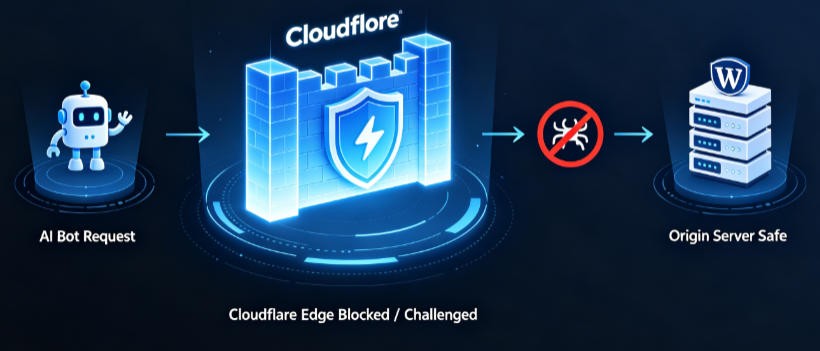
Intercepting AI bots at the DNS edge layer is the most efficient mitigation strategy. When you block traffic at Cloudflare, your origin server never processes unwanted requests at all.
AI Bot Request → | Cloudflare Edge (Blocked / Challenged) | → ✗ → Your WordPress Server (Unaffected)
Action Plan: Configure Cloudflare WAF Custom Rules
- Log into your Cloudflare Dashboard and select your domain.
- Navigate to Security > WAF > Custom Rules and click Create Rule.
- Name your rule:
Block Aggressive AI Scrapers. - For simple setup, use the visual builder: select User Agent as the Field, set the operator to Contains, and enter your target bot name (e.g.,
Bytespider). Click OR to add multiple bots to the same rule.
For faster deployment, switch to the Expression Editor and paste the pre-built production rule below. The rule uses case-insensitive matching to cover all UA capitalization variants, and targets dedicated LLM training and data-harvesting bots; it intentionally excludes AI search crawlers to preserve search visibility (see Pro Tip at the end).
(lower(http.user_agent) contains "bytespider") or
(lower(http.user_agent) contains "gptbot") or
(lower(http.user_agent) contains "claudebot") or
(lower(http.user_agent) contains "amazonbot") or
(lower(http.user_agent) contains "meta-externalagent") or
(lower(http.user_agent) contains "cohere-ai") or
(lower(http.user_agent) contains "google-extended")
If you are willing to sacrifice AI search traffic: add the following lines to also block ChatGPT Search and Perplexity crawlers:(lower(http.user_agent) contains "oai-searchbot") or (lower(http.user_agent) contains "perplexitybot")
- Under Choose Action, select Managed Challenge (Recommended) or Block.
- Managed Challenge: Balances security and accessibility. If a legitimate visitor is misidentified, they can complete a quick turnstile challenge to access your site, while automated scrapers are automatically rejected.
- Block: Use for confirmed malicious scrapers to reject all requests immediately.
- Click Deploy to activate the rule.
Extra free layer (available on all Cloudflare plans): Enable Bot Fight Mode under Security > Bots. This automatically challenges known bad bots with zero manual configuration, further reducing load on your origin server.

Step 3: Server-Level Hardening via Web Configuration Files
If your site does not use Cloudflare, implement blocking rules directly in your web server configuration files. These rules execute long before WordPress initializes via the
wp-settings.php bootstrap process, consuming minimal server resources.For Apache / LiteSpeed Servers (.htaccess)
Locate the
.htaccess file in your WordPress root directory (typically public_html). Add the following code at the very top of the file, before the default WordPress # BEGIN WordPress section, to ensure it runs first:<IfModule mod_rewrite.c>
RewriteEngine On
# Case-insensitive block for high-volume training & data-harvesting AI scrapers
# Google-Extended is a training-only bot (safe to block). To preserve AI search visibility,
# do NOT add OAI-SearchBot / PerplexityBot here. Add them manually if you wish to block AI search crawlers.
RewriteCond %{HTTP_USER_AGENT} (Bytespider|GPTBot|ClaudeBot|Amazonbot|Meta-ExternalAgent|cohere-ai|Google-Extended) [NC]
# Return instant 403 Forbidden without loading PHP or WordPress
RewriteRule .* - [F]
</IfModule>
For Nginx Servers
Recommended: Global map Directive (Lowest Overhead)
This approach runs at the global HTTP layer, with lower runtime overhead than inline server-block checks. Add the
map block inside your main nginx.conf http {} section (outside any individual server block), then add the check inside your site’s server block:# Inside the global http {} block
map $http_user_agent $block_ai_scraper {
default 0;
# Training & data-harvesting bots — add OAI-SearchBot / PerplexityBot if you want to block AI search crawlers
~*(Bytespider|GPTBot|ClaudeBot|Amazonbot|Meta-ExternalAgent|cohere-ai|Google-Extended) 1;
}
# Inside your site's server {} block
server {
# ... your existing domain config ...
if ($block_ai_scraper) {
return 403;
}
}
Alternative: Inline Server Block Check (For Shared Hosting / Limited Access)
If you cannot edit the global
http block (common on cPanel, aaPanel or shared hosting), insert this directly inside your site’s server {} block:if ($http_user_agent ~* (Bytespider|GPTBot|ClaudeBot|Amazonbot|Meta-ExternalAgent|cohere-ai|Google-Extended)) {
return 403;
}
After saving the file, validate your config and reload Nginx to apply changes safely:
Step 4: Application-Layer Bot Mitigation via WordPress Core
As a final line of defense against distributed crawlers that use randomized or spoofed User-Agent strings, add lightweight runtime checks directly in your WordPress configuration.
First, ensure you save
wp-config.php as UTF-8 without BOM to prevent premature output (headers already sent) errors. Then paste the snippet below directly after the existing opening <?php tag at the very top of the file. This code runs before WordPress connects to the database, keeping overhead extremely low:/**
* Lightweight application-layer block for generic automated scrapers
* Runs before database initialization to minimize resource usage
*/
$user_agent = isset($_SERVER['HTTP_USER_AGENT']) ? strtolower($_SERVER['HTTP_USER_AGENT']) : '';
// Block common headless browsers and scraping frameworks
if (
strpos($user_agent, 'headless') !== false ||
strpos($user_agent, 'python-requests') !== false ||
strpos($user_agent, 'scrape') !== false ||
strpos($user_agent, 'curl/') !== false
) {
header('HTTP/1.1 403 Forbidden');
header('Retry-After: 86400');
exit('Automated access denied per site security policy.');
}
Emergency Recovery Checklist for Live 508 Outages
If your site is currently stuck in a 508 resource limit crash loop, follow this high-priority sequence to restore service fast:
| Step | Action Item | Target Location | System Impact |
|---|---|---|---|
| 1 | Terminate hanging PHP processes | cPanel > Process Manager (or LVE Manager) | Immediate service recovery |
| 2 | Block traffic at the edge | Deploy Cloudflare WAF rules & Bot Fight Mode | 0% origin CPU usage for blocked bots |
| 3 | Add server-level UA blocks | Patch .htaccess or nginx.conf |
Low-level request dropping before WordPress loads |
| 4 | Clean up orphaned cron tasks | Remove stale cron entries in the wp_options database table |
Reduces database bloat from accumulated bot-triggered pseudo-cron jobs |
By enforcing edge-level containment and blocking unvetted automated traffic before it consumes system resources, you can maintain stable performance for real human visitors while preserving server and database stability.
Pro Tip: Preserve AI Search Indexing While Blocking Training Scrapers
If your traffic or monetization strategy relies on visibility in AI Overviews and Search Generative Experiences (SGE), avoid blocking crawlers that power AI search results.
Key crawler distinctions for 2026:
- Pure training crawlers (safe to block, no SEO impact): GPTBot, ClaudeBot, Google-Extended, Amazonbot, Meta-ExternalAgent, cohere-ai — these only scrape content to train LLMs, and do not affect your standard search rankings or AI search placement.
- AI search crawlers (block with caution): OAI-SearchBot (ChatGPT Search), PerplexityBot, GoogleOther, BingPreview — these power AI answer features in search results. Blocking them will remove your site from AI overview placements.
For most sites, we recommend blocking only dedicated training and data-harvesting bots, while leaving search-related crawlers unblocked to preserve traffic potential. If you decide you do not need AI search visibility, you can safely add
OAI-SearchBot and PerplexityBot (and optionally GoogleOther, BingPreview) to all block lists in Steps 2–3.Bonus: Verify Your Block Rules Are Working
To confirm your blocks are active, use
curl to simulate a request from a blocked bot’s User-Agent. Run this command in your terminal, replacing yourdomain.com with your site URL:curl -I -A "GPTBot" https://yourdomain.com
If the rule is working correctly, you will see a
403 Forbidden response code, rather than a 200 OK.If your site blocks HEAD requests, use this full GET request test instead:curl -s -o /dev/null -w "%{http_code}" -A "GPTBot" https://yourdomain.com
WordPress Database Update Error: “No Update Required” – Complete 2026 Troubleshooting Guide
The Persistent "No Update Required" Error and Its Impact
When WordPress displays the message "No up...
How to Enable Gzip Compression in WordPress (4 Methods) – Boost Speed 50% Without Upgrading Your Server (2026)
AI Summary
Core Problem
WordPress sites suffer from slow load times, poor Core Web...